Everything Mojiya does
A Japanese course, a dictionary, and a reader for everything you already read and watch: books, videos, YouTube, podcasts, web pages. Look up any word you meet, then keep it for review. On Android, iOS and the web, and as a browser extension.
At a glance
- A course from kana to N1-equivalent 182 kana, 2,136 kanji, 9,460 words, 693 grammar points, a lesson at a time.
- Reviews on an FSRS-6 schedule Each card returns as you are about to forget it.
- A dictionary that works offline All of JMdict, searched in Japanese, romaji or English, or by drawing.
- Audio for every word Every dictionary word in two voices, and 14,343 example sentences.
- Your own books and manga EPUB, PDF, or a ZIP or RAR of pages; tap any word.
- Your own videos with subtitles Stop at each line, replay it, look up any word.
- Podcasts Follow a show; every episode gets a transcript you can tap.
- YouTube as text Japanese captions as a line you can read and look up.
- Browse any website A browser built in; hold a word on any page.
- Look up from any app Select text anywhere and choose Look up in Mojiya.
- Words to Anki With the reading, meanings and the sentence it came from.
- Bring your progress Move in from Anki, WaniKani or Renshuu without starting over.
- A browser extension Look up on any page, and in YouTube and Netflix subtitles.
- No ads, no trackers Lessons and tools work offline in the apps.
- Progress on every device Sign in with Apple or Google and your study follows you; no account is needed to start.
- Your library on every device Books and films through your own Google Drive or iCloud.
Reference: Formats Platforms Under the hood Sources FAQ
Screens
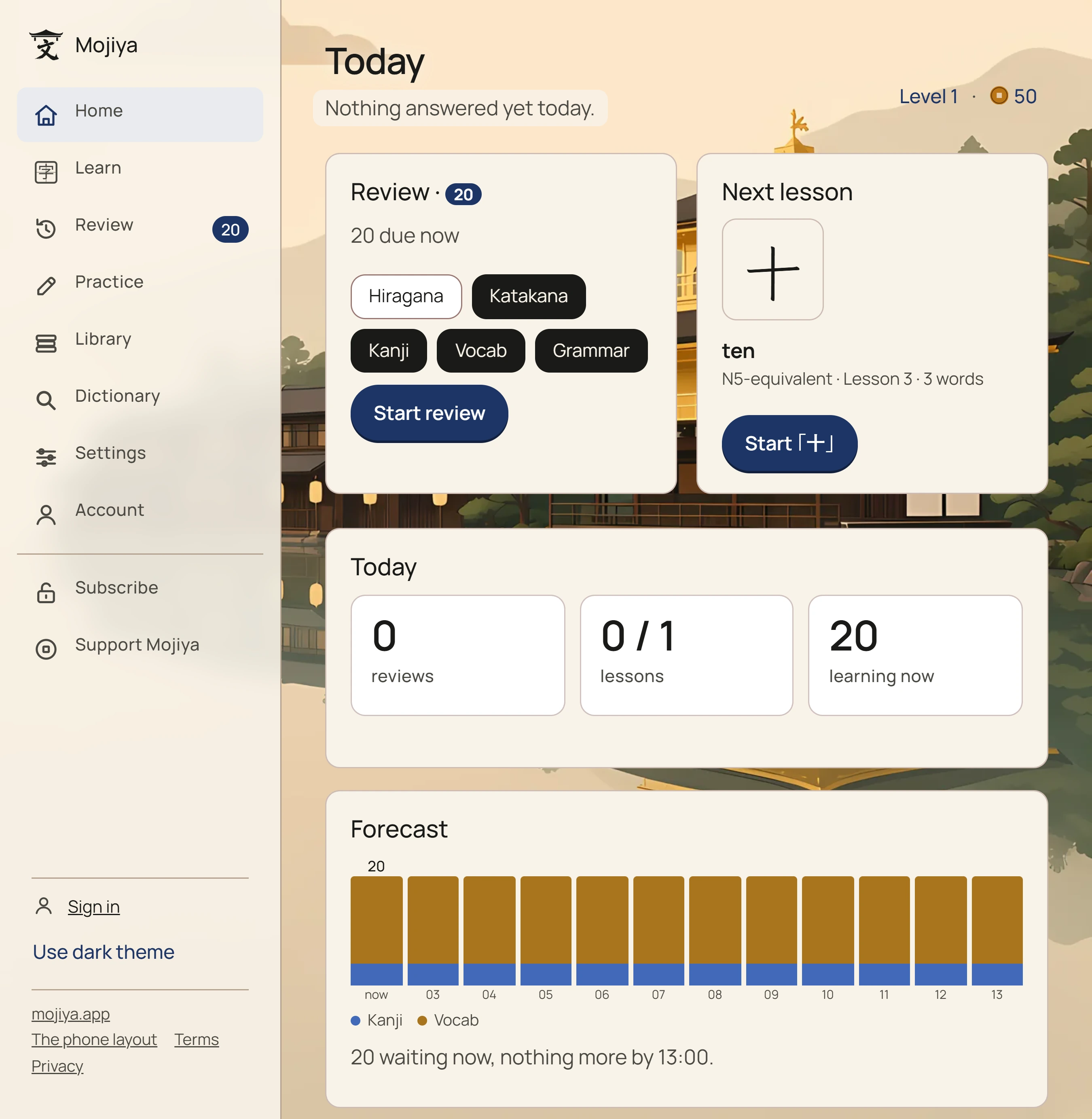
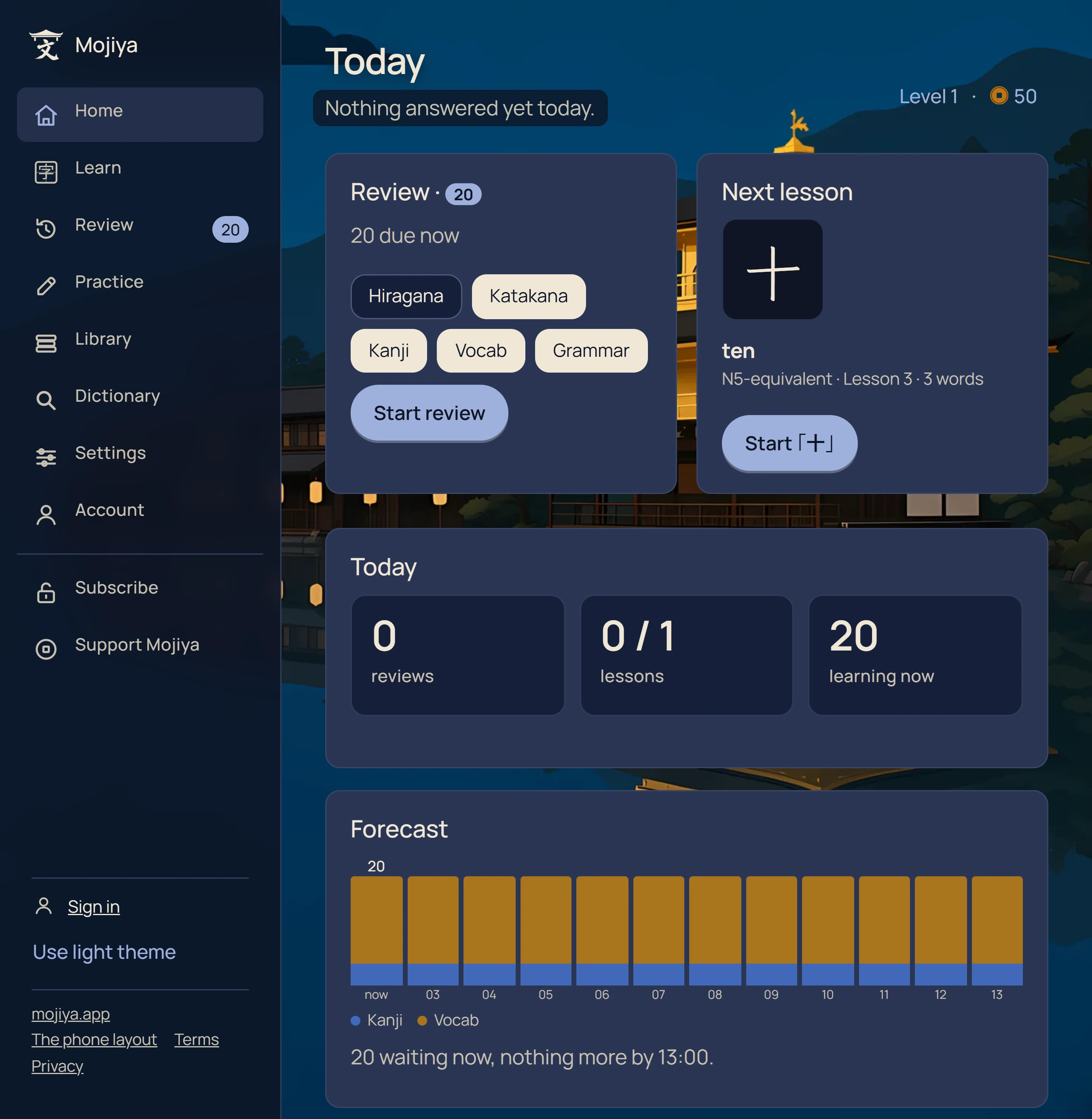
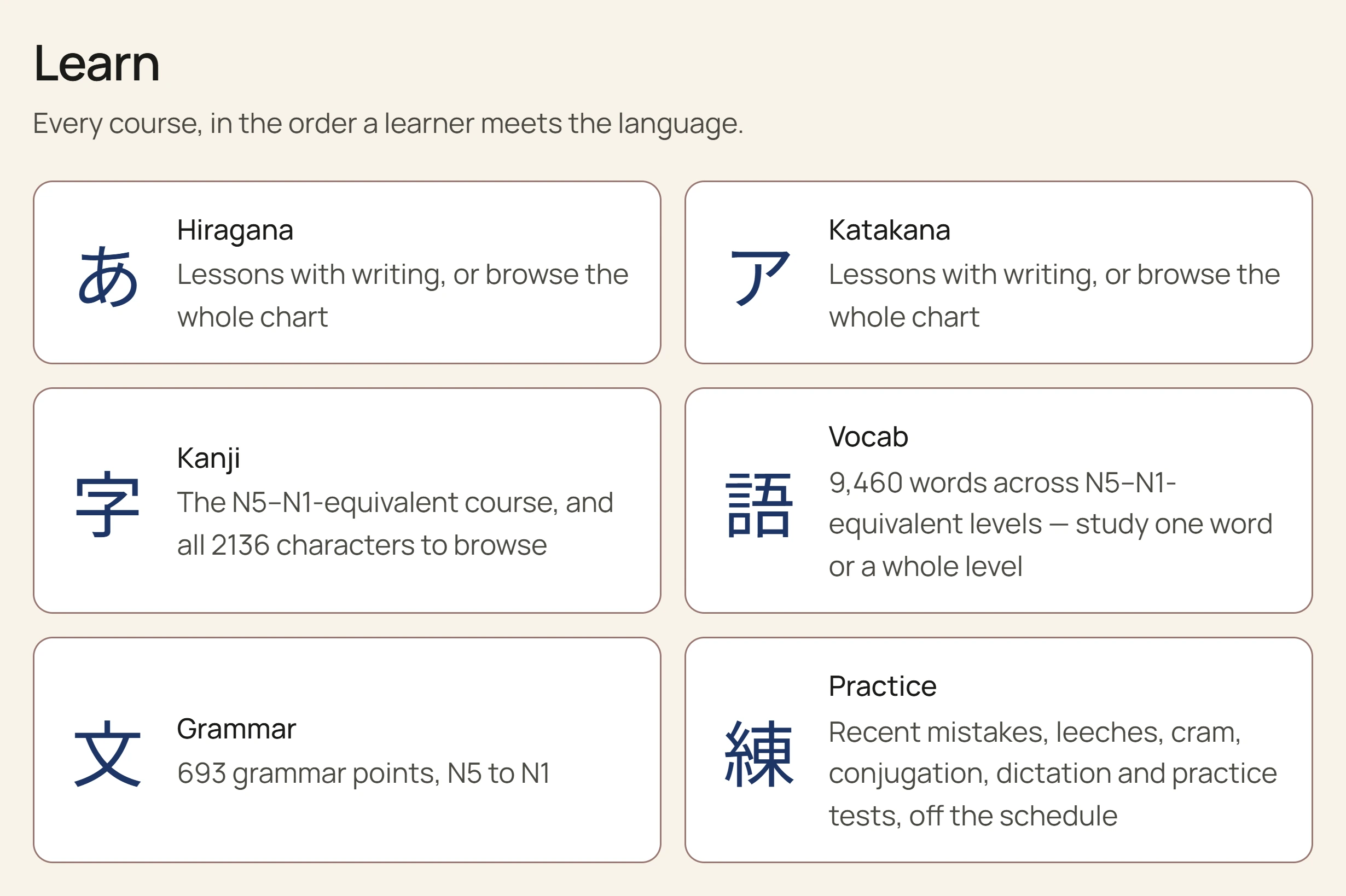
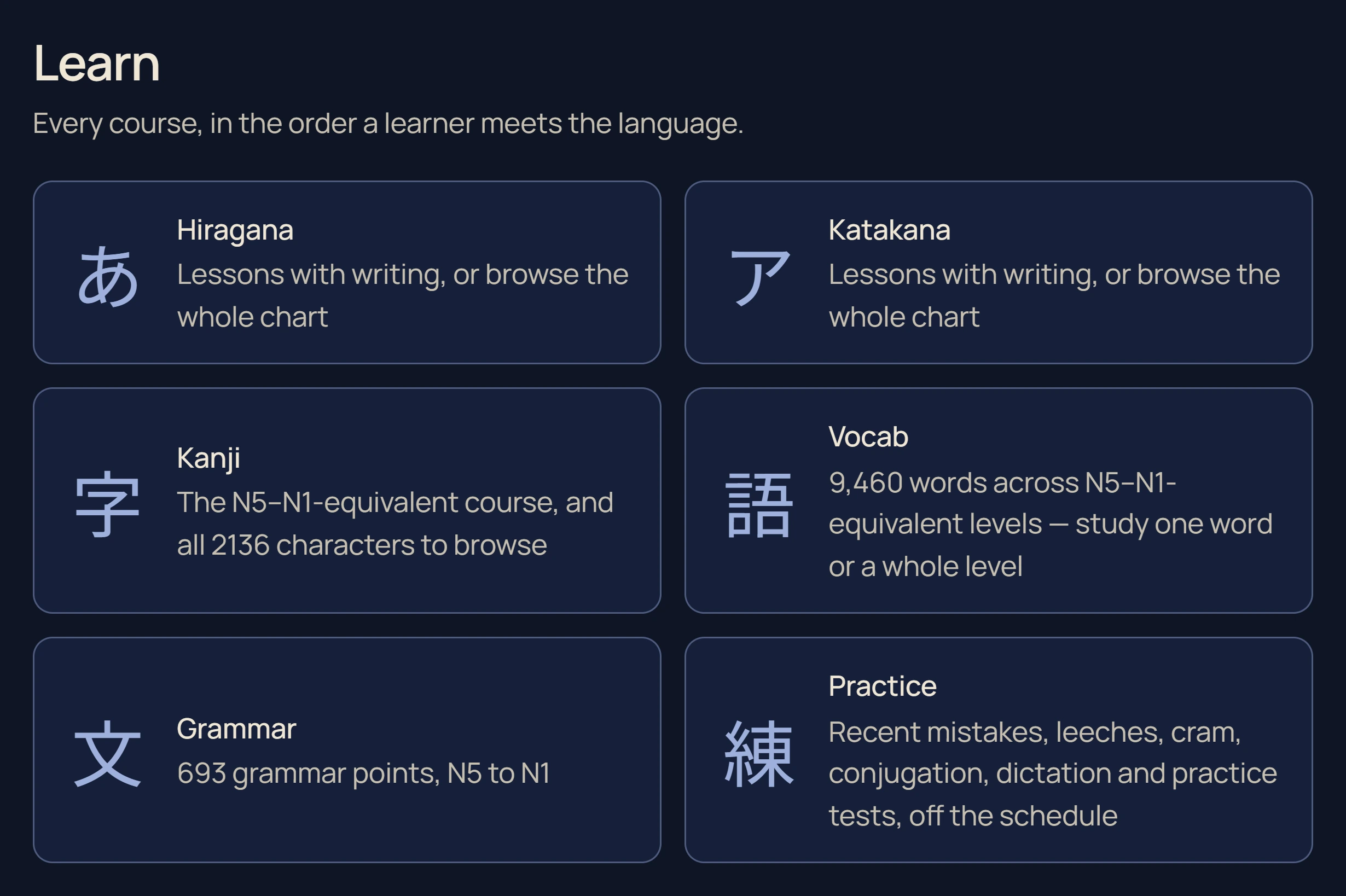
The course and its reviews
The course runs from the kana through N1-equivalent kanji, vocabulary and grammar: 34 kana lessons, 2,136 kanji lessons and 693 grammar lessons, with 9,460 words taught alongside the kanji they use and studied as a vocabulary track of their own, N5 to N1, most-used first. Each band is our own mapping to the JLPT levels, not an official list.
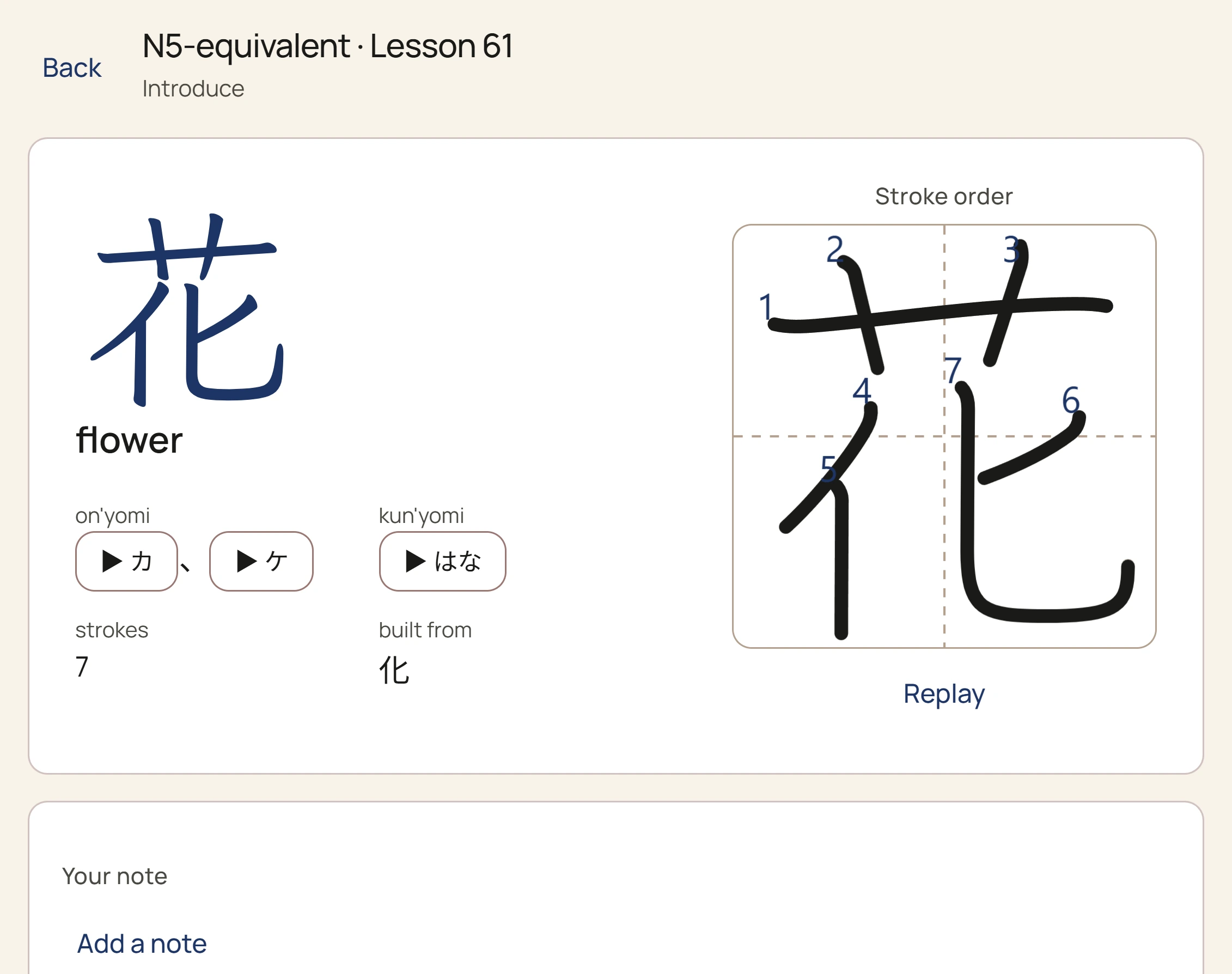
- Lessons. A kanji is taught with its readings, its parts and its strokes in order, then met again in the words that use it. The lesson's kanji are drawn in a textbook face, and words and example sentences are voiced. A lesson left part way through is offered again on Home, marked In progress in its level, and asks only the cards not yet answered when you come back. A card answered before you switch tabs, or before the app is closed, keeps its answer.
- Next lesson. Home shows the next lesson beside what is due.
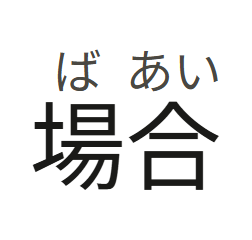
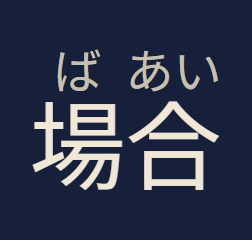
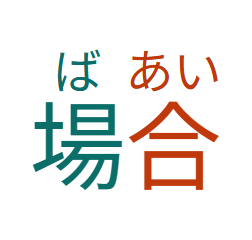
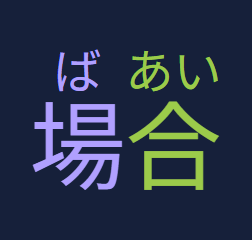
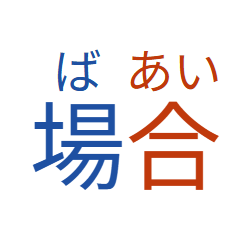
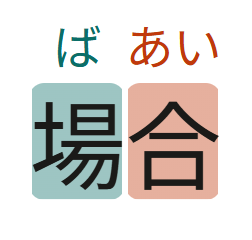
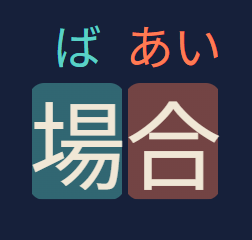
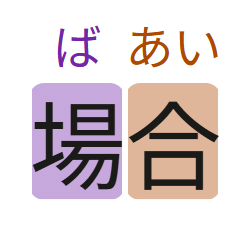
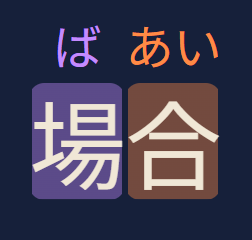
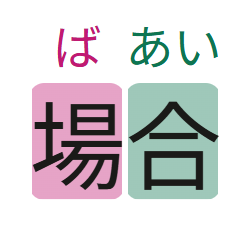
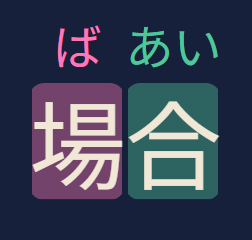
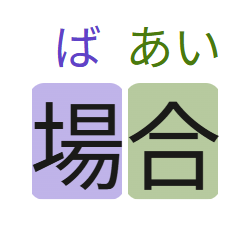
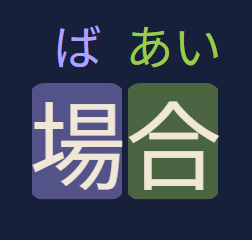
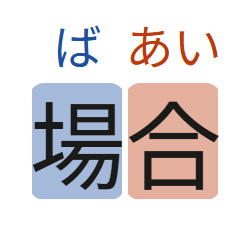
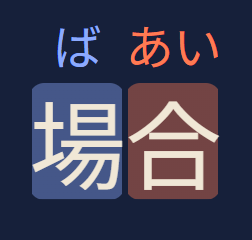
- Word colours. When a lesson teaches a word, each kanji's share of its reading can be tinted, so in 場合 you see that ば belongs to 場 and あい to 合.
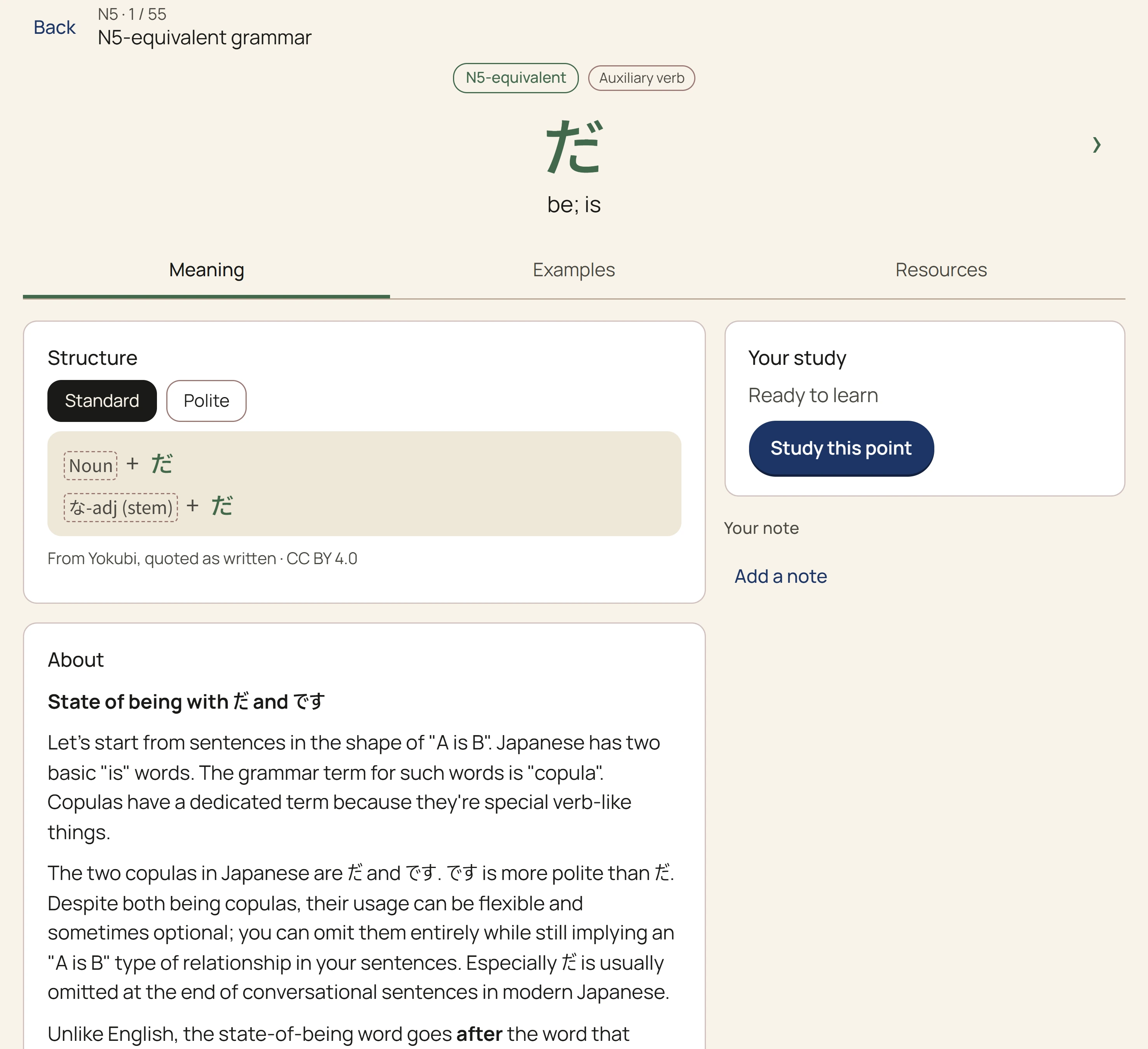
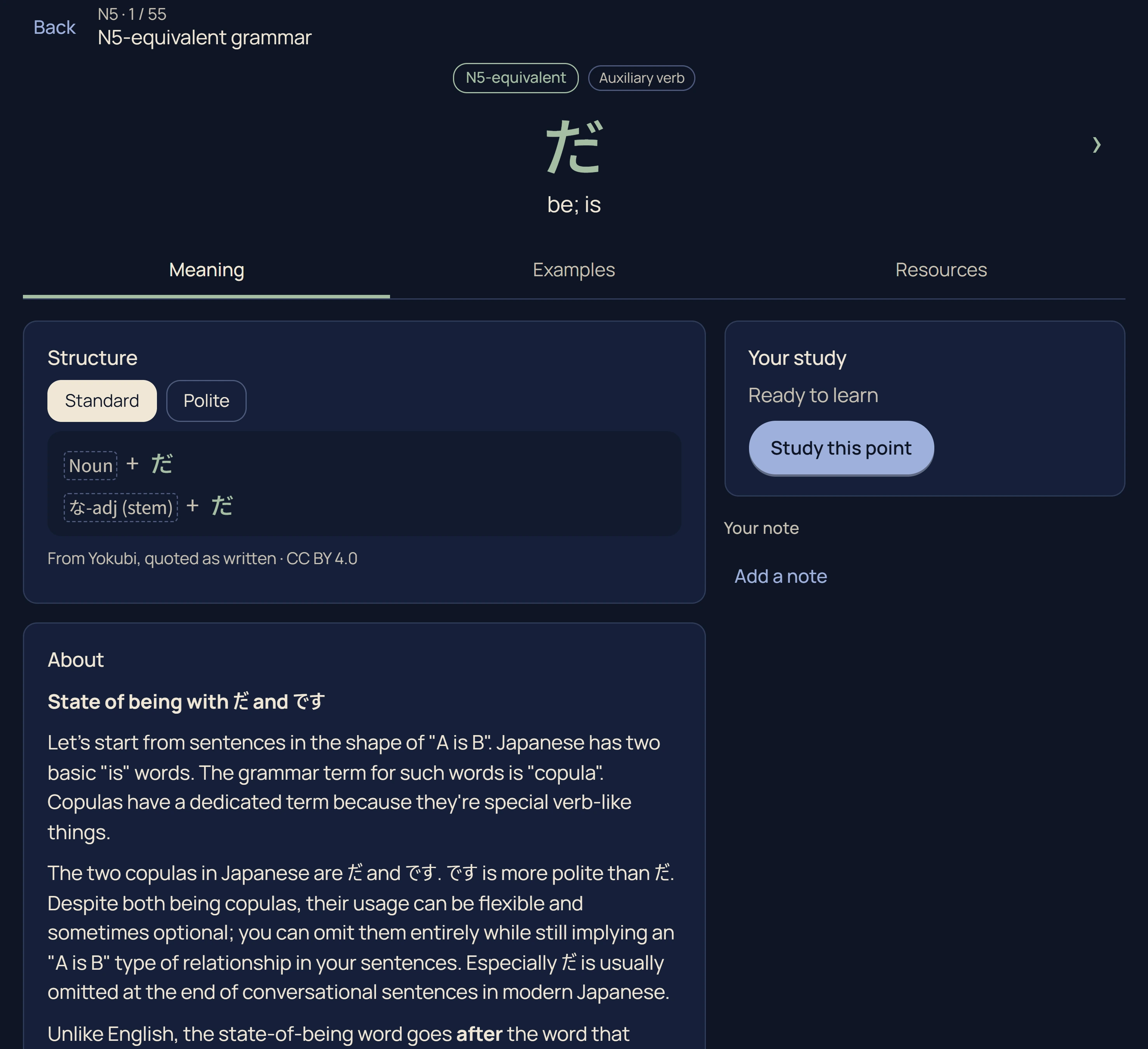
- Grammar. 693 points from N5 to N1, each with its structure in standard or polite form, a written explanation, an example sentence whose words you can tap, and, for most, links to outside lessons.
- Each level is a list in its own colour, and a point’s page steps on to the next.
- Search every point by form, reading or meaning, study the next five of a level, or quiz a single point.
- Vocabulary. Each level lists its words, most-used first. Study takes 5, 10, 20, 50 or all of the words you have not studied yet, in order or shuffled, and each word opens at its top.
- Reviews. Each card comes back on an FSRS-6 schedule, when you are about to forget it. Readings and grammar are typed into a blanked sentence, meanings are picked, and words and kanji are built from tiles or, if you switch it on, written by hand and graded against real stroke data.
- Your own words, studied here. Any word you look up, in a book, a video, a web page or the dictionary, goes on your study list with Learn, as well as to Anki. Learn opens nothing, and its notice has Study now and Undo. The list sits on the Learn tab, and Home shows how many words are on it: study ten at a time, or remove a word you added by mistake.
- Type it your way. Typed answers take romaji, kana or kanji.
- Every keyboard on the device reaches the answer box, the Japanese ones included, so a word can be typed in romaji or picked as kanji from the keyboard’s own list. A tap on the card away from the box puts the keyboard down.
- A one-letter slip is forgiven, and another form of the right word asks you to try again rather than marking you wrong.
- A grammar form can be typed in kana (あとで for 後で), and another construction that also fits the blank asks you for the one the lesson teaches.
- A particle typed as it is said, わ for は, え for へ or お for を, asks for it as it is written.
- A summary after each session: every card, which way it was asked, and the XP and mon it earned.
- A rank you can watch. Each answer shows the card's rank moving, from New and Learning through Beginner, Adept, Seasoned and Expert to Master, and back to Relearning when a card is forgotten. A mis-tap can be taken back, and on phones each answer can vibrate.
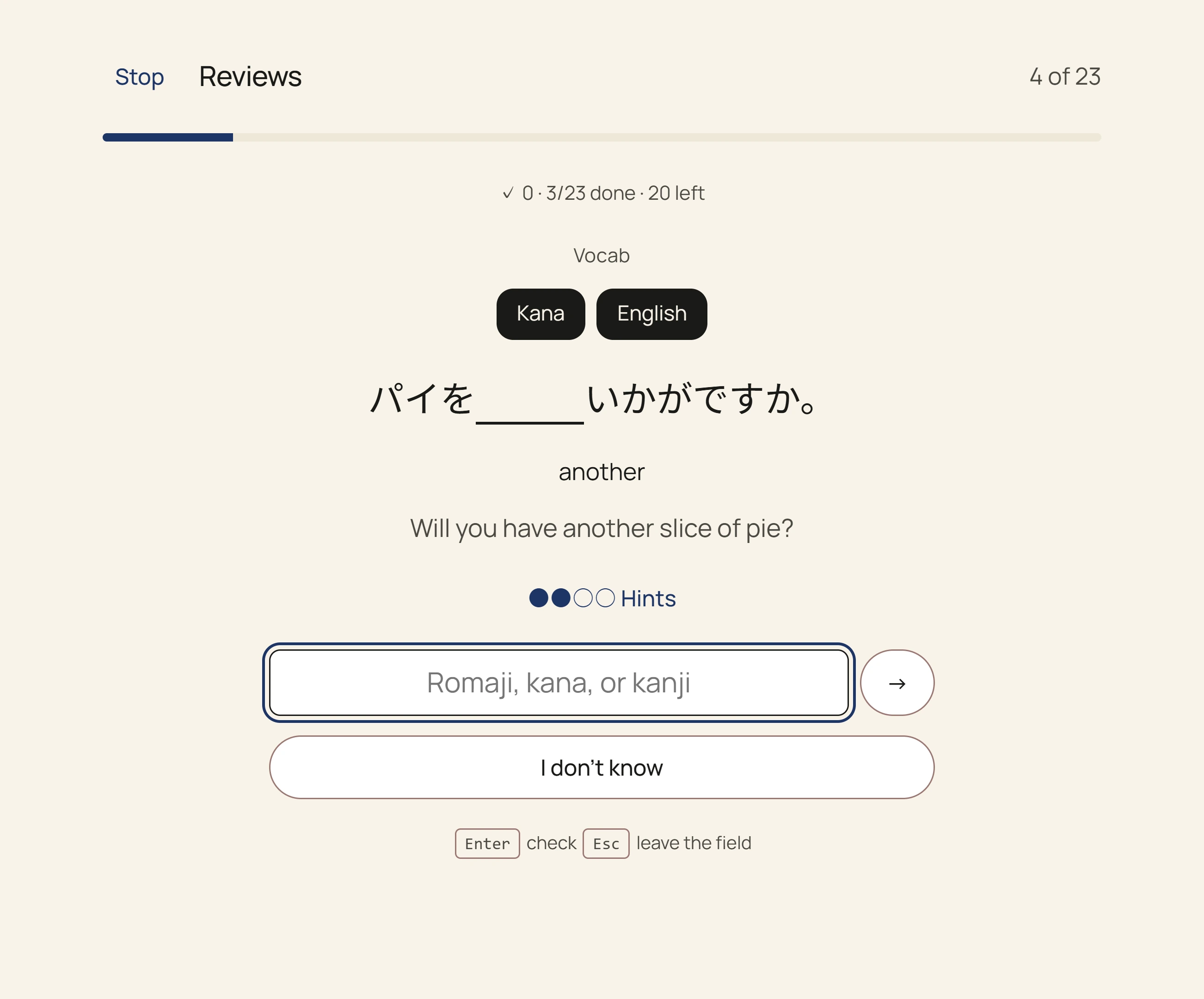
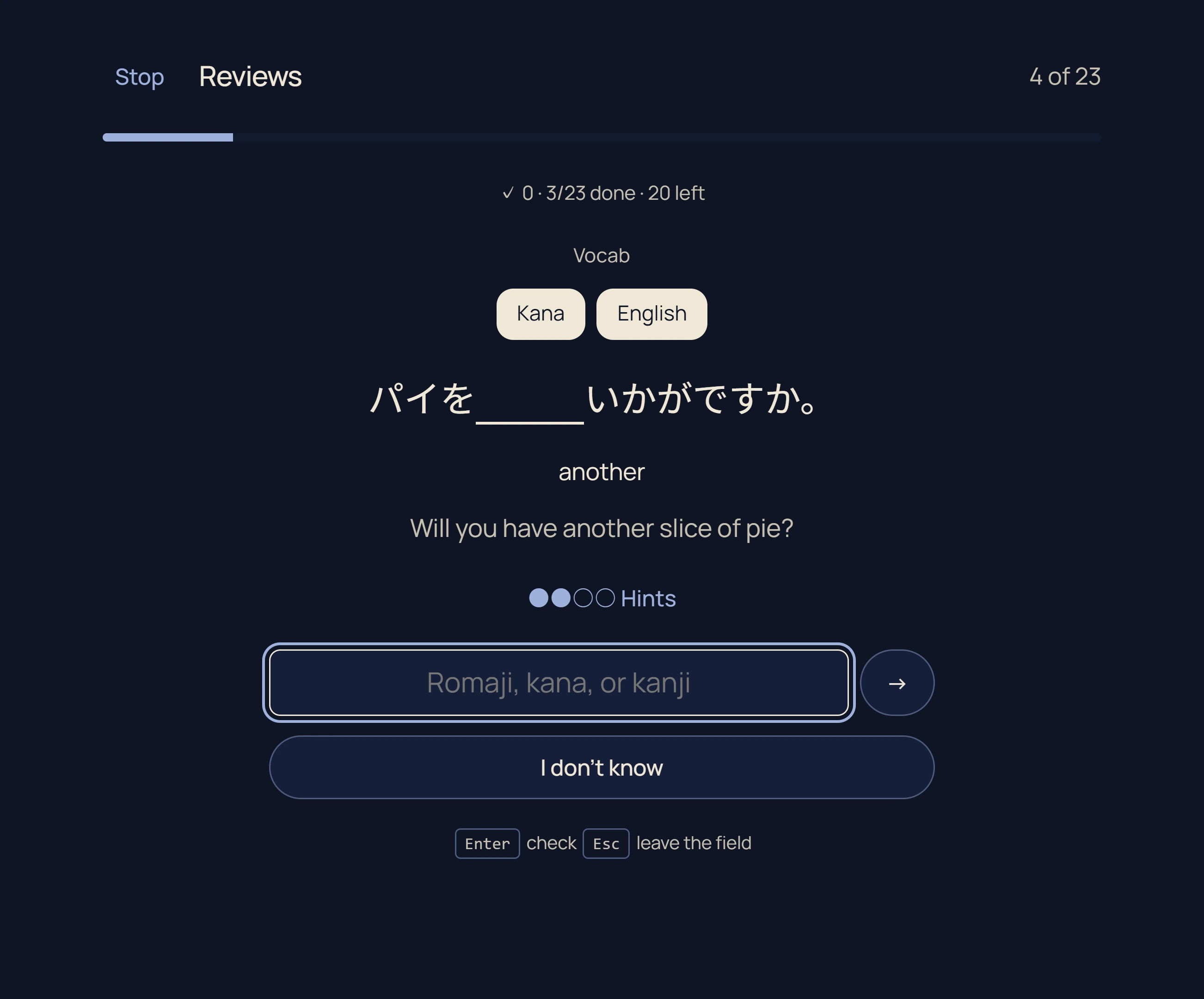
- Hints when you are stuck. A typed card gives its hints a step at a time, the kana and English lines can each be switched off, a card you build can show its reading, and I don’t know is always there.
- A wrong pick is ruled out. In a multiple-choice question a wrong answer greys out and you try again, but the miss still counts on the card's schedule.
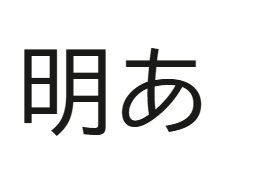
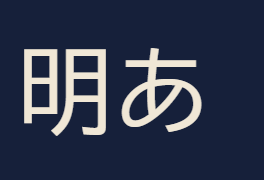
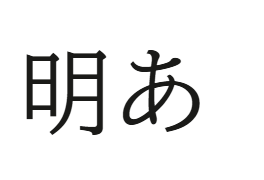
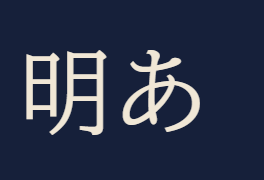
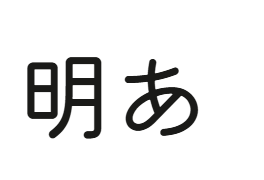
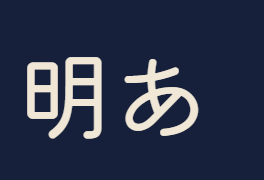
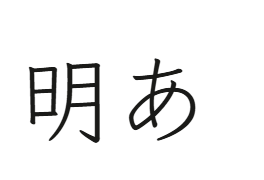
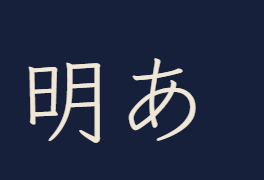
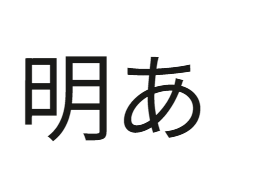
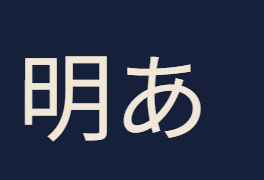
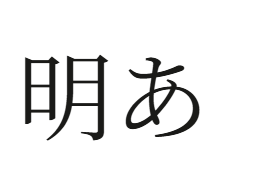
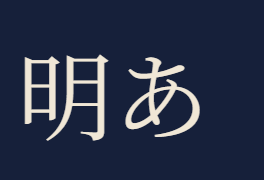
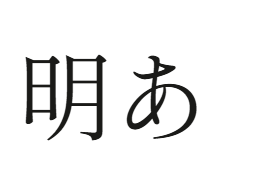
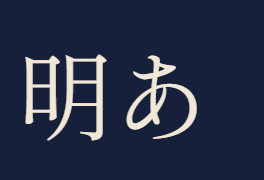
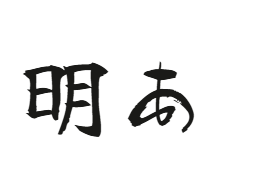
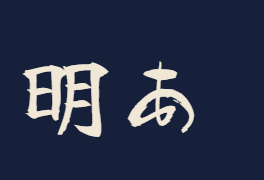
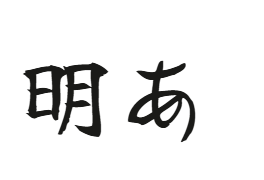
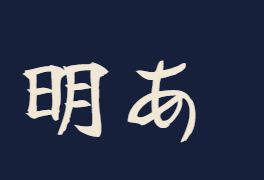
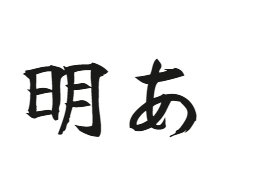
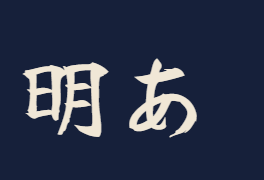
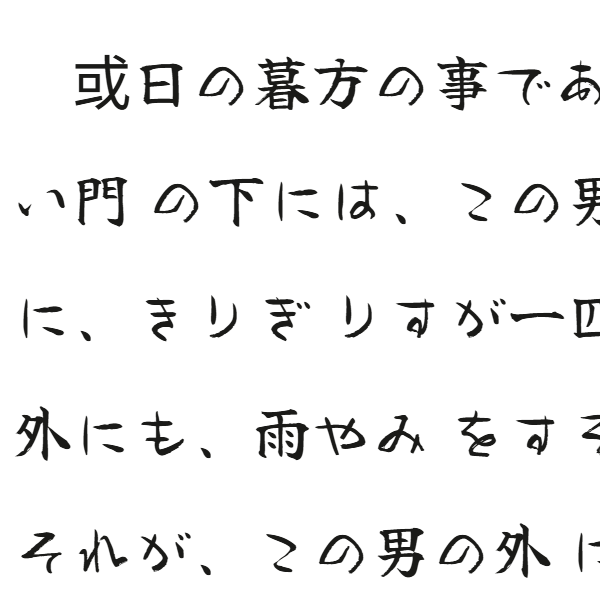
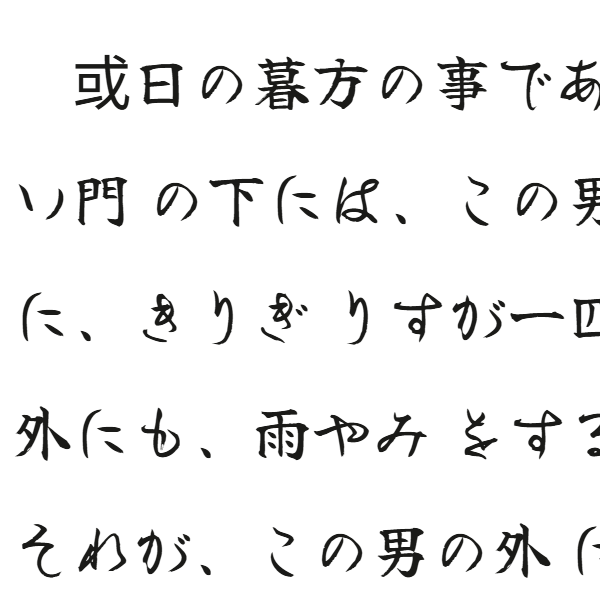
- Many typefaces. Switch on the randomiser and each card's Japanese is drawn in one of up to ten faces, from textbook to print to brush, so you learn the character and not one font. Choose how unusual the faces may get, switch any face off, and see your retention in each.
- Kana. Hiragana and katakana are separate tracks, each with a chart tinted by your progress.
- Placement test. Already know some Japanese? Test out of the lessons you know, kana included.
- Pace. The daily pace is offered as the minutes it will cost, not as "fast" or "slow".
- Choose how many words a lesson teaches and how many lessons a day.
- Set a daily reminder (on the web, signed in, switch on the closed-site reminder and allow notifications; otherwise it fires while the site is open, or on your next visit), and take a break of anything from a day to two weeks without losing your streak.
- Keys on the web. Enter or Space goes on, P replays the audio, D is I don’t know and Esc leaves.
- Statistics. Retention overall, by question type, by how you answered and by typeface, reviews per day, a forecast of the reviews to come, and what you have studied at each level. A rate is shown only once it rests on 30 answers or more.
- Browse everything. A grid of every kanji, tinted by how well you know each one and filtered by level, and lists of every word and grammar point. Every item has its own page, which holds your notes and can send it to Anki, and a word's page can start studying that word.
- Coins and a shop. Reviews and lessons earn XP, which raises your level, and mon, which buys quiz themes and progress and XP bars in the Mon shop. Achievements are a set of medal coins. Anything in the shop can be previewed before you buy it. Optional tips, on Android, iOS and the web, add a supporter coin, bars and a frame; they unlock no lessons.
Hints in a review A typed card, two of its four hints taken, with I don’t know beneath.
Word colours Five colour pairs, or none, on the letters or as a chip behind them.

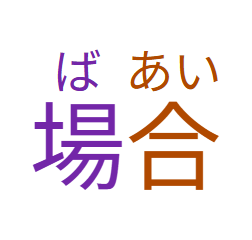
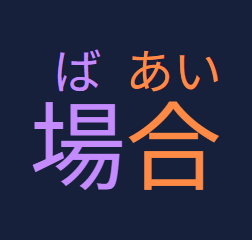
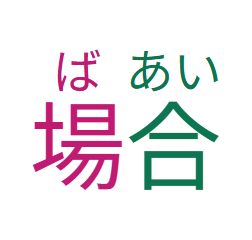
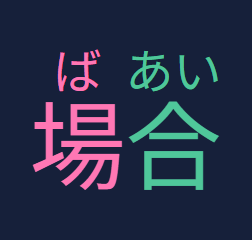
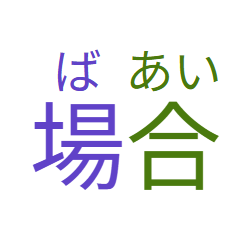

As a chip The same five pairs behind the kanji instead of on them.
Typefaces in reviews Each face’s 明あ, as Settings › Typefaces shows it.
Practice beyond reviews
- Practice recent mistakes, the cards you keep forgetting, or any lesson again, without touching the schedule.
- A conjugation drill for verbs and adjectives.
- A practice test in the JLPT's shape: four sections built from the course's own words and sentences.
- Dictation: hear a sentence and type it.
- Hear it first: a meaning question asked by sound alone.
- Reading practice: sentences made only of what you have already learned, or with exactly one new character.
- Words to learn first: pick a book or a video, and the app lists the words in it you have not met yet. Look up any of them, send one to Anki with + Anki and the line the book uses it in, study the top course words from the list, or hide the ones you do not want.
The dictionary
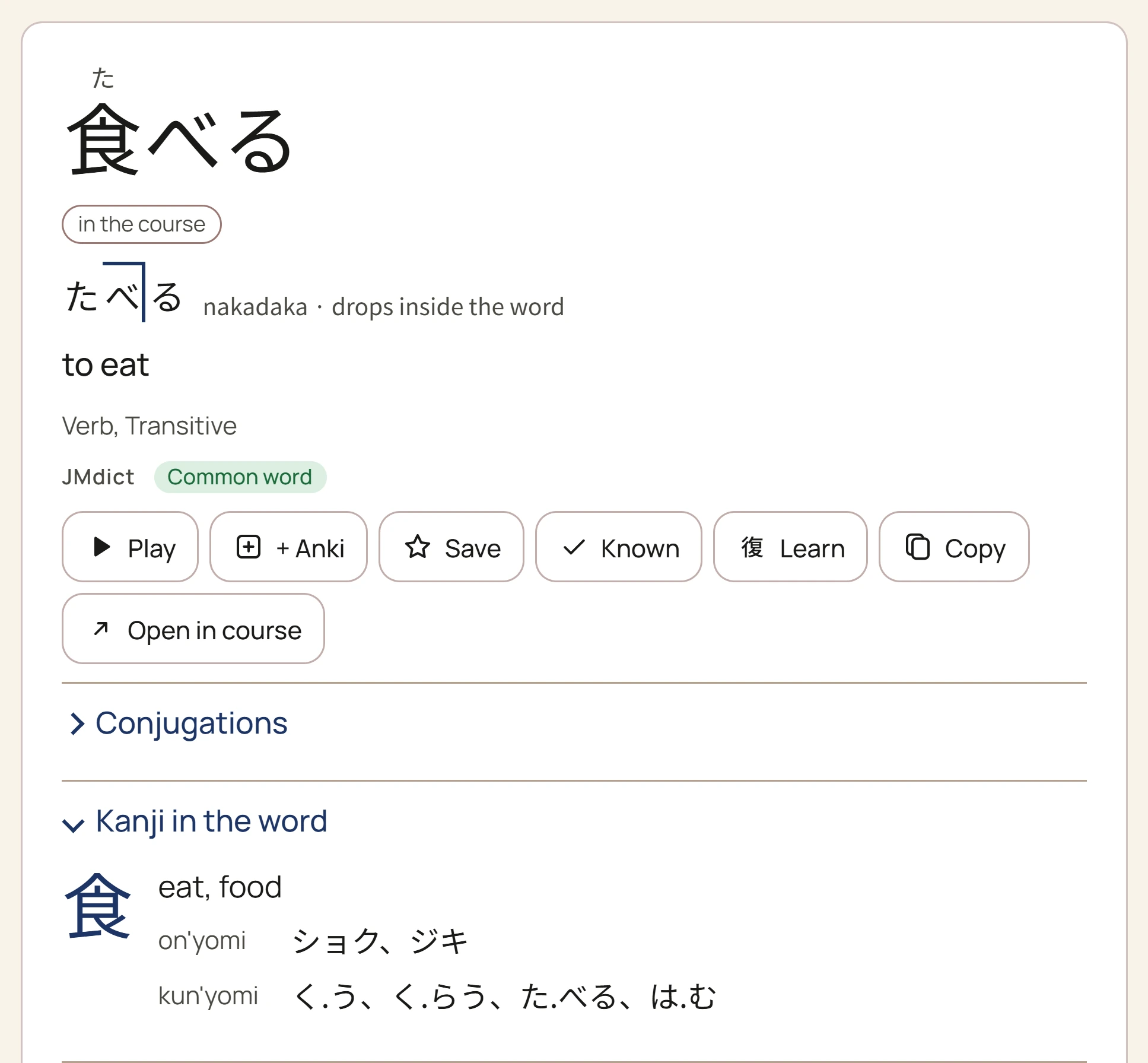
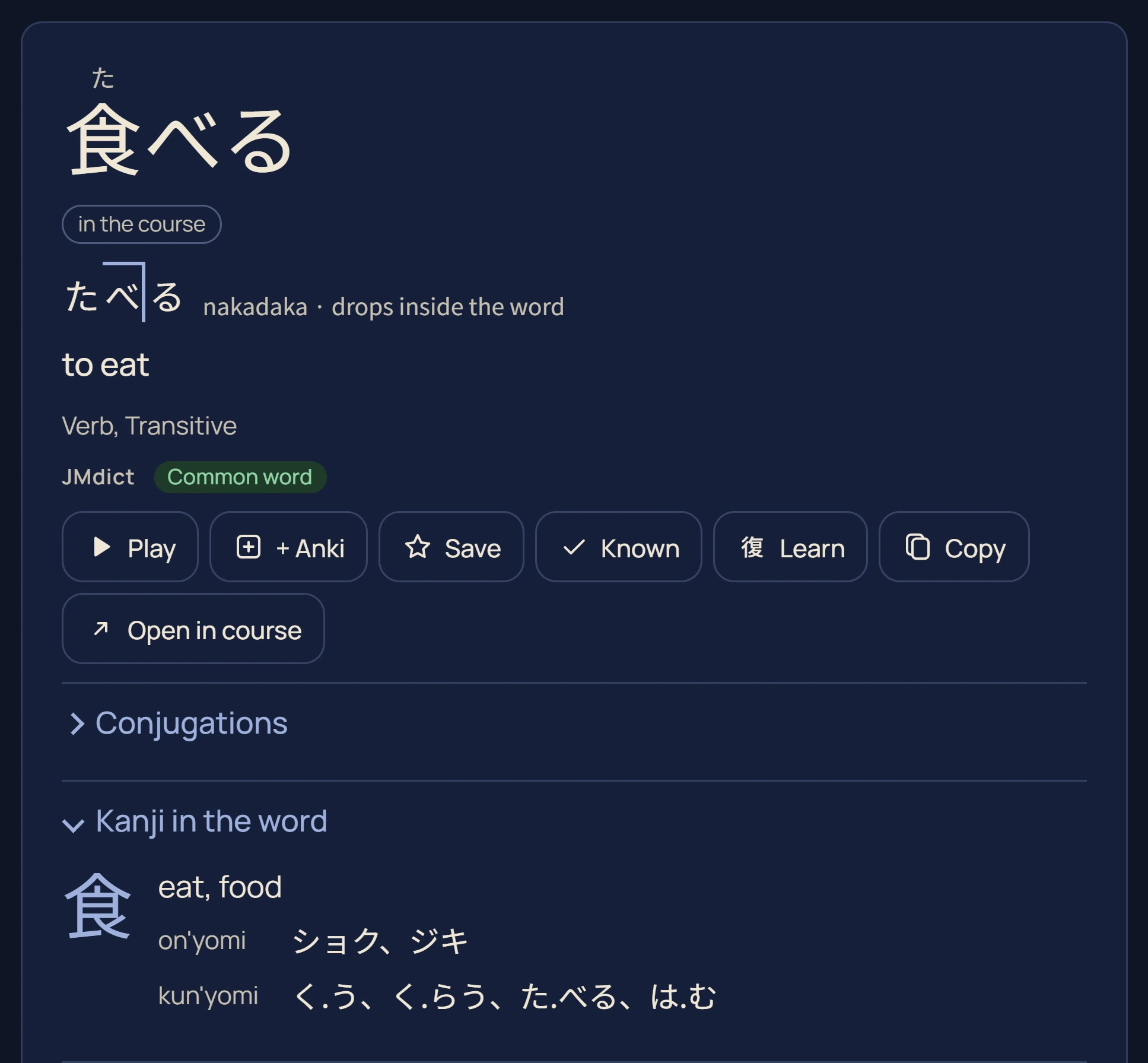
- All of JMdict, with JMnedict's names, offline. Names of people and places turn up beside the words in search and look-ups.
- Search any way in. Kanji, kana, romaji (
taberu,anzann) or English (to eat). A conjugated form finds its dictionary form: 行きたい finds 行く.*and?work as wildcards, and punctuation at either end, as in すごい! or 〜ながら, is left out. - Draw a kanji you cannot type, or find it by its parts.
- Entries show readings, parts of speech, every sense and the kanji in the word.
- Search a single kanji for its readings, its stroke order and the course words that use it.
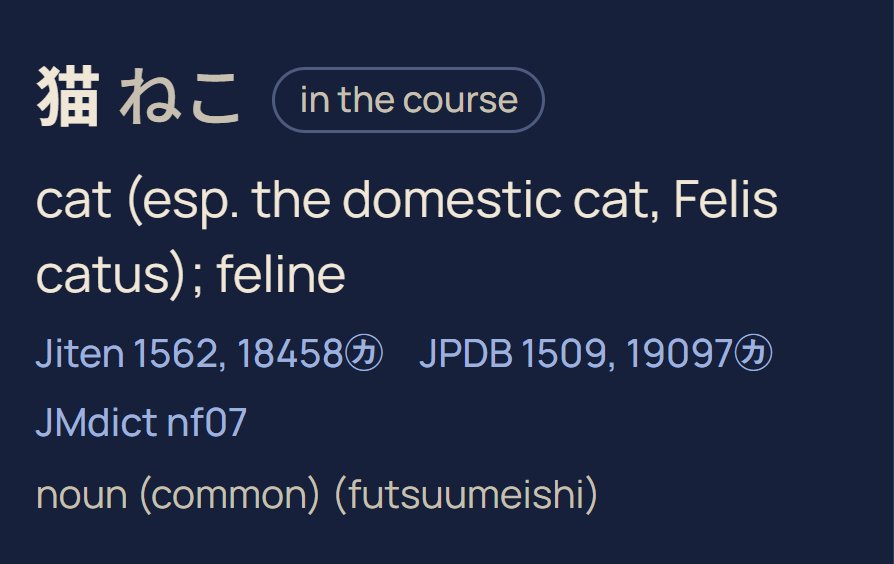
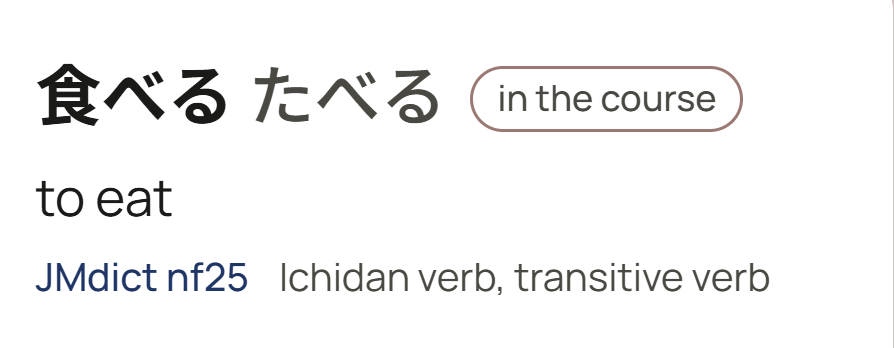
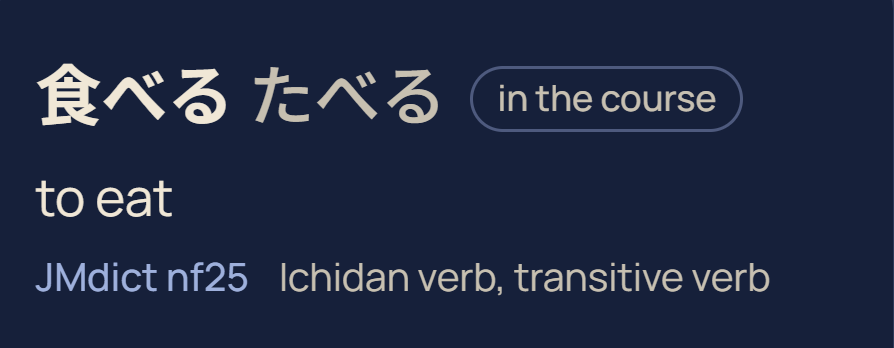
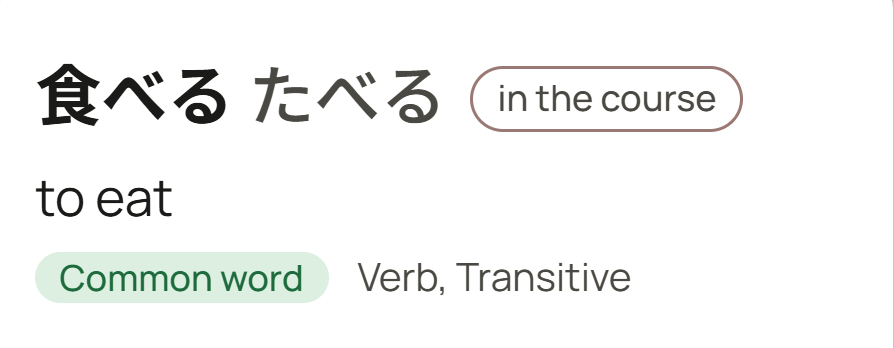
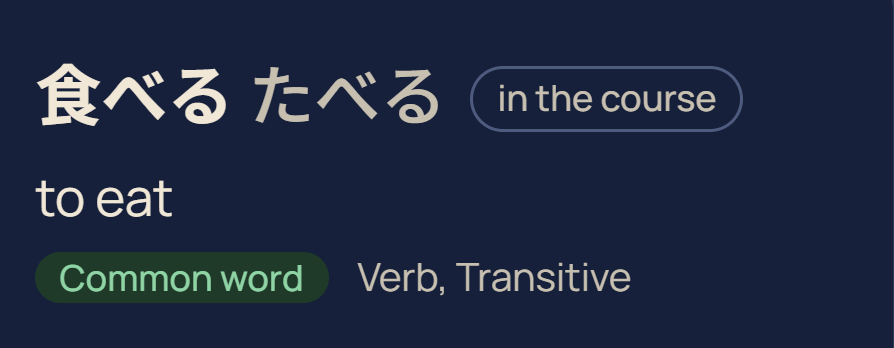
- Most course words also show their pitch accent and the course’s example sentences, and every ranked word shows how common it is: with plain labels on, a coloured pill reading Common word or Less common word, or Rare word for a word that is rare, old or dated in every sense. A word JMdict does not rank takes its band from Jiten’s count of novels, anime and the web. With plain labels off, JMdict’s own code or Jiten’s rank.
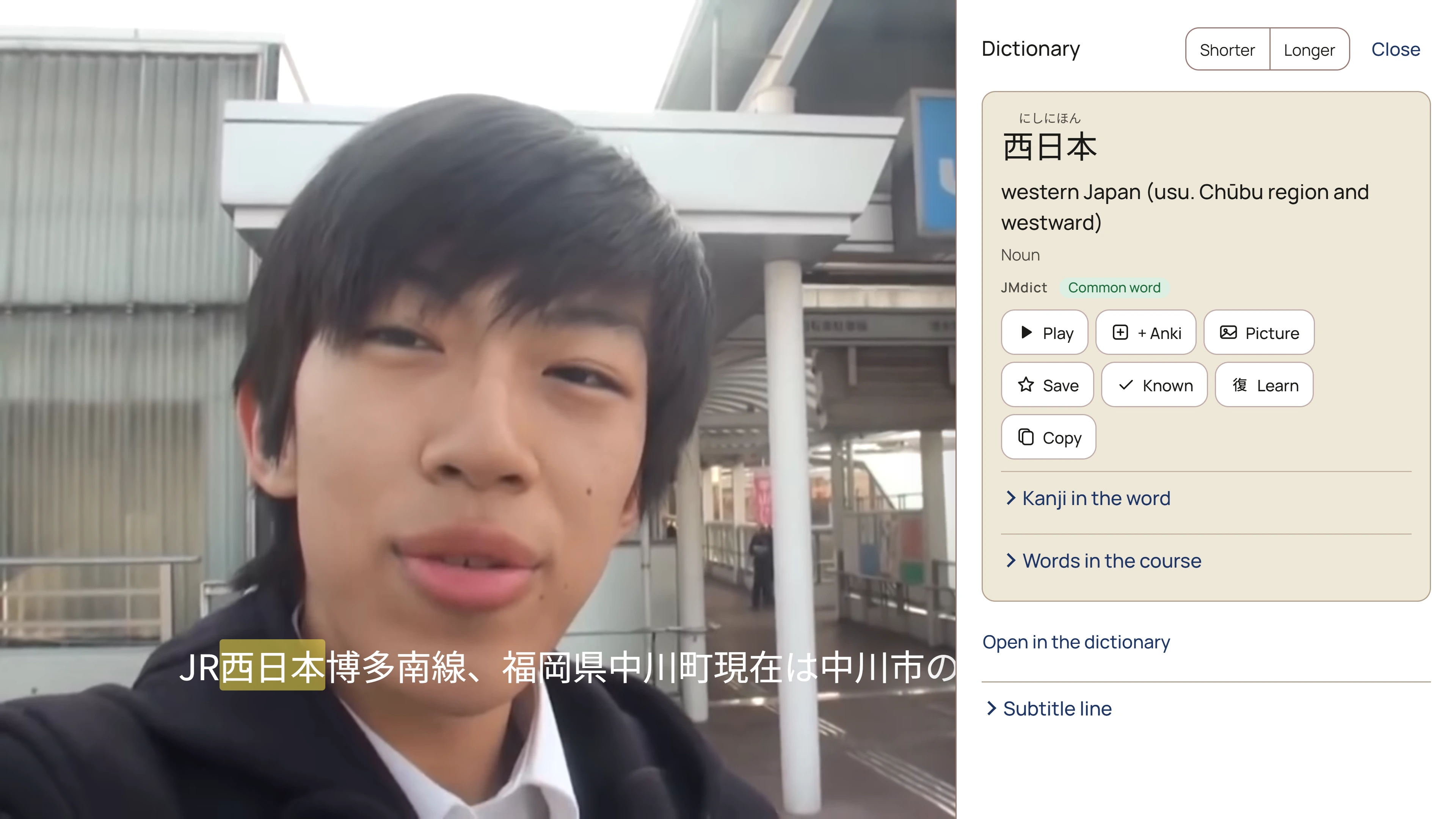
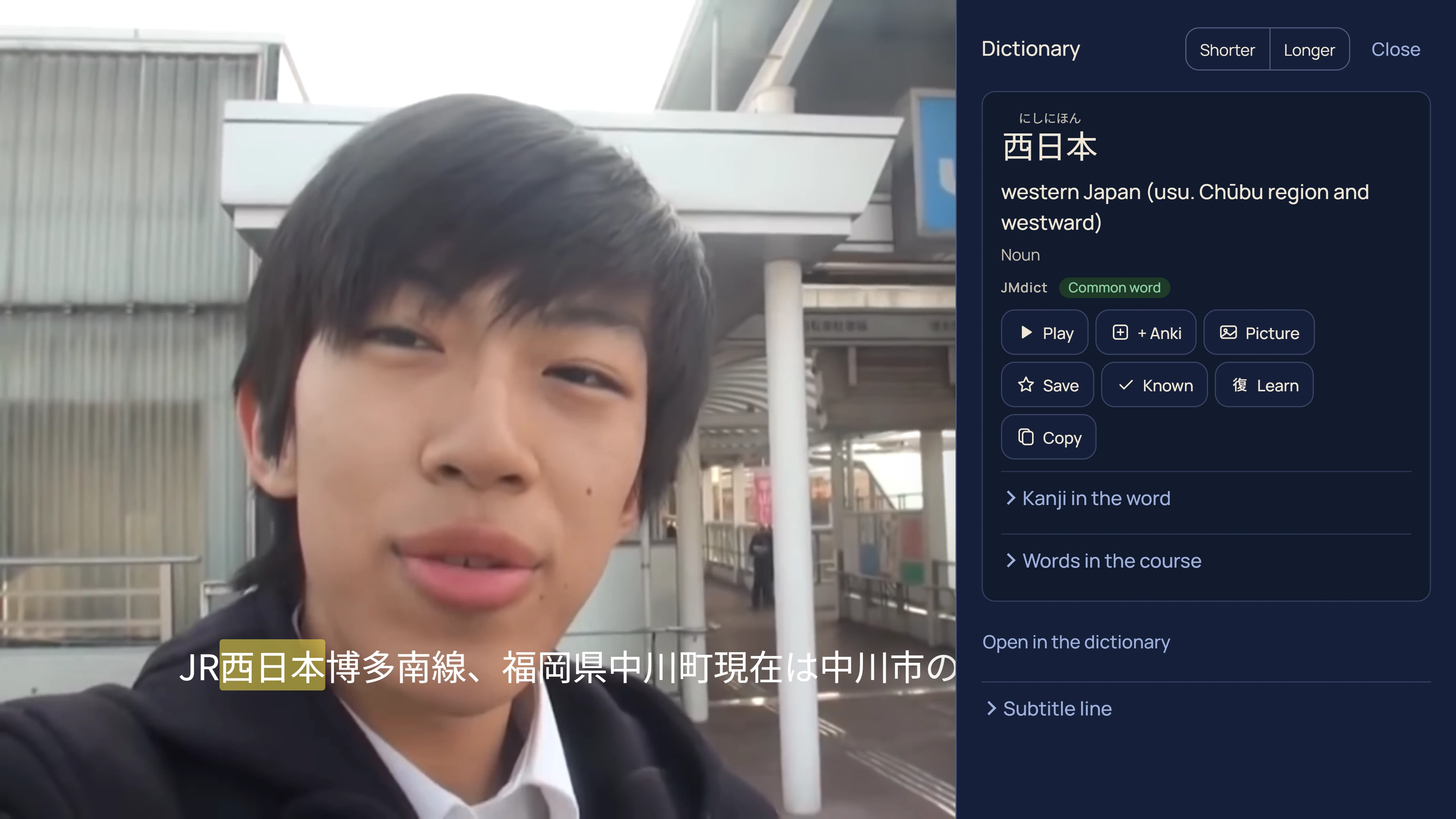
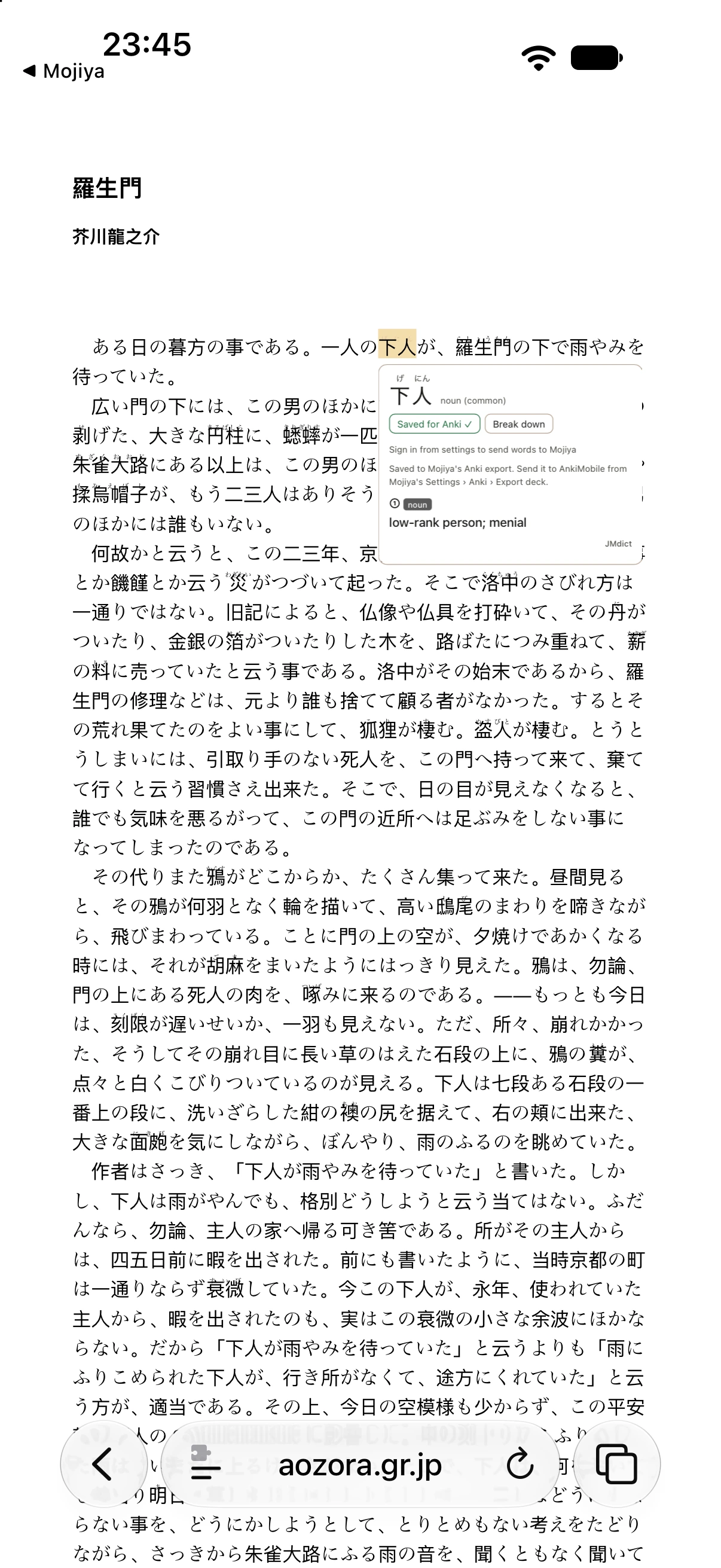
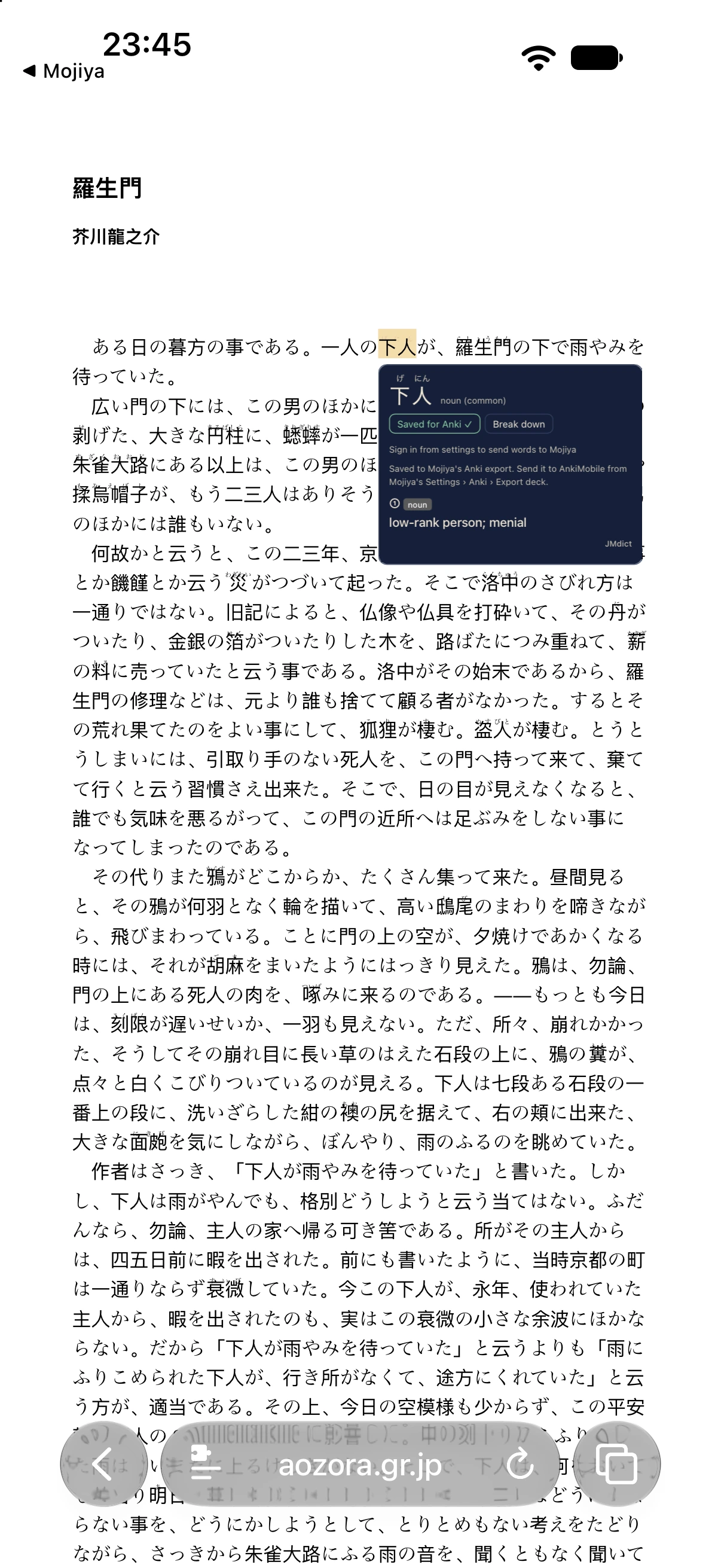
- The pop-up over a book, a video or a page shows a word's conjugation table and its meanings in the dictionary’s order, each with its own Add to Anki, lets you lengthen or shorten the selection, and says when the word is already in Anki: through AnkiDroid on Android, AnkiConnect on the web, and for words sent from the app on iOS. Inside a book it takes the page colour and text colour, as the reader’s bars do.
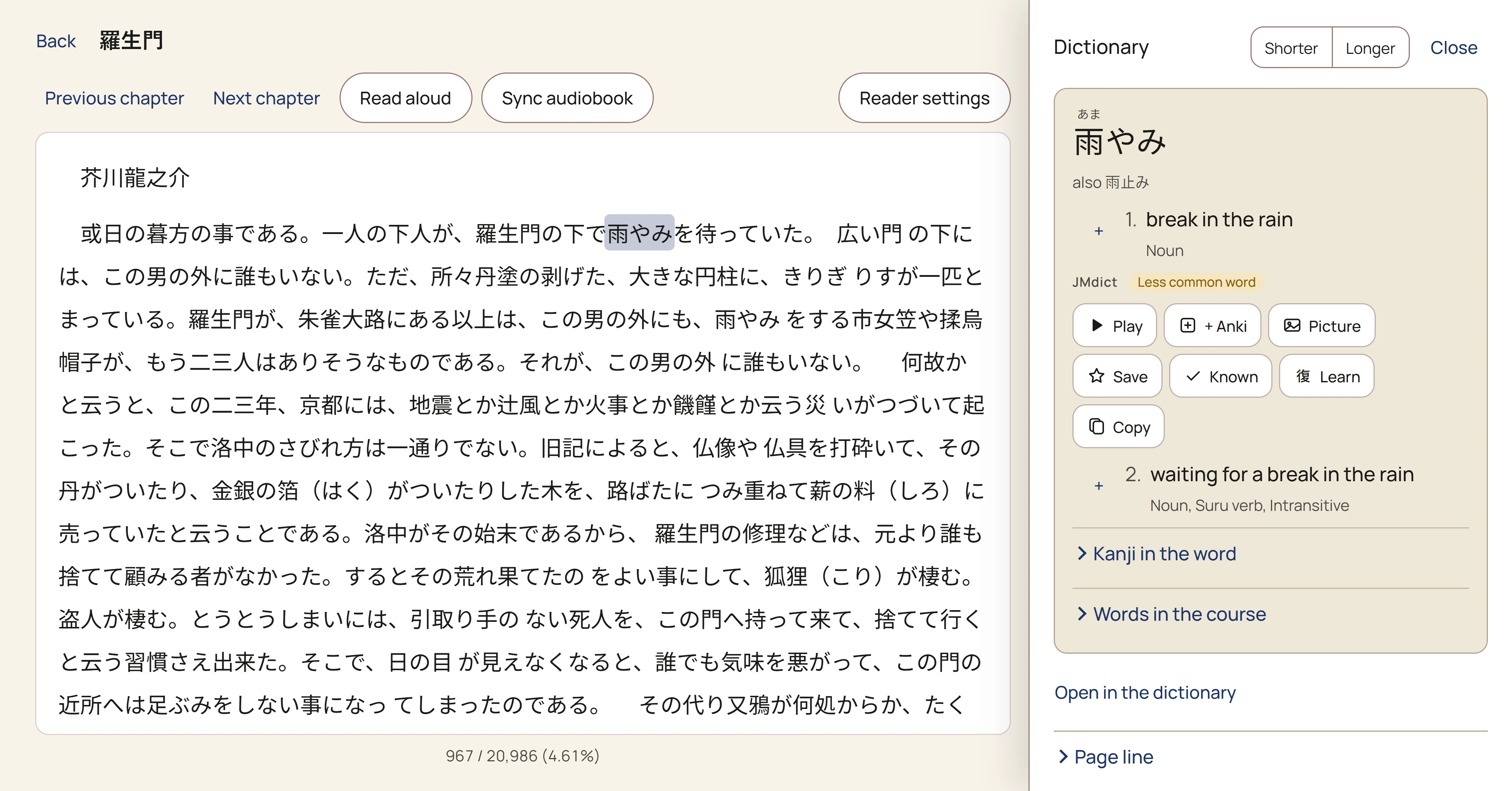
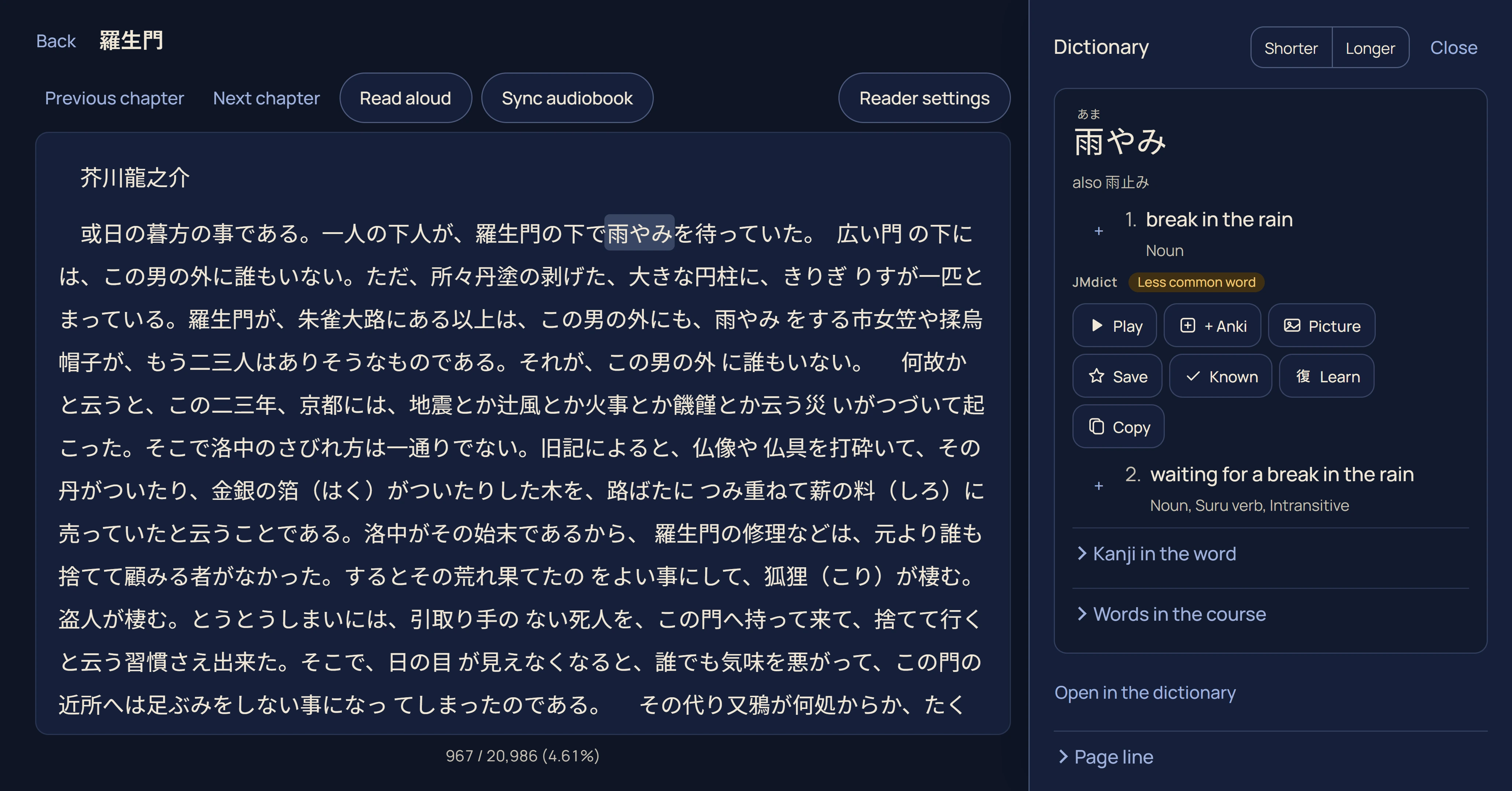
- Copy puts the word, its reading and its meaning on the clipboard, beside Save, Known, Learn and, for a course word, Open in course, each named under its icon, on all three platforms.
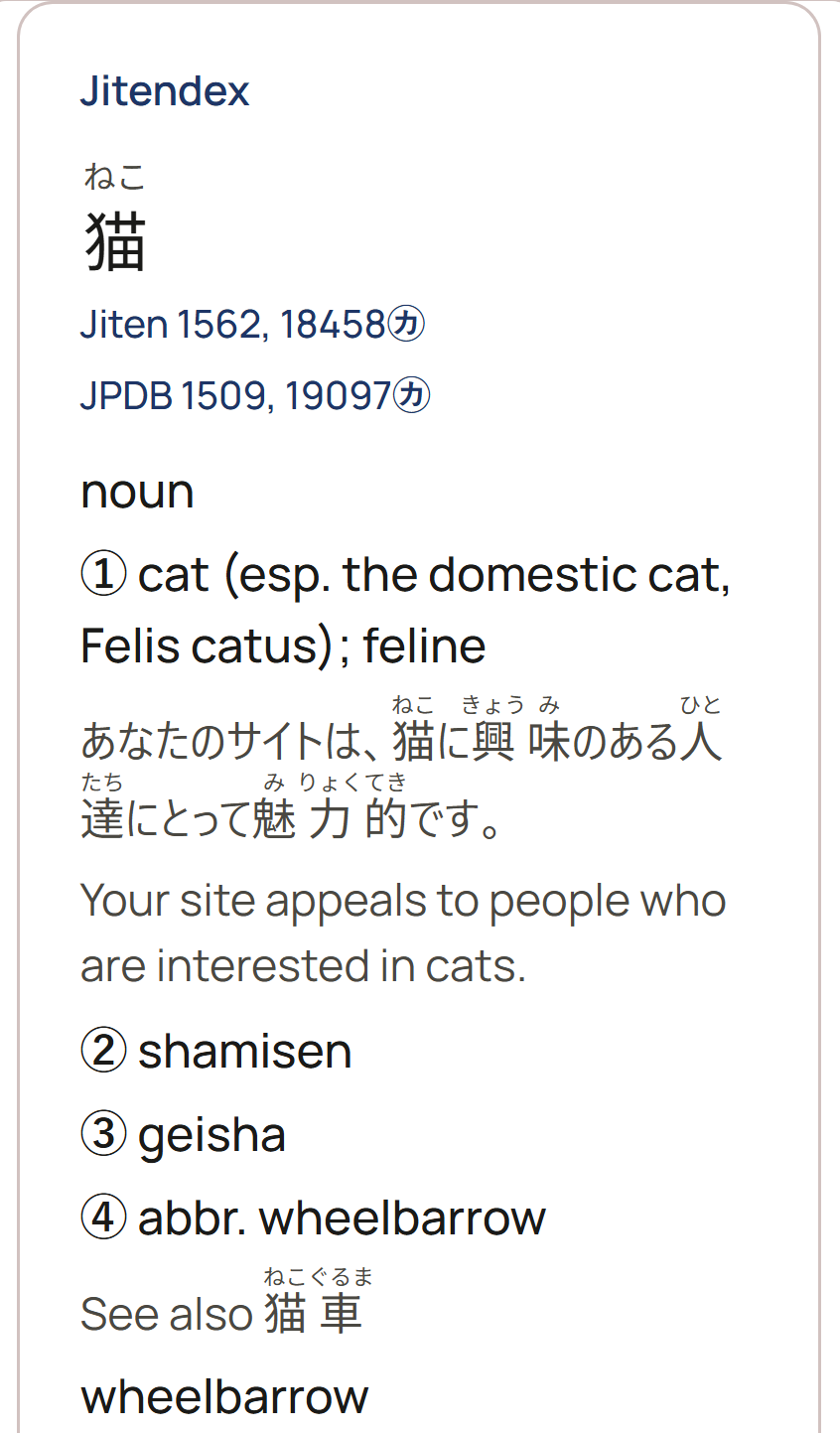
- Every word an added dictionary such as Jitendex answers with has the same named row: Play, + Anki, Picture, Save, Known, Learn and Copy. A word the built-in dictionary lacks has + Anki, Picture and Copy.
- Add image gives the card a picture: on the phones a row of image results to swipe through, and a word sent with none chosen gets the top one; on the web the search opens in its own tab and the picture comes back by paste or file.
- Audio. Every word is voiced, in a female or a male voice. On Android and iOS the course’s words play with the course, and Settings → Dictionaries downloads Dictionary audio (22,928 common words and every course word), then All dictionary words (186,524 more). On the web they stream, or can be kept for offline.
- Saved and known words. Save a word to keep it in Saved words, a bookmark list on the dictionary’s empty search. Mark words you know, by hand or from an Anki file.
- A dictionary you can add to. JMdict and JMnedict’s names are built in. Any Yomitan dictionary you add is searched with them, in search and in every pop-up: each answer says which dictionary it came from and is shown open, they come in the order you set with the built-in JMdict one of the rows you can move, and any you added can be switched off or removed.
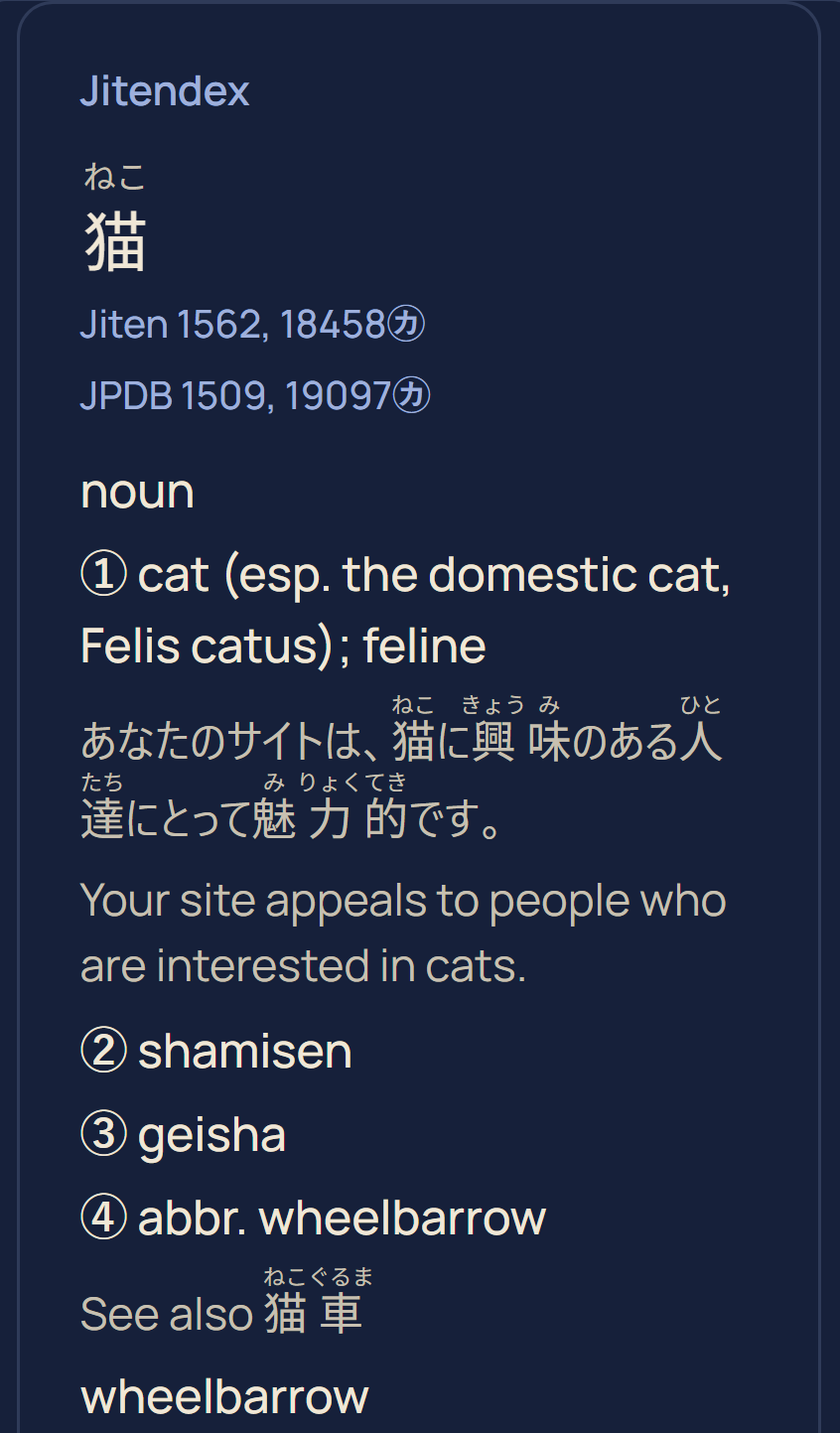
- One tap to add Jitendex, a fuller Japanese–English dictionary with example sentences, frequency ranks from JPDB and Jiten, or the full JMnedict of names. Or import any Yomitan file you have: term dictionaries and frequency lists, format versions 1 to 3.
- Set up like Yomitan or jidoujisho. Settings › Dictionaries opens on two setups, each with its download size: Like Yomitan (Jitendex, JPDB and Jiten, then JMdict) and Like jidoujisho (JMdict, then JPDB). Set up fetches what is missing and puts them in that order. Your other devices take the same order, and offer the dictionaries they lack, with Get them and Not now.
- Open on the web. mojiya.app/dictionary is the app's own dictionary screen, with no sign-in.
Dictionaries you add Jitendex, Jiten and JPDB, each added with one tap, answering a search for ねこ.
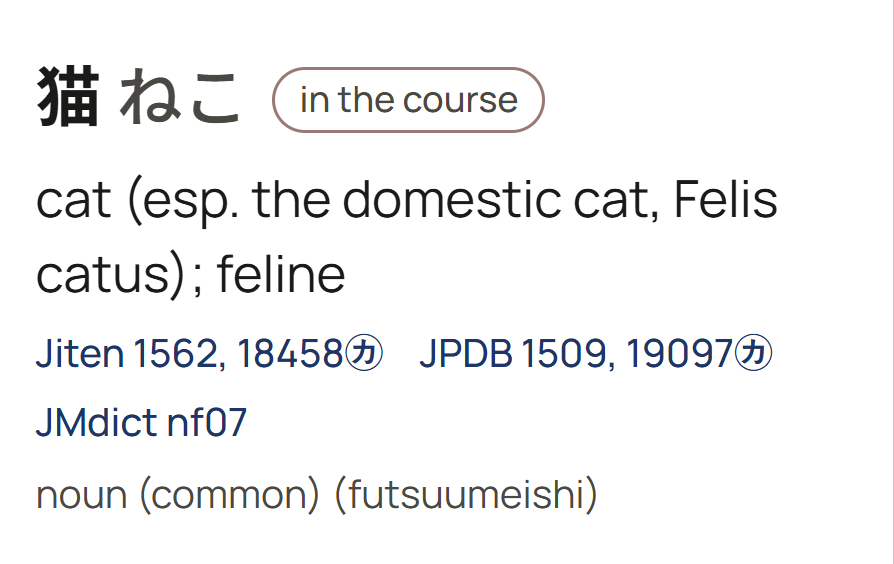
How common a word is With plain labels on, three bands from JMdict’s own marks.
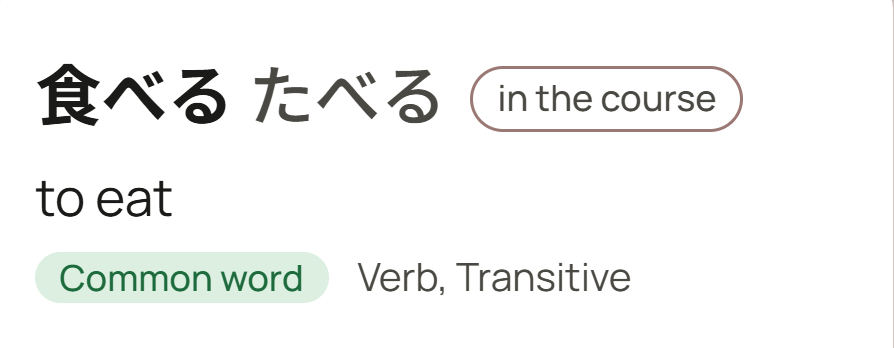
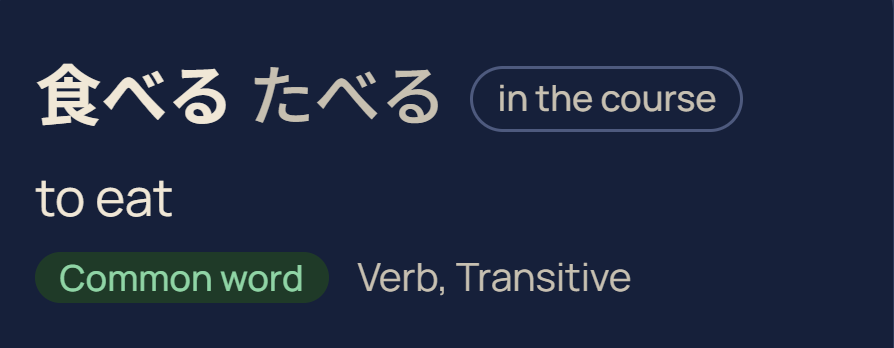
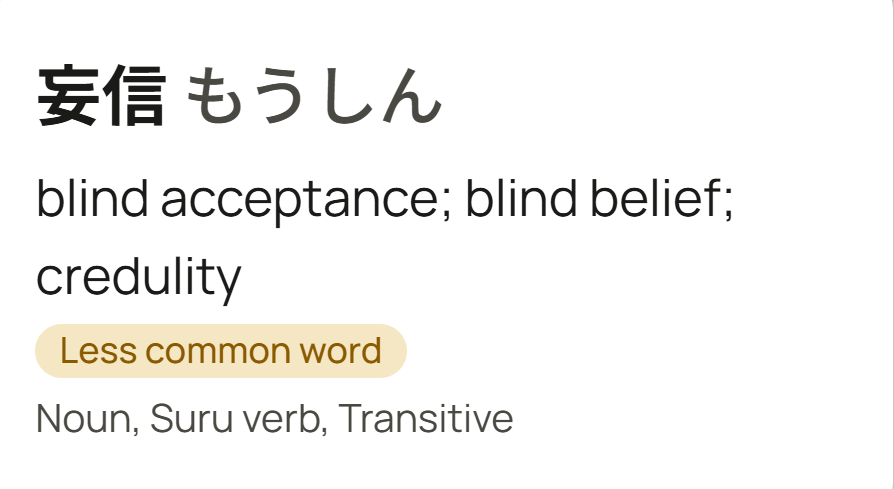
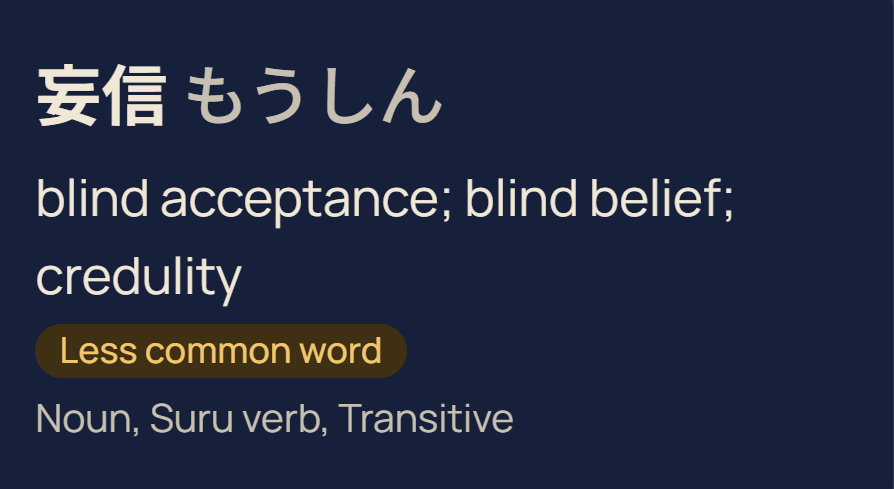
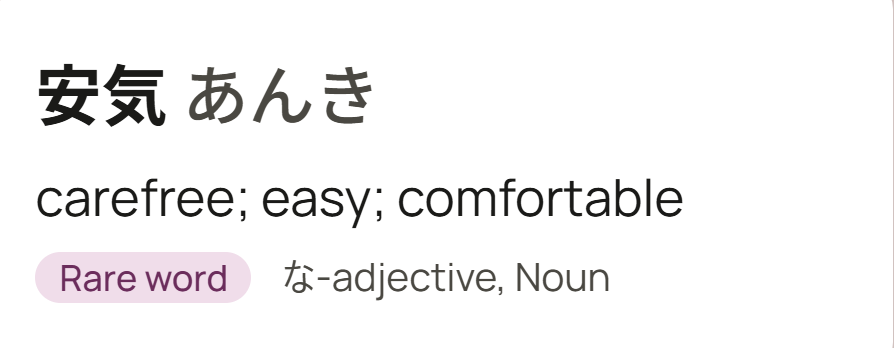
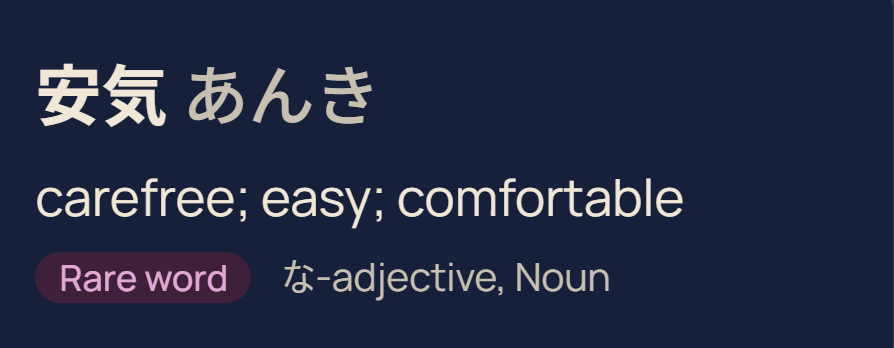
Labels JMdict’s own codes and frequency ranks, or plain words.
Books and manga
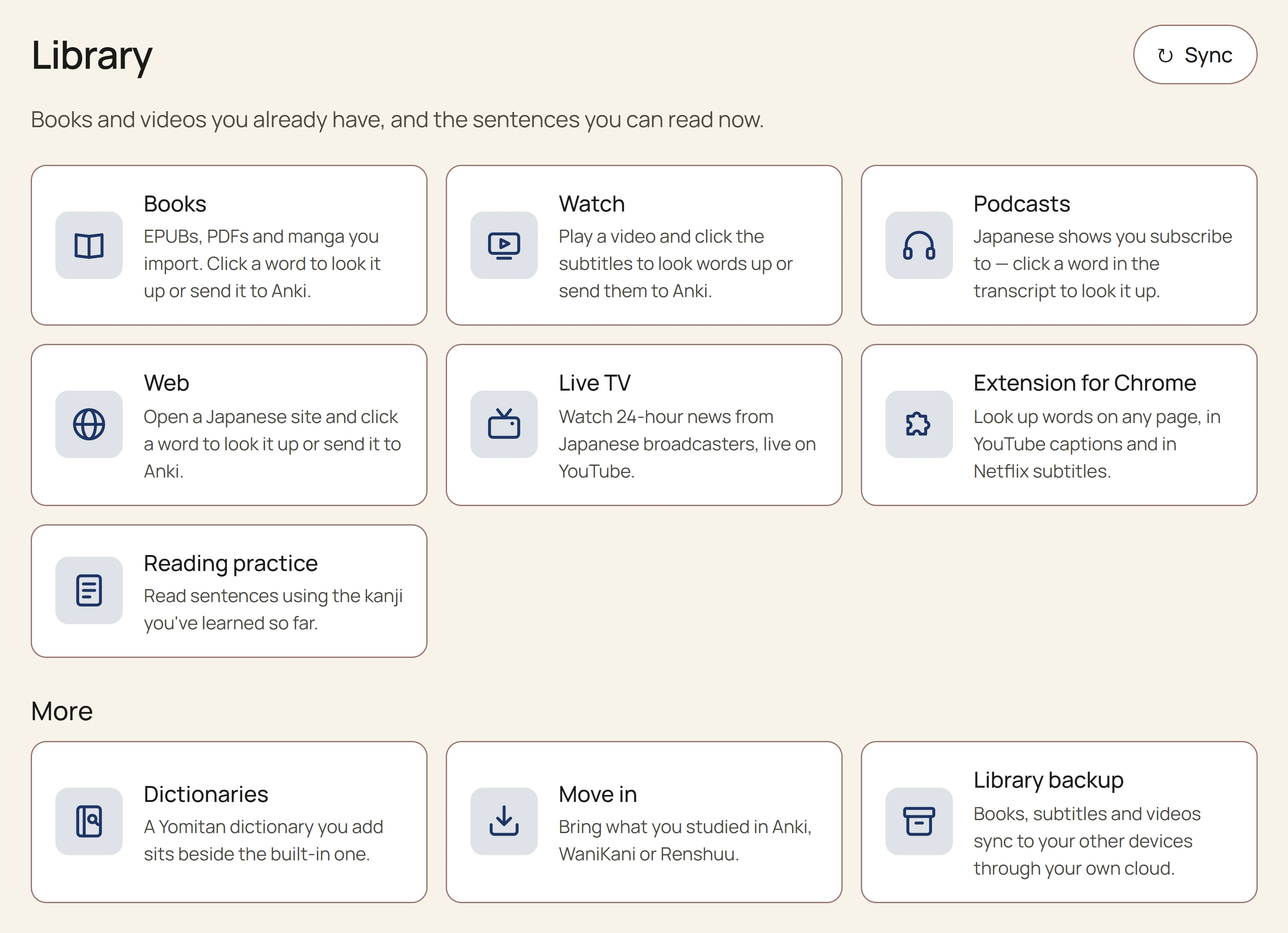
- Open your own files. EPUB, PDF, a ZIP or RAR of manga pages (CBZ and CBR too), or a folder of JPG, PNG or WebP pages.
- A book or manga of any size your device has room for is read in a piece at a time, and a long import can be cancelled.
- Pick several at once, or add a whole folder of books, and each is read in while a line counts them.
- An archive holding several volume folders, or a volume archive inside another, asks how you want it: separate volumes, one book, or one collection.
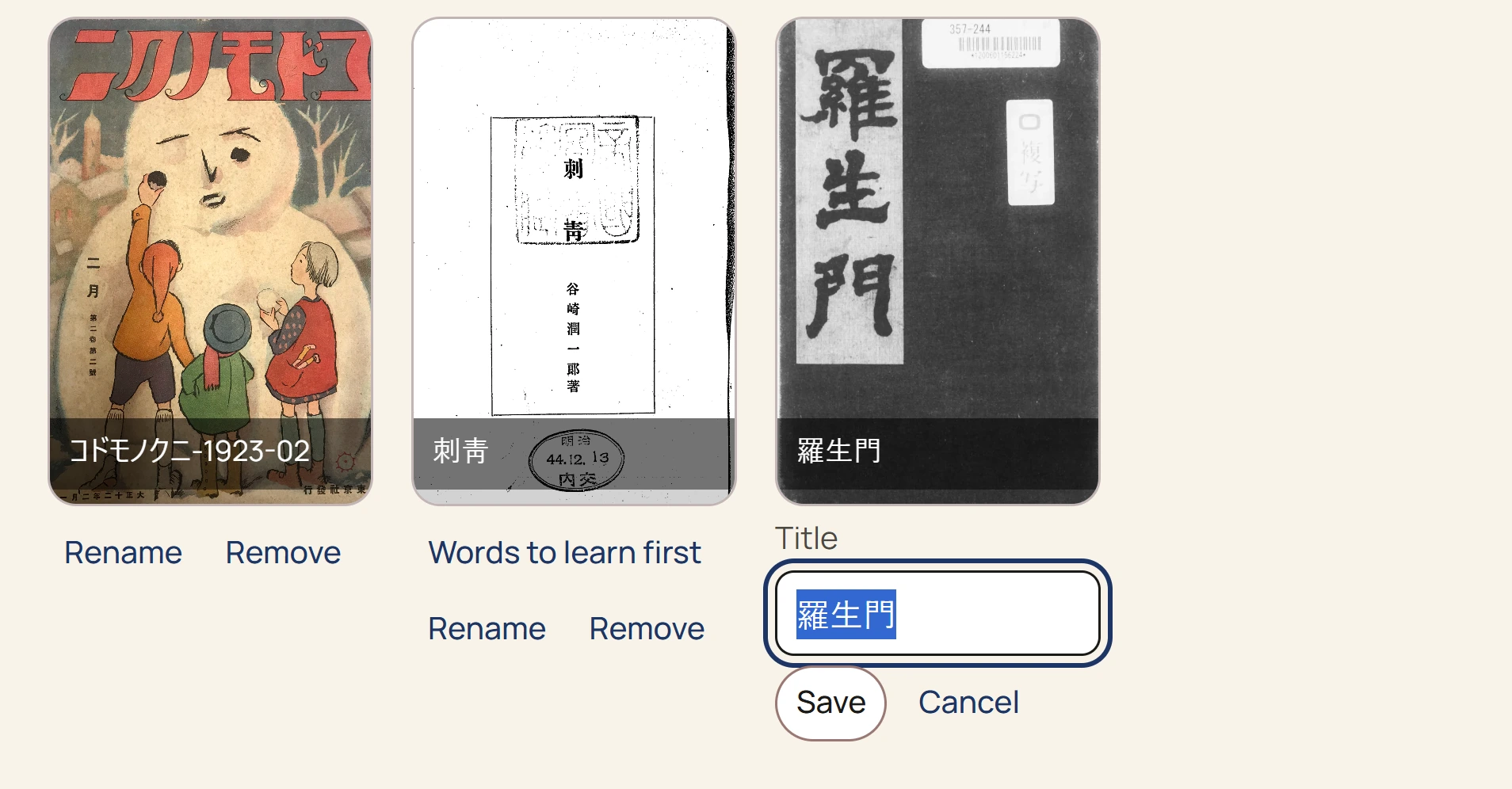
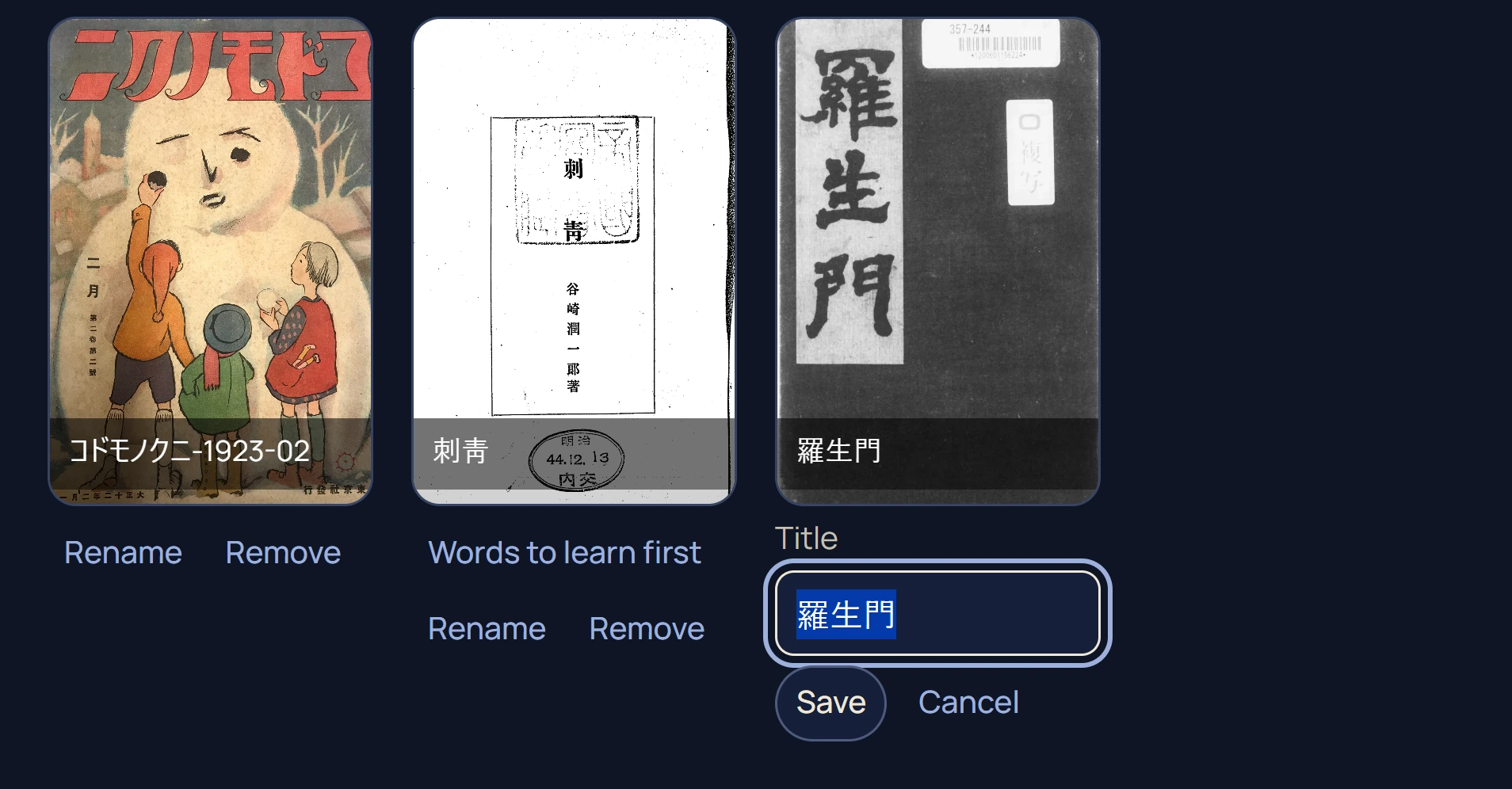
- Rename a book on the shelf, and its new title follows it to your other devices.
- Your files stay on your device.
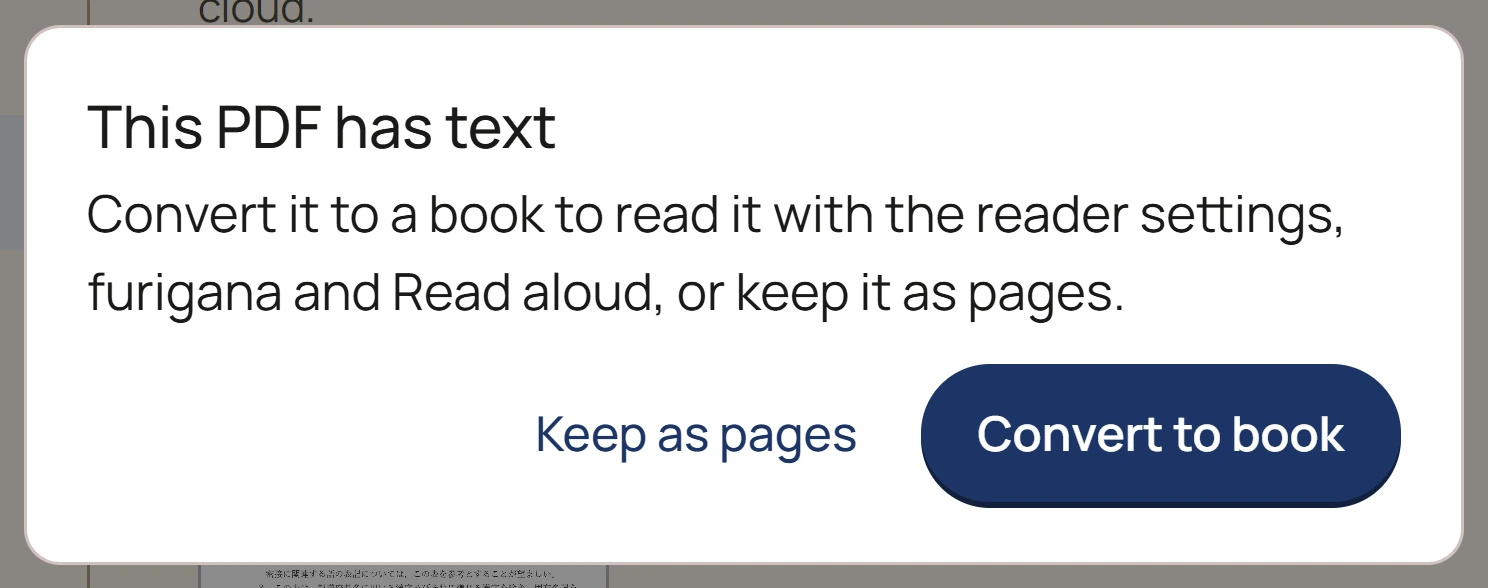
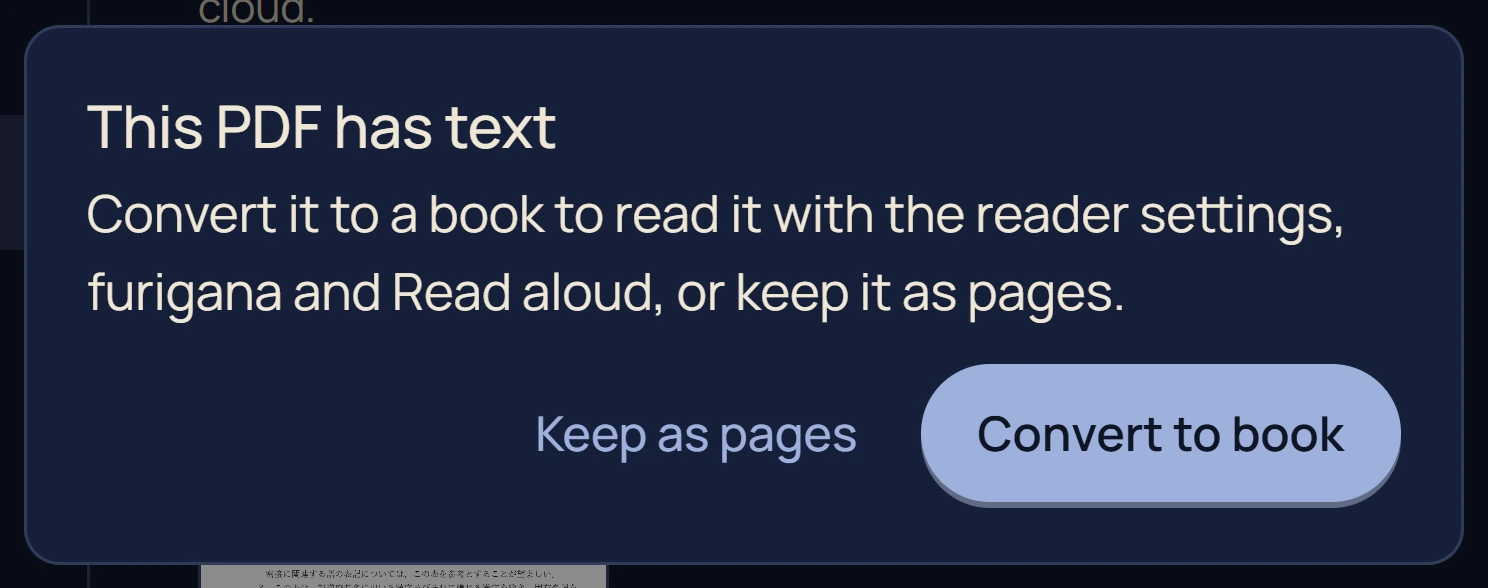
- A PDF as a book. A PDF that carries its own text can be read as pages or converted into a text book, with every reader setting, furigana and Read aloud; the app asks which you want, and the choice follows the PDF to your other devices. On Android this needs the system’s PDF text reader: Android 15, or an earlier Android that has it.
- Tap a word to look it up where it stands. Japanese prose has no spaces, so the tap is turned into the longest word the dictionary knows at that point.
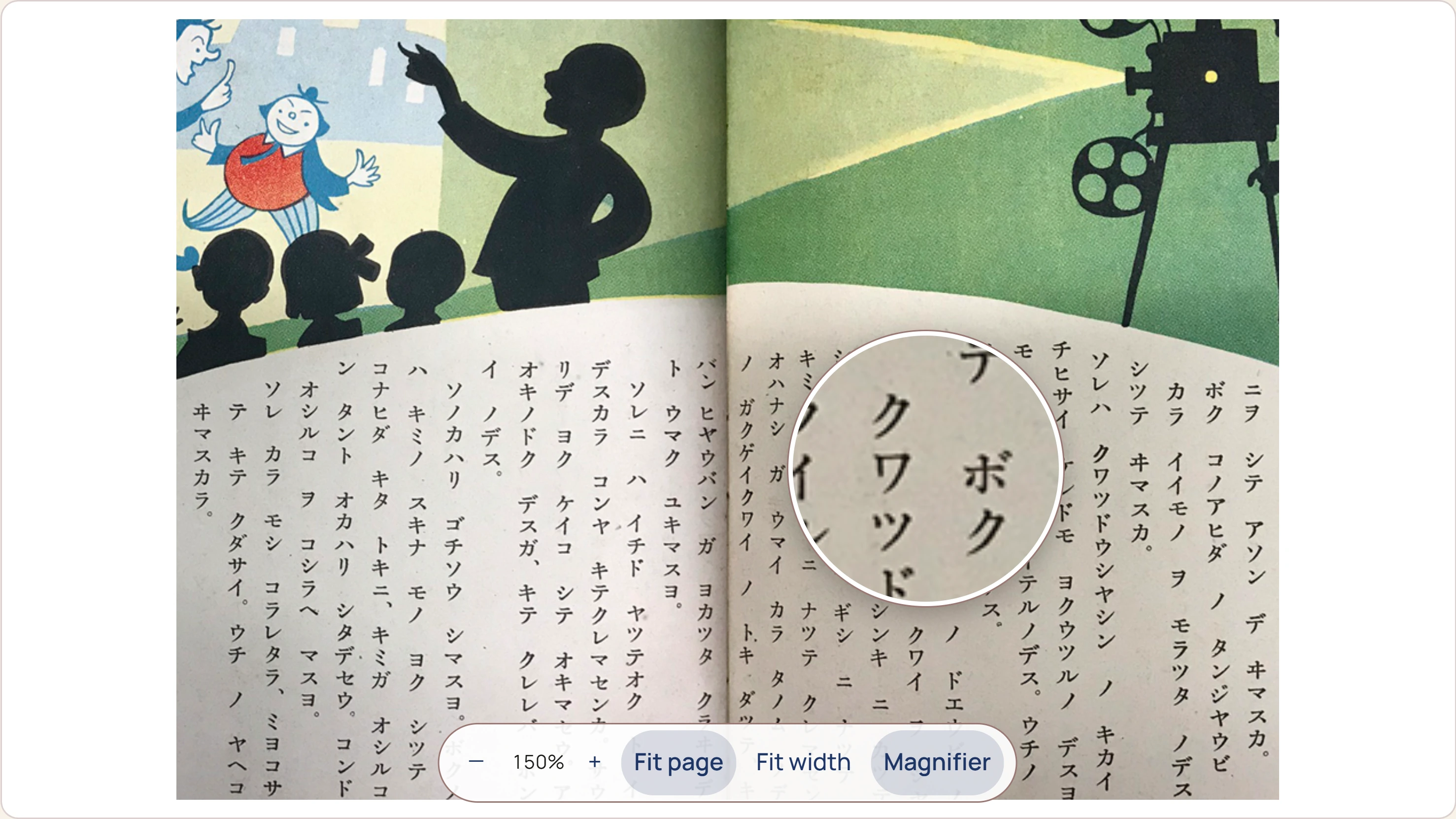
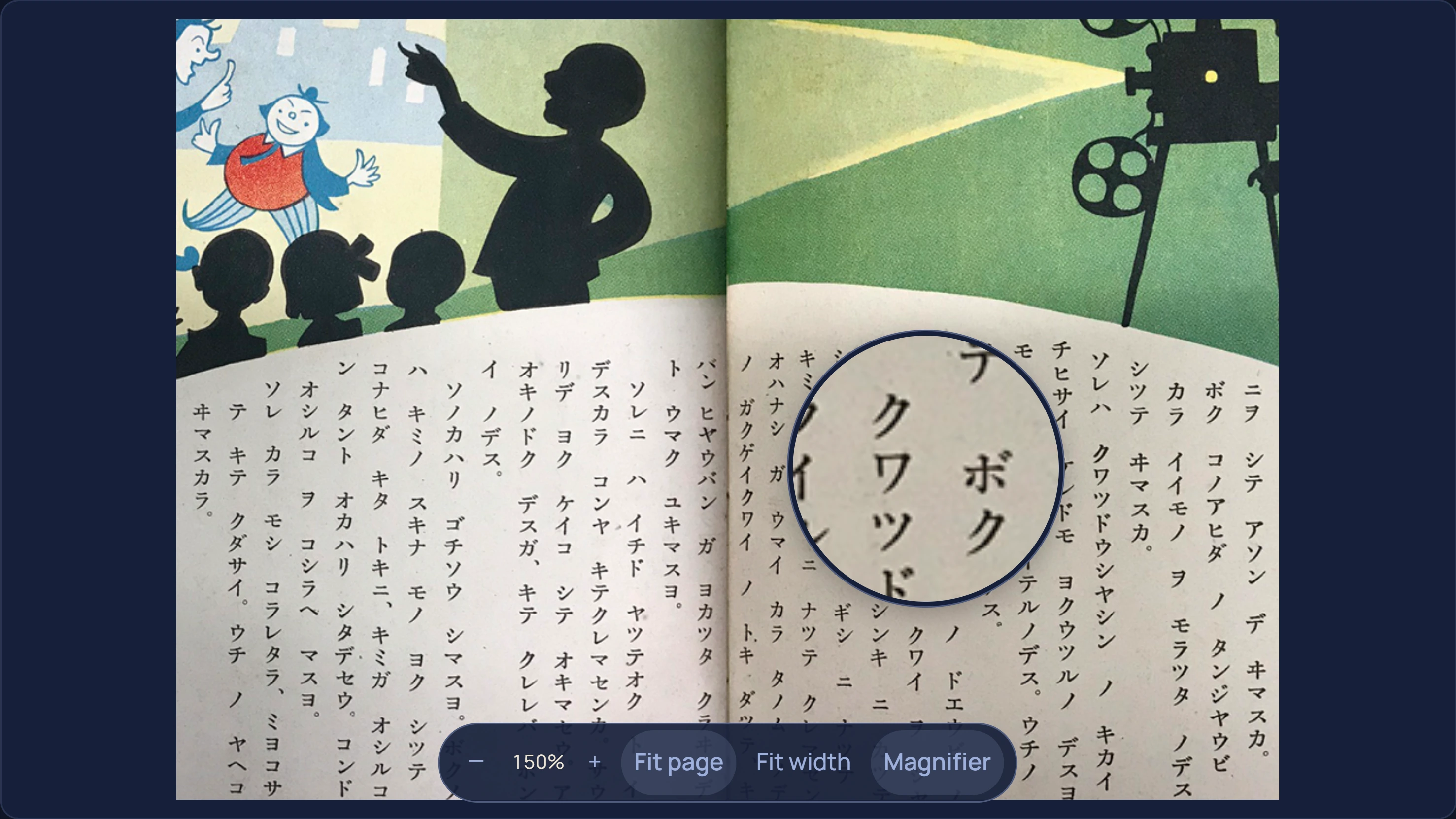
- Picture pages. In a manga or a scanned PDF the page is read by on-device text recognition, so a word in a speech bubble can be tapped too. Pinch to zoom and drag to move around the page; on a computer there is a zoom bar and a magnifier.
- Pictures in the text. An illustration between paragraphs gets a page of its own, fitted to the screen, and the text around it stays where it was. A character the publisher drew as a small picture (a gaiji) is drawn in its line, in the page’s ink and under its reading, and a section ornament stays small on its own line.
- Any text encoding. Chapters in UTF-8, UTF-16, Shift_JIS or EUC-JP read as text, and tables, definition lists and preformatted text keep their lines.
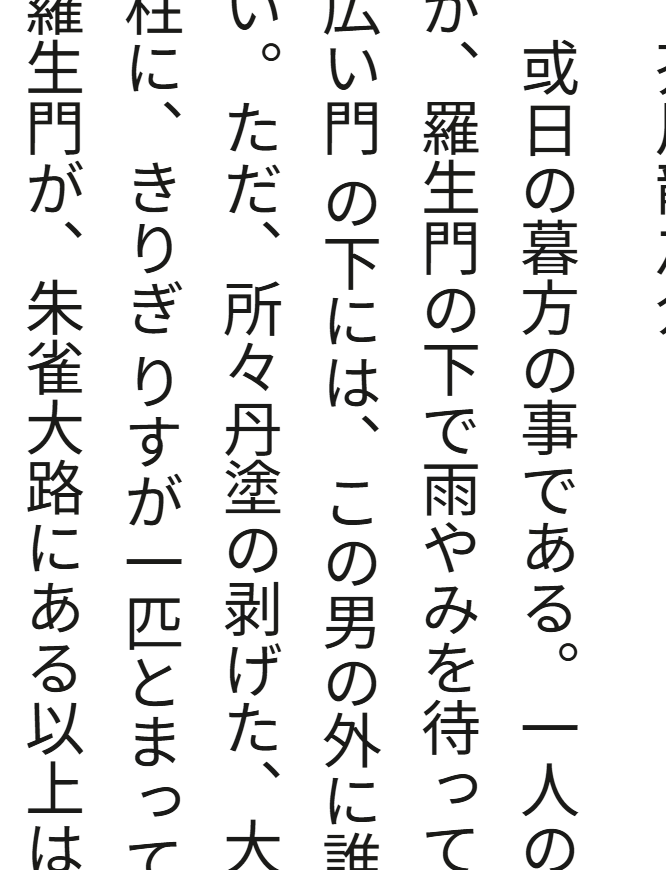
- A book’s own furigana shown as printed, only over words with a kanji the course has not taught you, or never. Read in vertical text.
- Heat on the page. Switch it on and the kanji you have answered in the course are tinted as you read, from needs practice to mastered; a kanji you have not met stays plain. A sample line under the switch shows the tints before you choose.
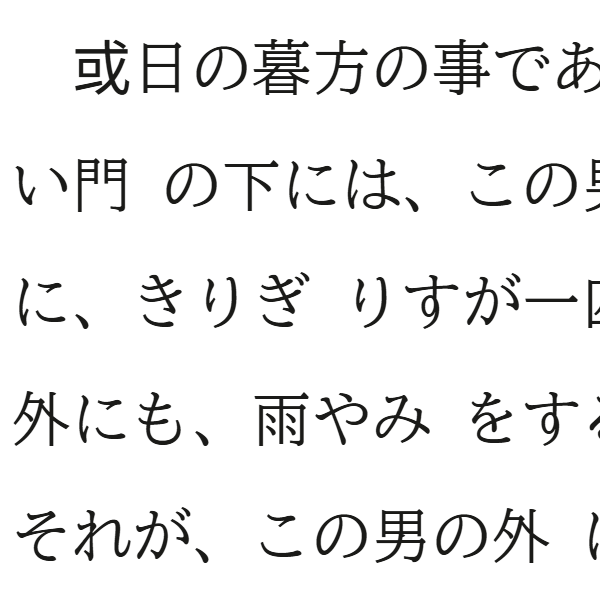
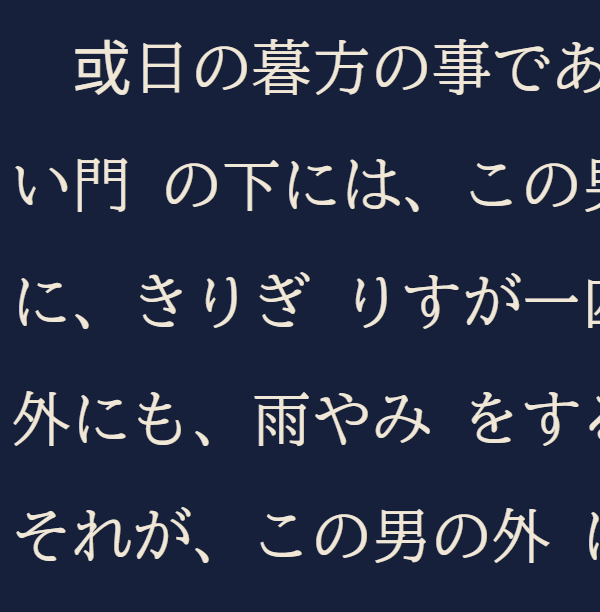
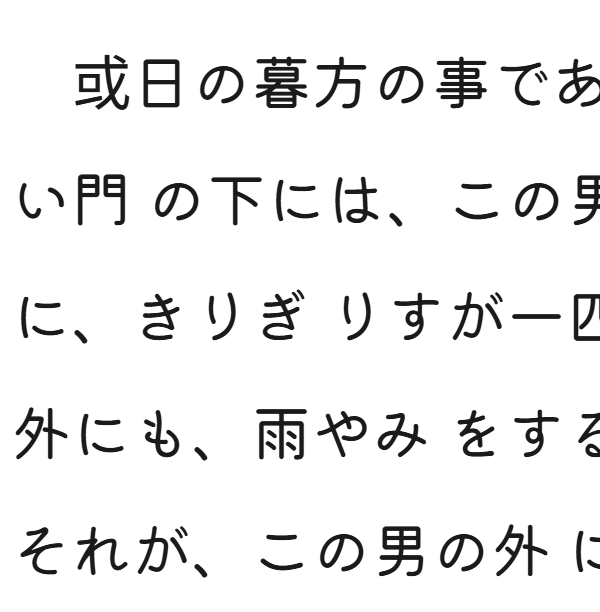
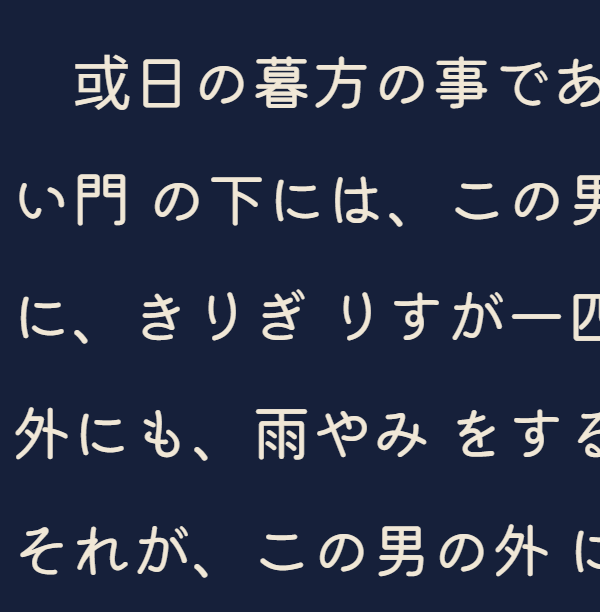
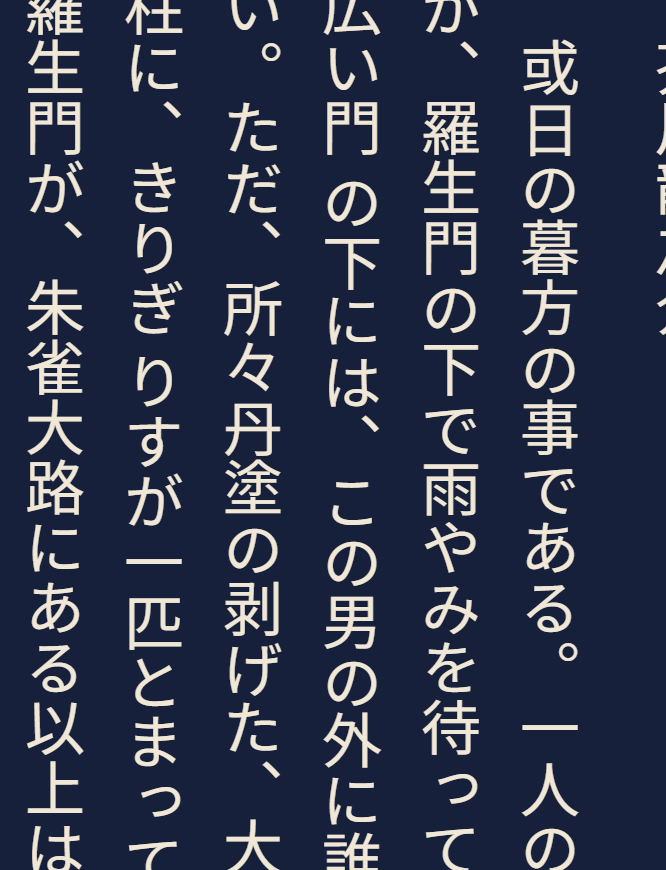
- Set the page your way. Text size, line spacing, margins, paragraph spacing and indent, the typeface, a page colour that the bars take too, a text colour (the page’s own, sepia, amber or orange), and Pages or Free scroll.
- A manga can scroll top to bottom, turn right to left, or show two pages side by side on a wide screen, on the web as well, and takes the settings that work on a picture: page colour as a wash, Fit page or Fit width, and a margin.
- Your place is kept in every book, and in every video. The strip under each cover shows how far through you are: in characters for a book, as the reader’s footer counts them, and in pages for a manga or a PDF. A book read to its end fills its strip. The place is saved as each page settles, and a page inside a long paragraph reopens where you left it. On a phone or tablet, turning the device keeps the page, and a page turned back is the one you turned from.
- What you read last comes first. The shelf puts the book you last read or added at the front, on every device you are signed in on, and a collection keeps its volumes in volume order.
- Library sync. Switch it on and your books, subtitle files and films are copied through your own Google Drive or iCloud to every device connected to that same Drive or iCloud account, films over Wi-Fi only if you choose. The Drive can belong to a different Google account from the one you sign in to Mojiya with.
- The Library, Books and Watch each have a Sync button, which counts the files as they move, and a pass runs each time the app opens. A device with no cloud chosen says so on those shelves.
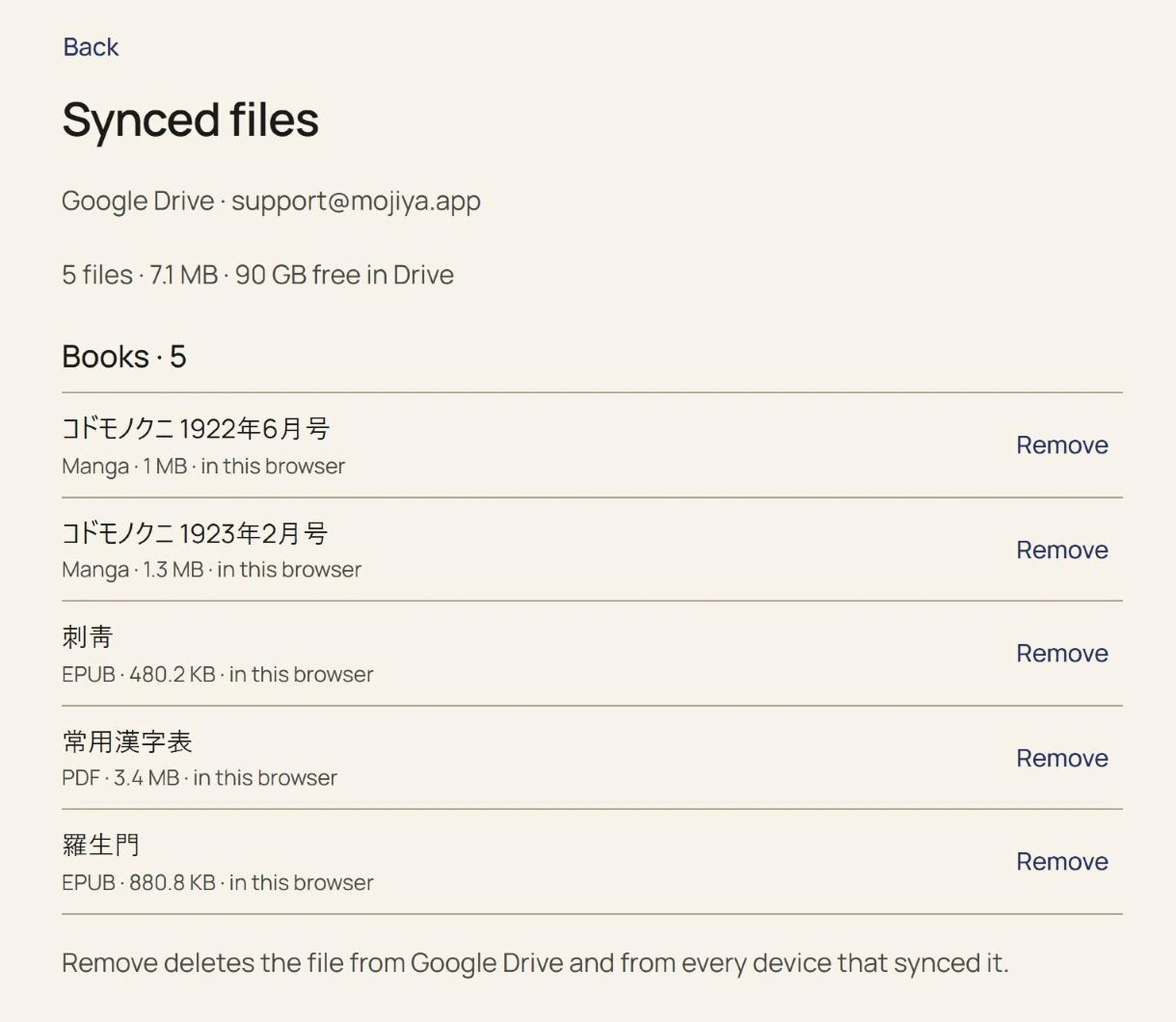
- Files opens Synced files: every book, subtitle and film your cloud holds, with its size and where it is, and Download and Remove on each.
- A file that does not arrive is named on the Library’s line and tried again by the app; Synced files says why, with Try again. A copy that is damaged in your cloud is replaced by a device that holds a good one, by itself or with Send again.
- When your cloud asks you to sign in again, a line under Sync says so, on the web too, and Sync opens the sign-in, and picking a different account from the one the library uses names the right one.
- A book comes back from your cloud or your backup folder under its own title, a manga or PDF included.
- A film kept in the cloud shows on the Watch shelf with its size and a Download button.
- On the web, iCloud signs in through Safari or mojiya.app’s own page.
- Or copy them into a folder you choose and bring them back from it: on the web, folder backup works in Chrome and Edge, and other browsers save one backup file.
- Read aloud with the device's voice, at half to double speed, marking each word as it is said and going on into the next chapter. Tap a line while it plays and the voice moves there.
- Keys on the web. The arrow keys, Space and Page Up and Down turn pages, [ and ] step through the chapters of the book’s own table of contents, + and − zoom a picture page, and ? lists every key.
- Read along with an audiobook. An EPUB with its own media overlay plays in sync. For any other text book, give it the audio and the app aligns the two on the device, or times them from SRT files, then highlights each sentence as it is read. Tap a line to move the narrator there; a word sent to Anki from a timed audiobook carries the narrator’s line as its audio.
Your shelf Several files added in one go; a PDF with text asks how you want it.
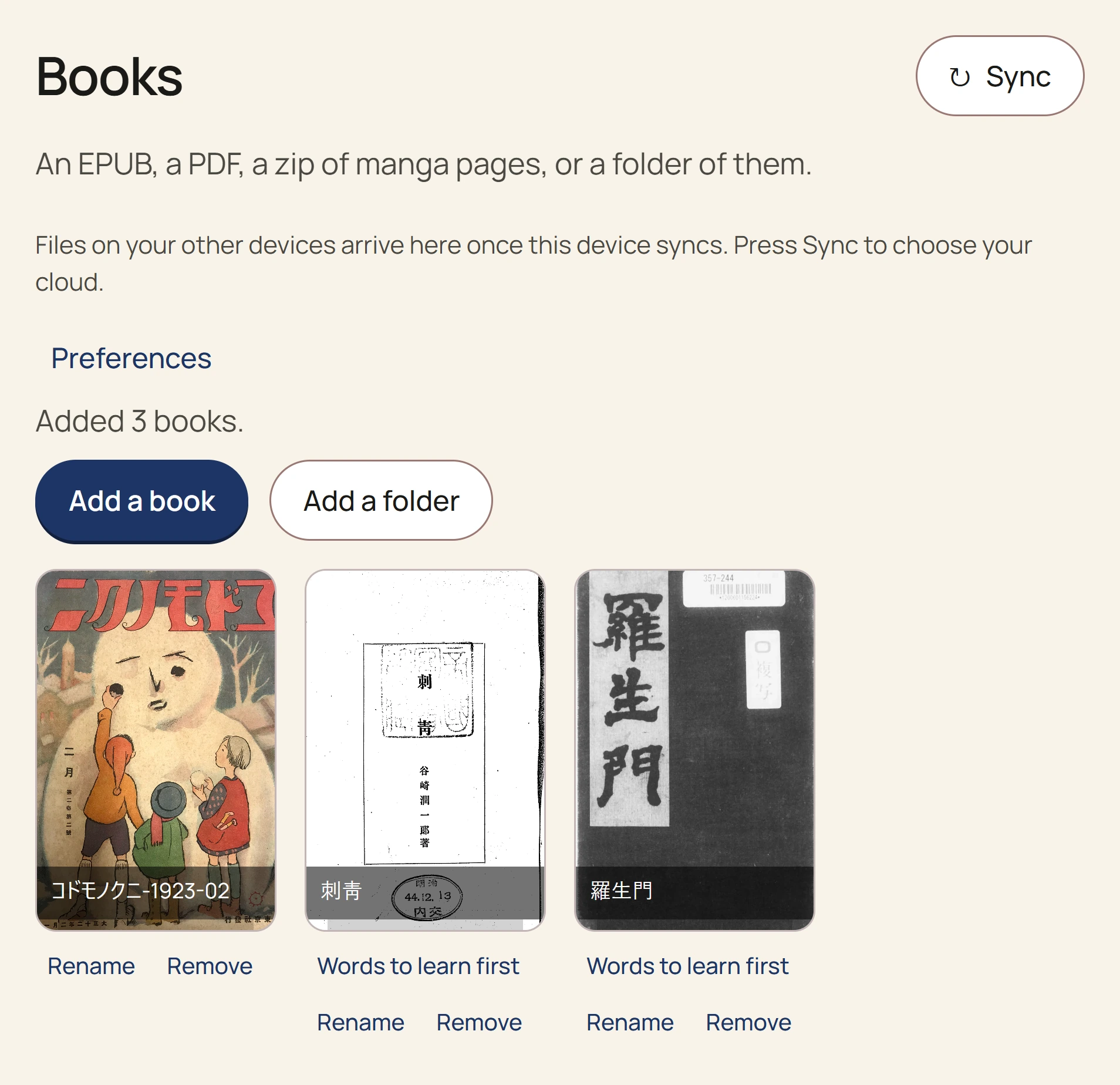
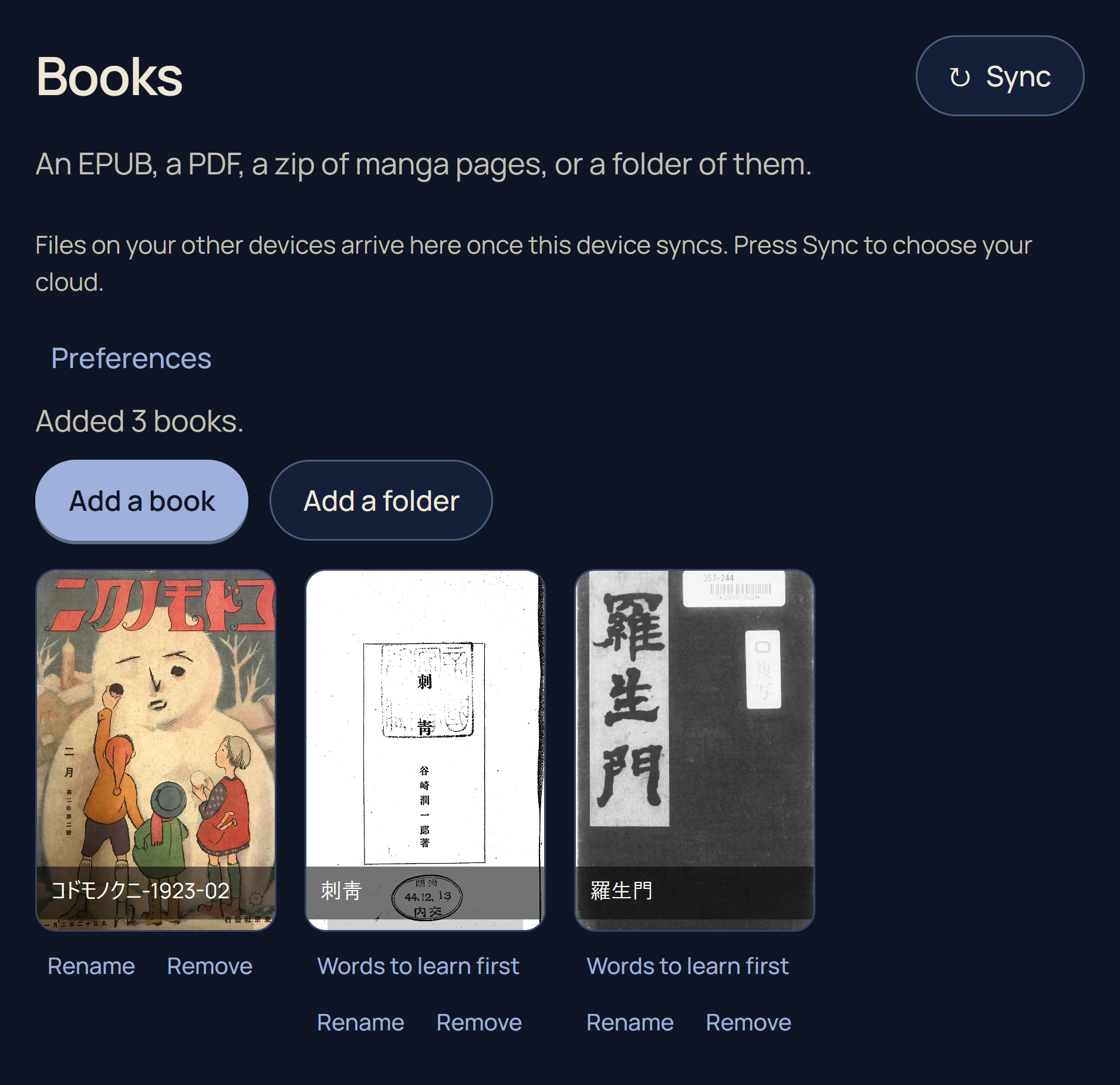
Rename a book In place under its cover; the new title follows the book to your other devices.
Picture pages A zoom bar and a magnifier lens over a picture page, on a computer.
Library sync Chosen from Sync on the Library, Books or Watch, or in Library backup.


Synced files Everything your cloud holds, opened from Files beside the Sync button.
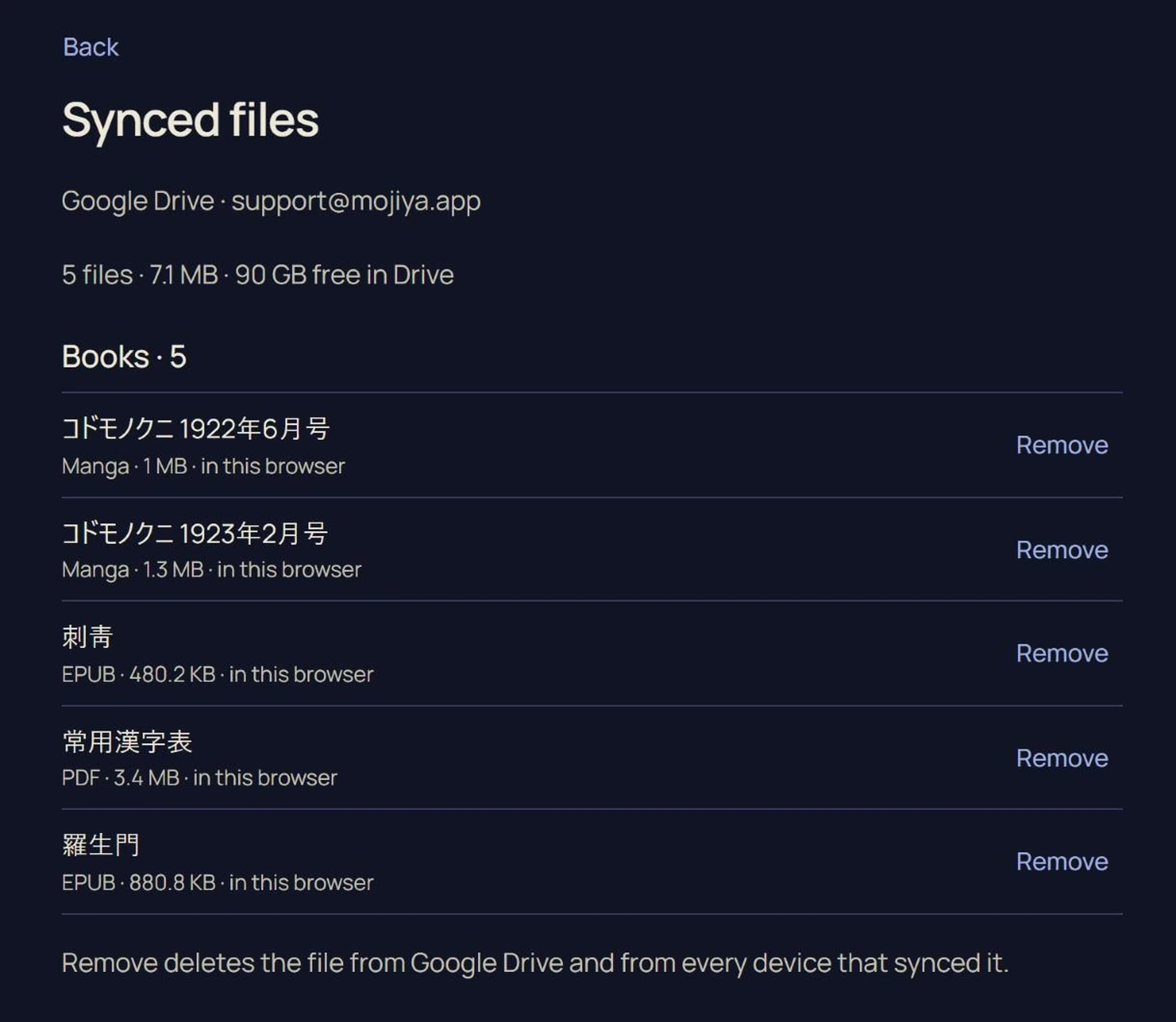
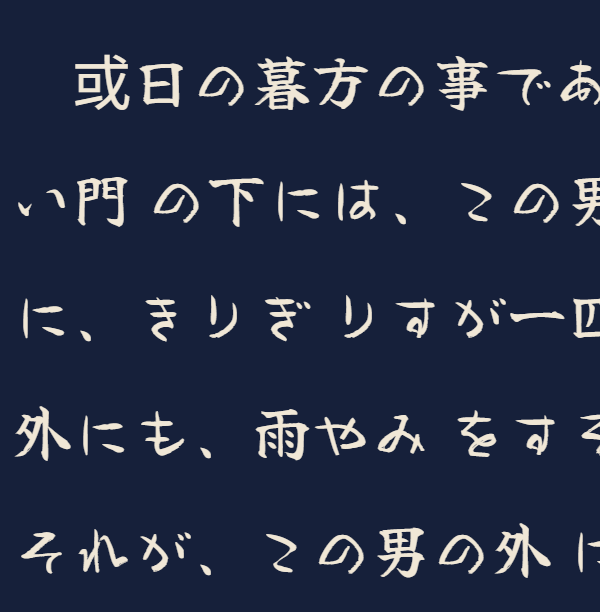
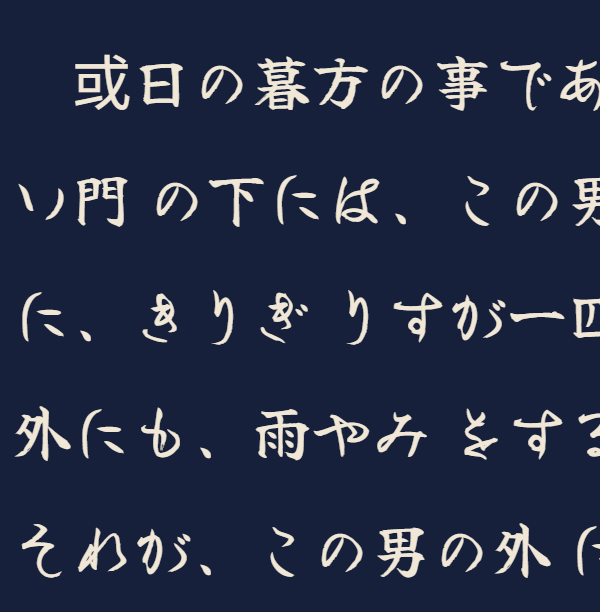
Page colour The app’s own, sepia or night.
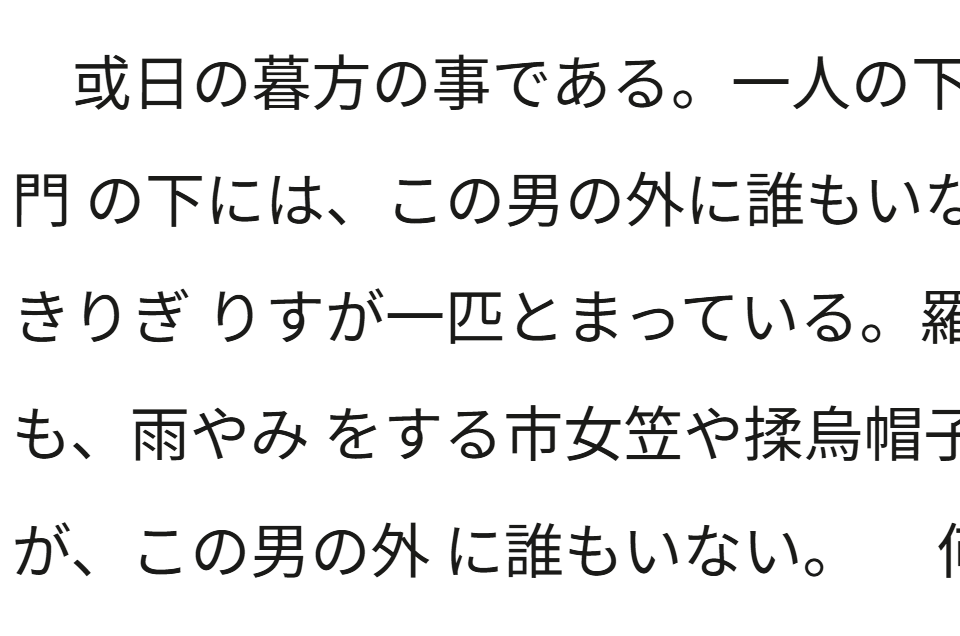
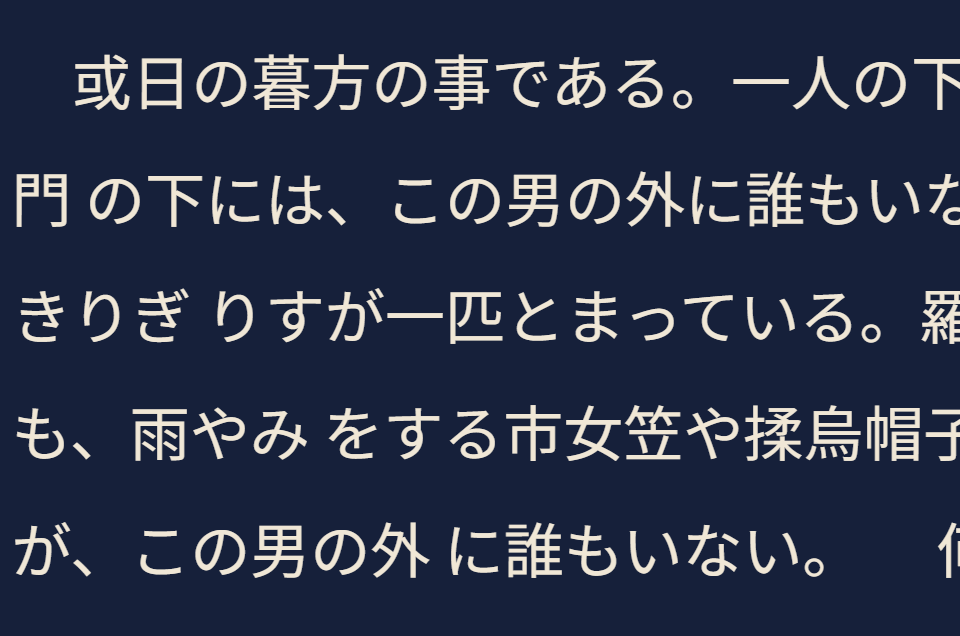
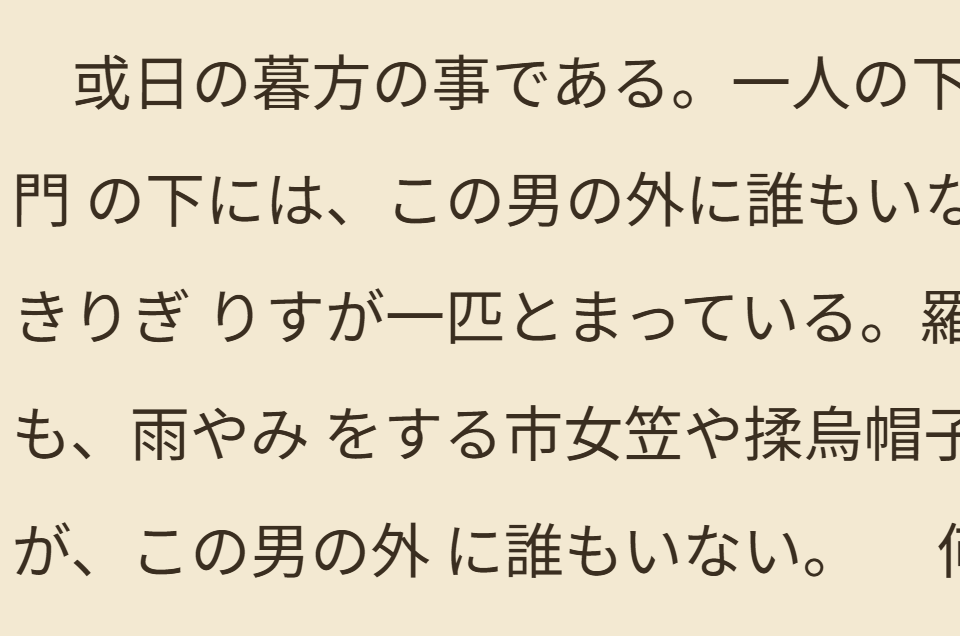
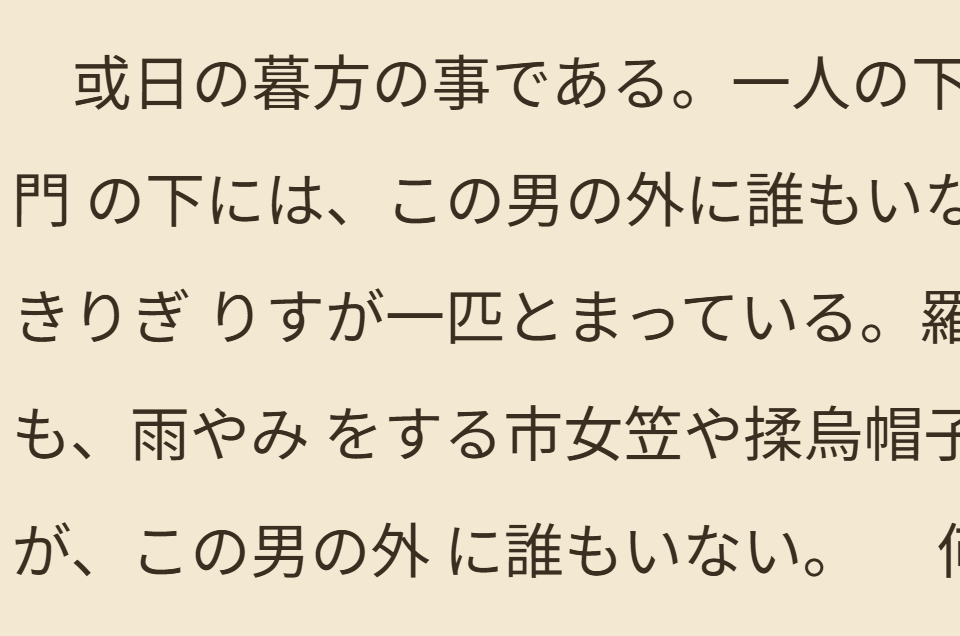
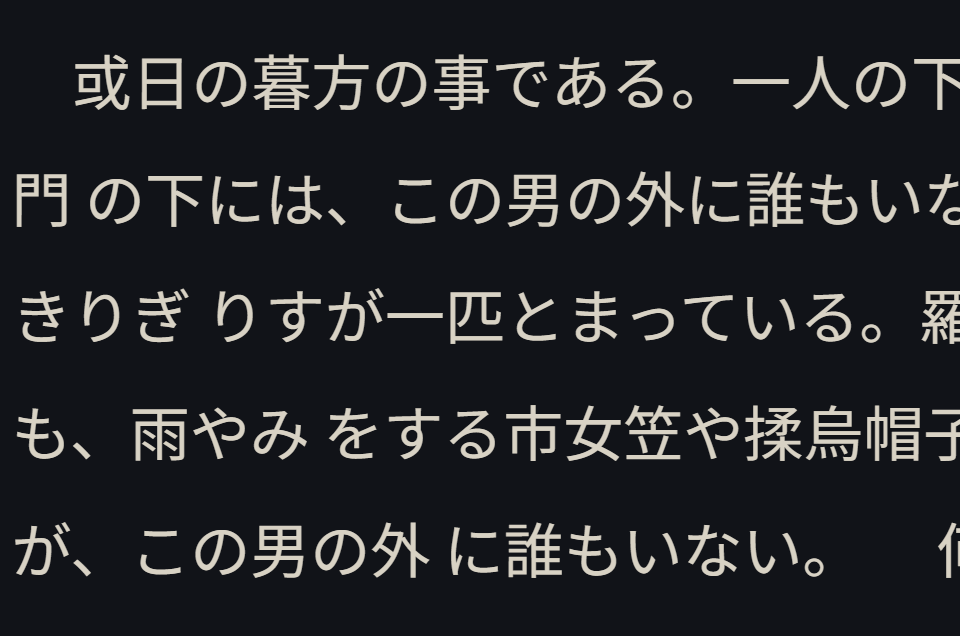
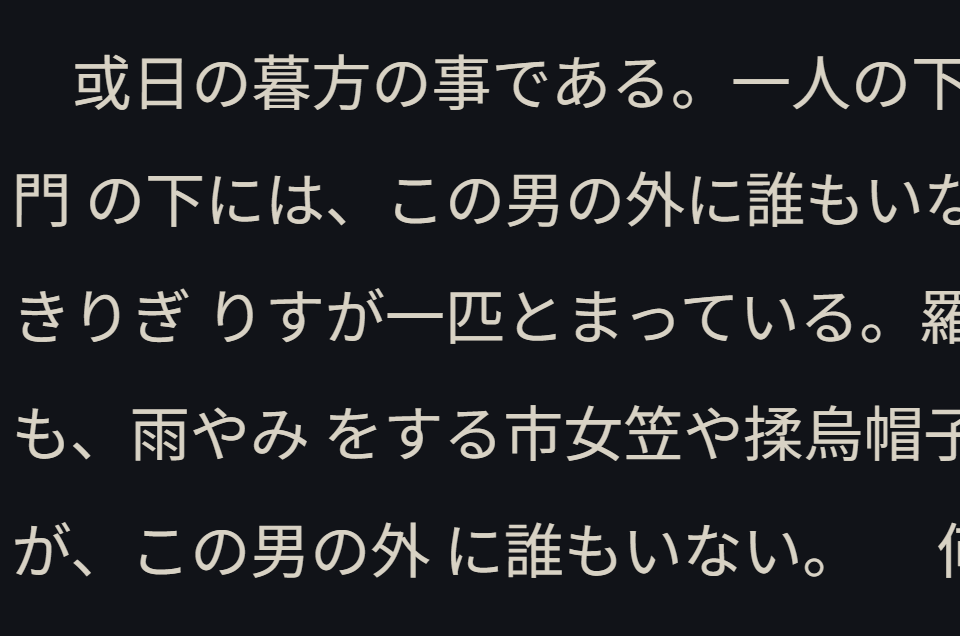
Reader typefaces Ten typefaces besides the default, with text size, line spacing, margins and paragraph spacing to match.
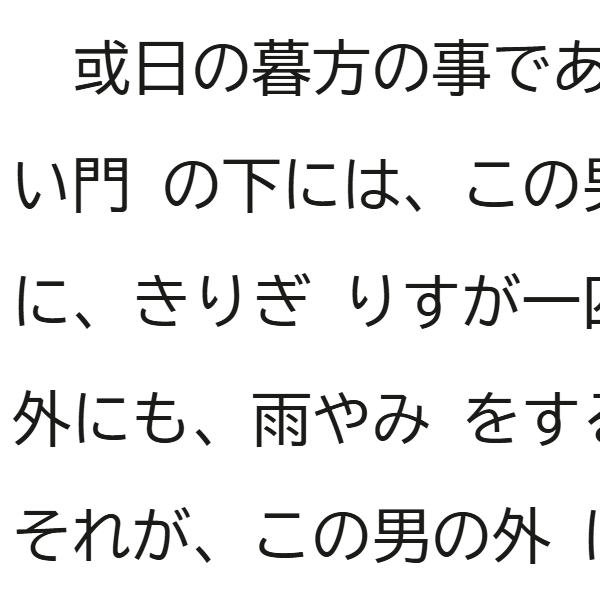
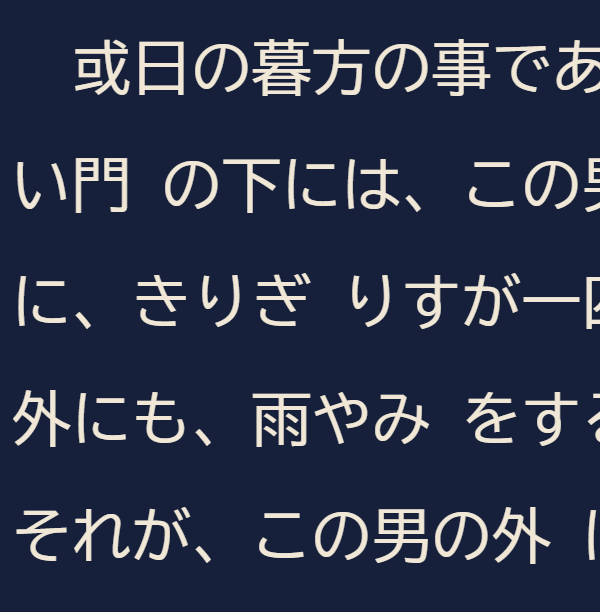
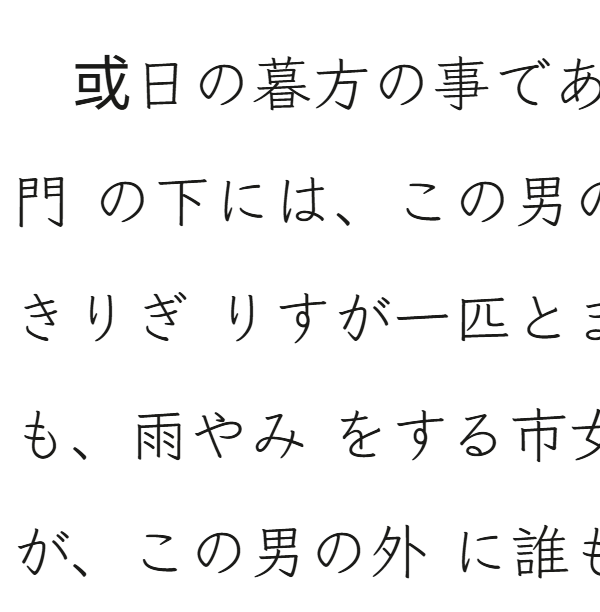
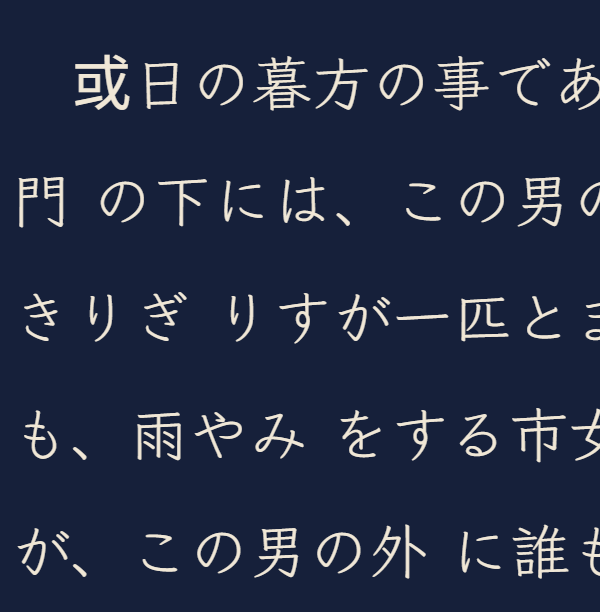
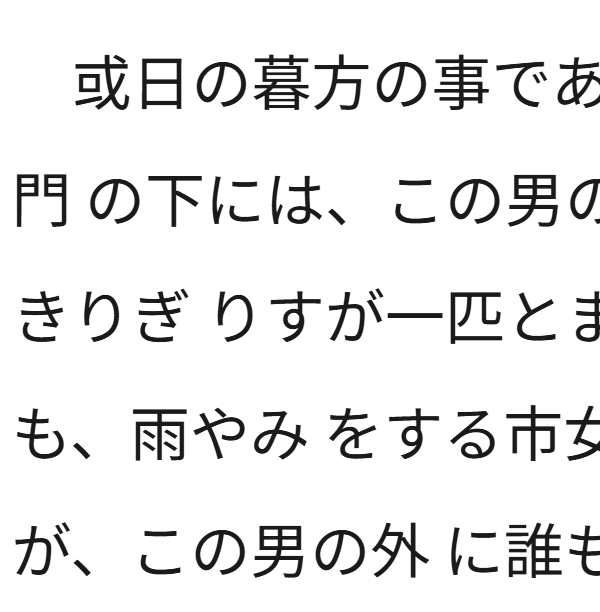
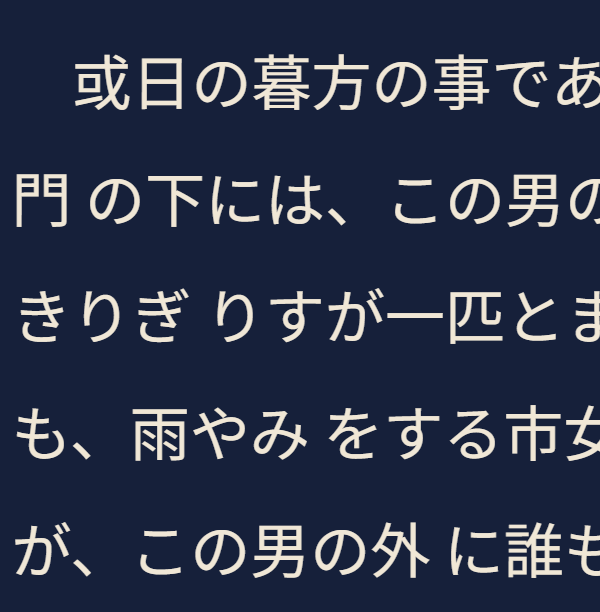
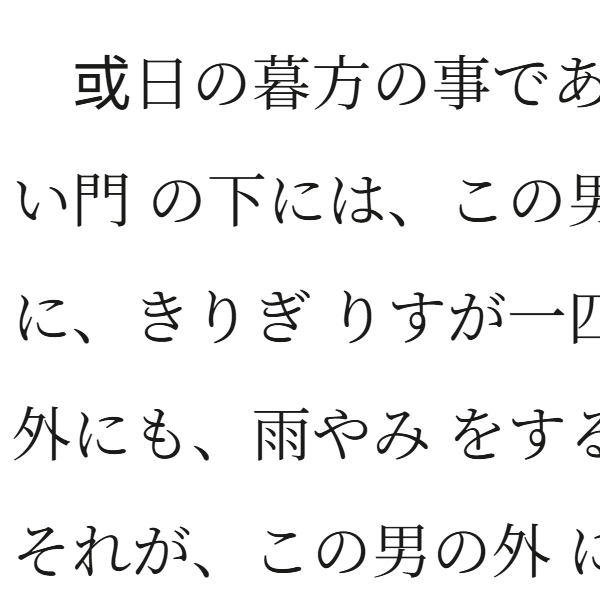
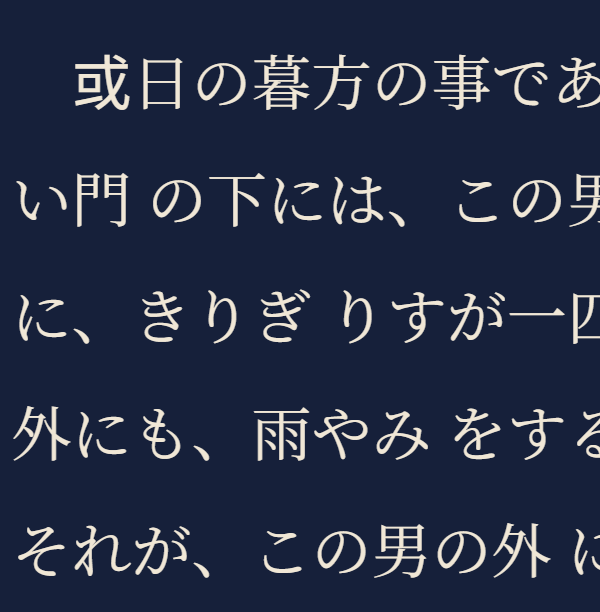
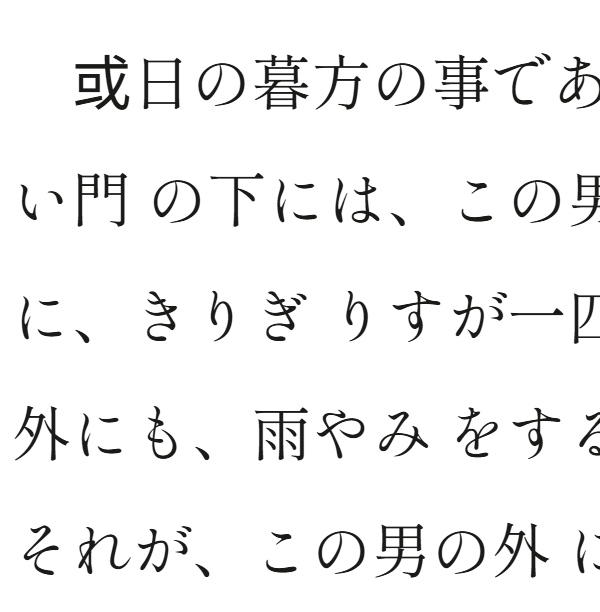
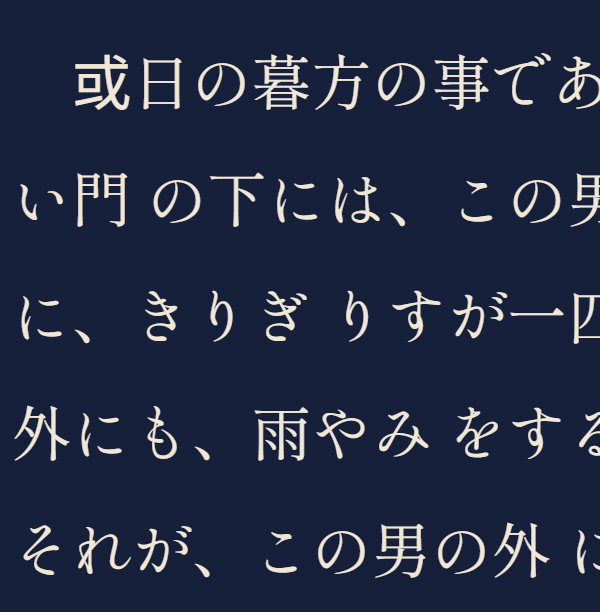
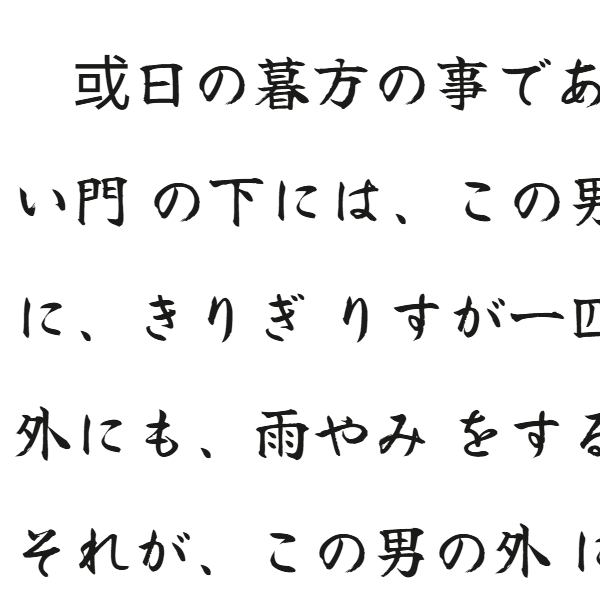
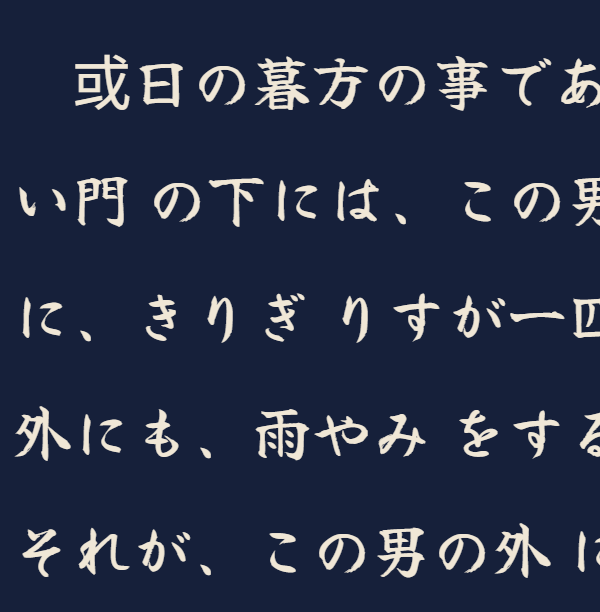
Direction Left to right, top to bottom, or as the book itself asks.
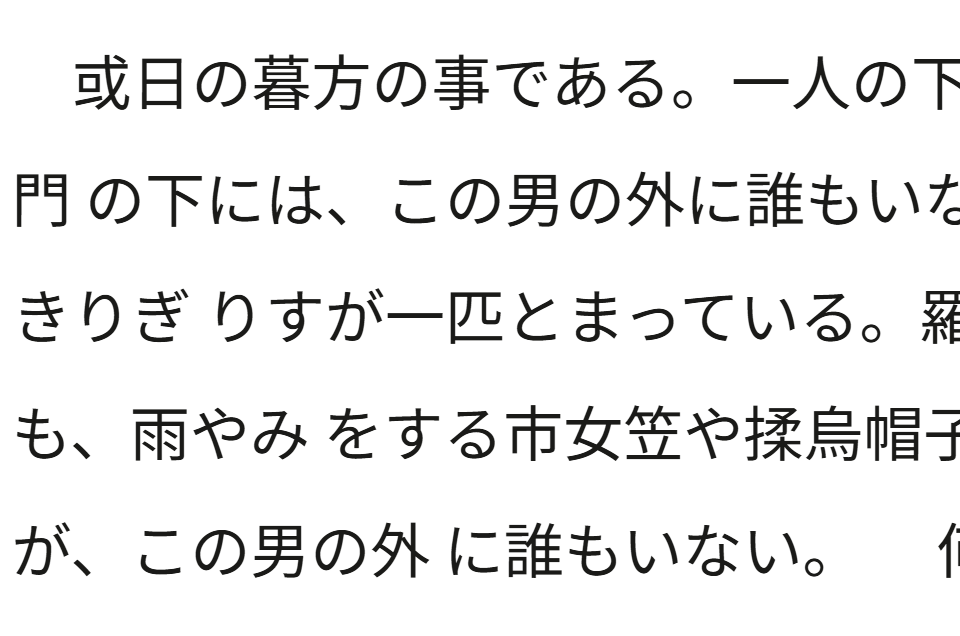
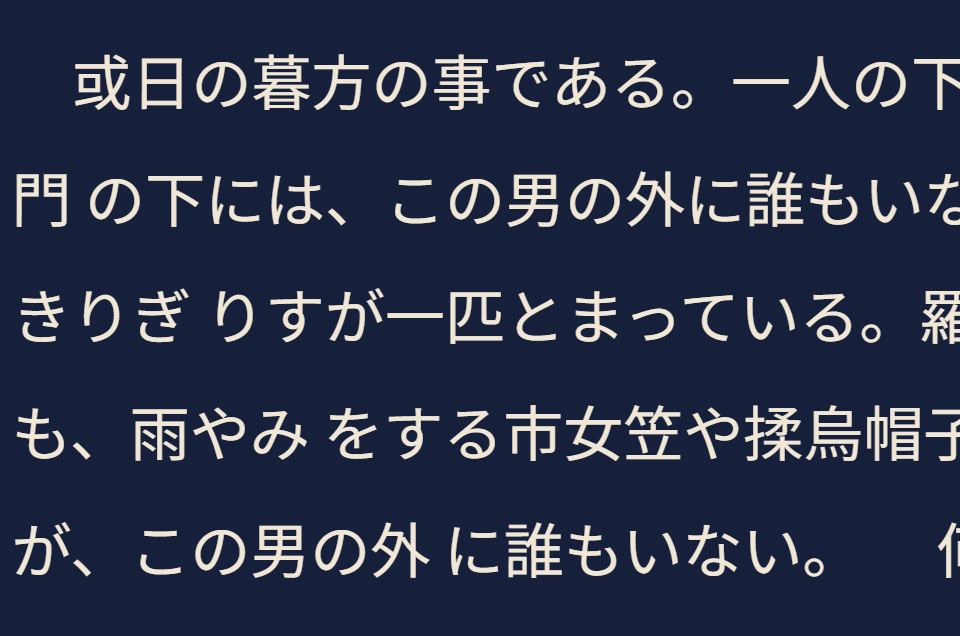
Video with subtitles
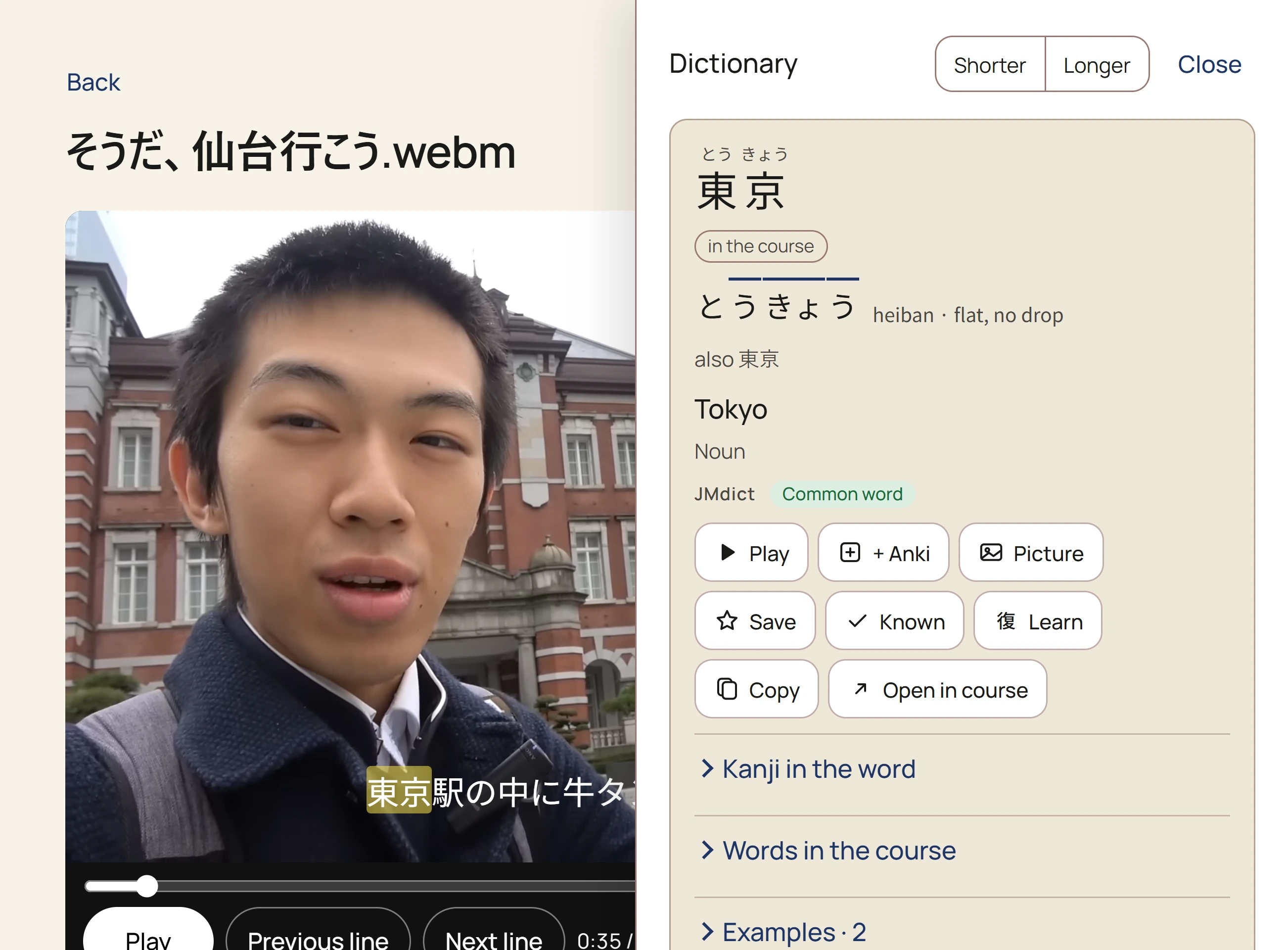
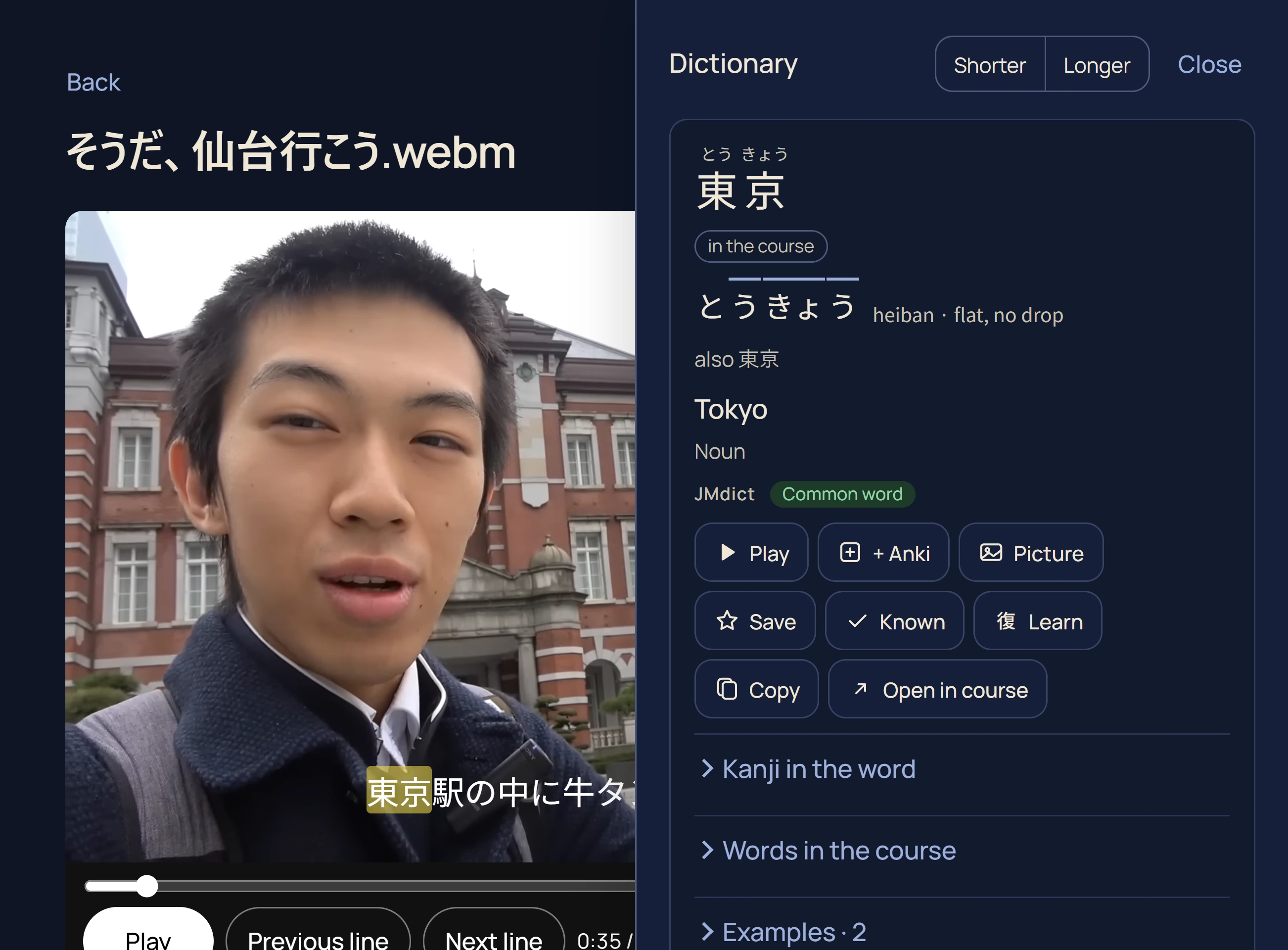
- Play your own video with its subtitle file: SRT, VTT, ASS or SSA. Add films and their subtitle files in one go: each subtitle goes to the film it is named for, and a film with none says Add subtitles. On iOS, films can come from Photos too.
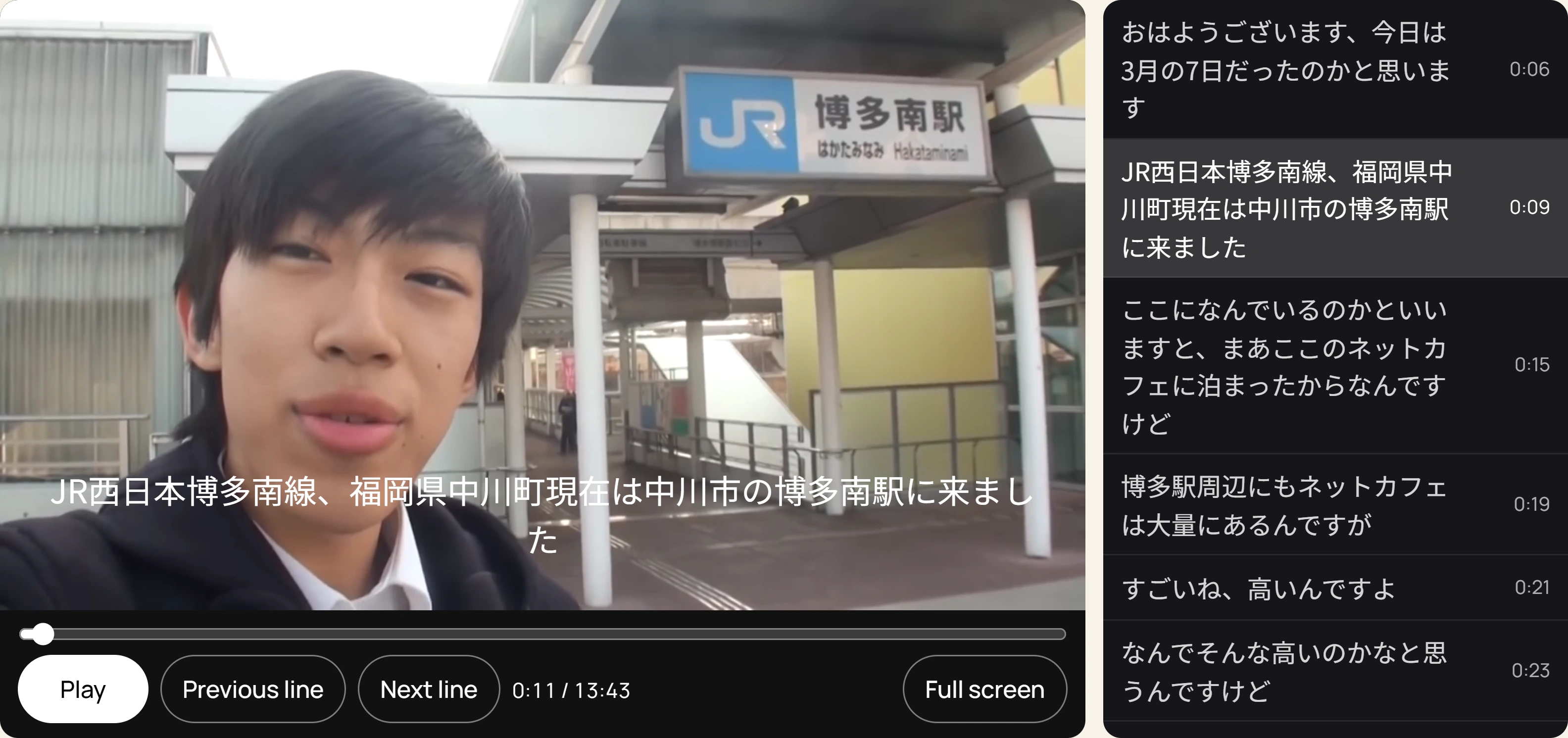
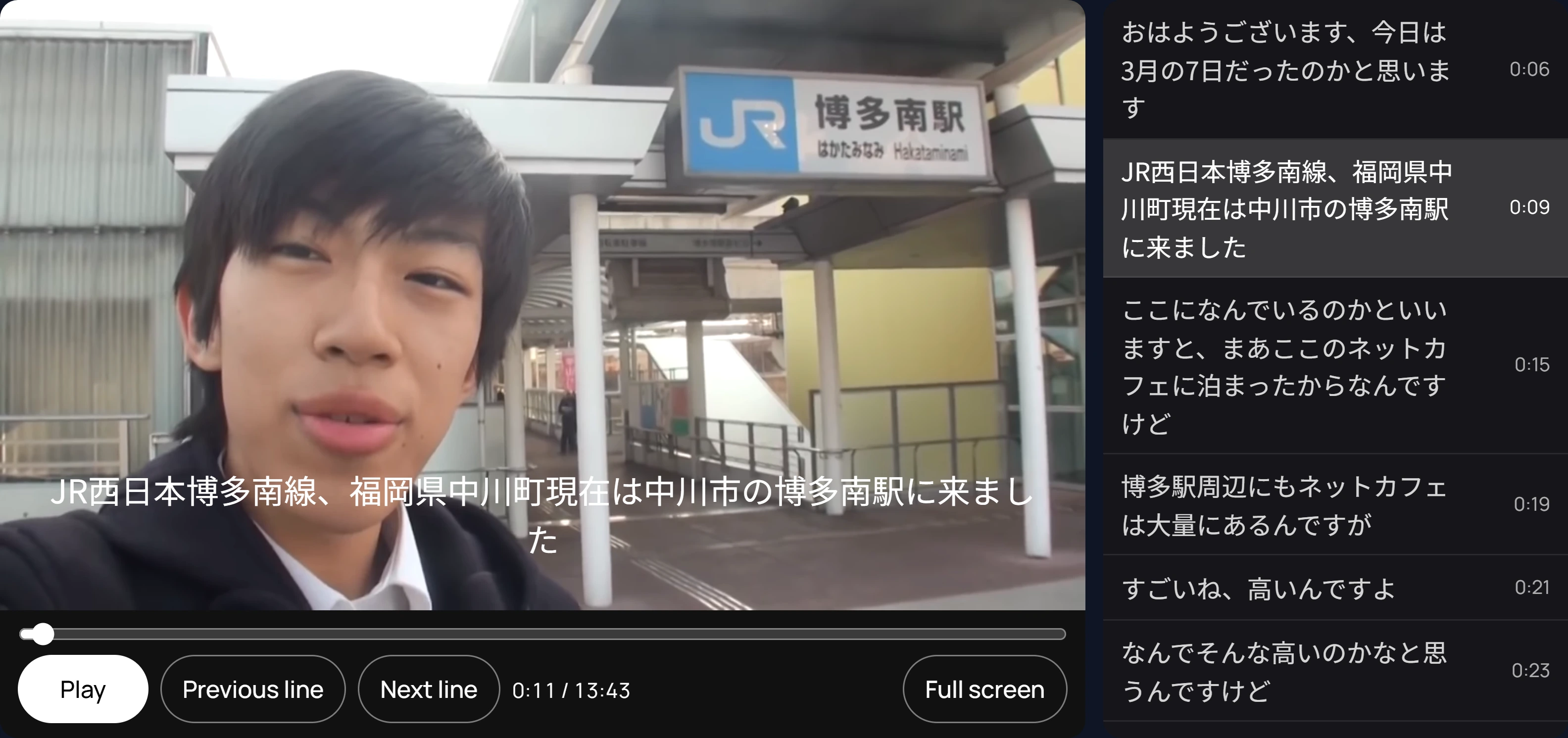
- Line by line. Go back a line, replay it, go on, or pause at the end of every line. Open the transcript as a panel beside the film, or under it in portrait, tap a line’s time to play from it, or a word in it to look it up. On a touch screen, a sideways swipe on the picture replays the line. Each film remembers whether its transcript was open.
- Ways to watch. Skip the gaps between lines, hide the line to listen first and see it when you seek back, or slow playback to 0.75×. Subtitles can stay blurred until you tap them.
- Subtitles that fit. Shift their timing if they drift, change their size, choose their colour, give them an outline or a dimmed box, and add a second subtitle file in your own language, shown when you pause.
- A subtitle file in UTF-8, UTF-16, Shift_JIS or EUC-JP is read as text.
- Text subtitle tracks inside an MKV, WebM or MP4 can be chosen too, and tapped and sent to Anki, on every platform; an MKV’s Japanese track shows by itself. A picture track, such as PGS, is drawn by the player on iOS and cannot be tapped.
- On Android and iOS a track the player shows itself sets the film’s subtitle file aside for that viewing, and Show the subtitle file brings it back. Remove subtitle file, in More on the phones and beside Change subtitles on the web, takes the file off the film.
- A film with more than one audio track lets you pick the language on Android and iOS, and on the web in browsers that list the tracks, such as Safari.
- Tap a word in the line to pause and look it up, then send it to Anki with a picture of the scene and the line’s audio.
- On the web, the player has its own bar, and full screen keeps the line and the dictionary inside it. Space plays and pauses, the arrow keys move a line, S shows a hidden line and F is full screen.
- Your shelf. Each film shows a picture from it and its length, and opens where you left it, with Start over beside it. A film whose file the device can no longer open says so, with Choose it again, and Download when your cloud holds a copy.
- Live TV. A door of its own: the 24-hour news streams of TV Asahi, Nippon TV and TBS, in YouTube's player. They come with no captions, so they are for listening.
Full screen on the web The film fills the screen, and the line and the dictionary stay inside it.
The transcript beside the film Opened from the player, and remembered for each film.
Podcasts
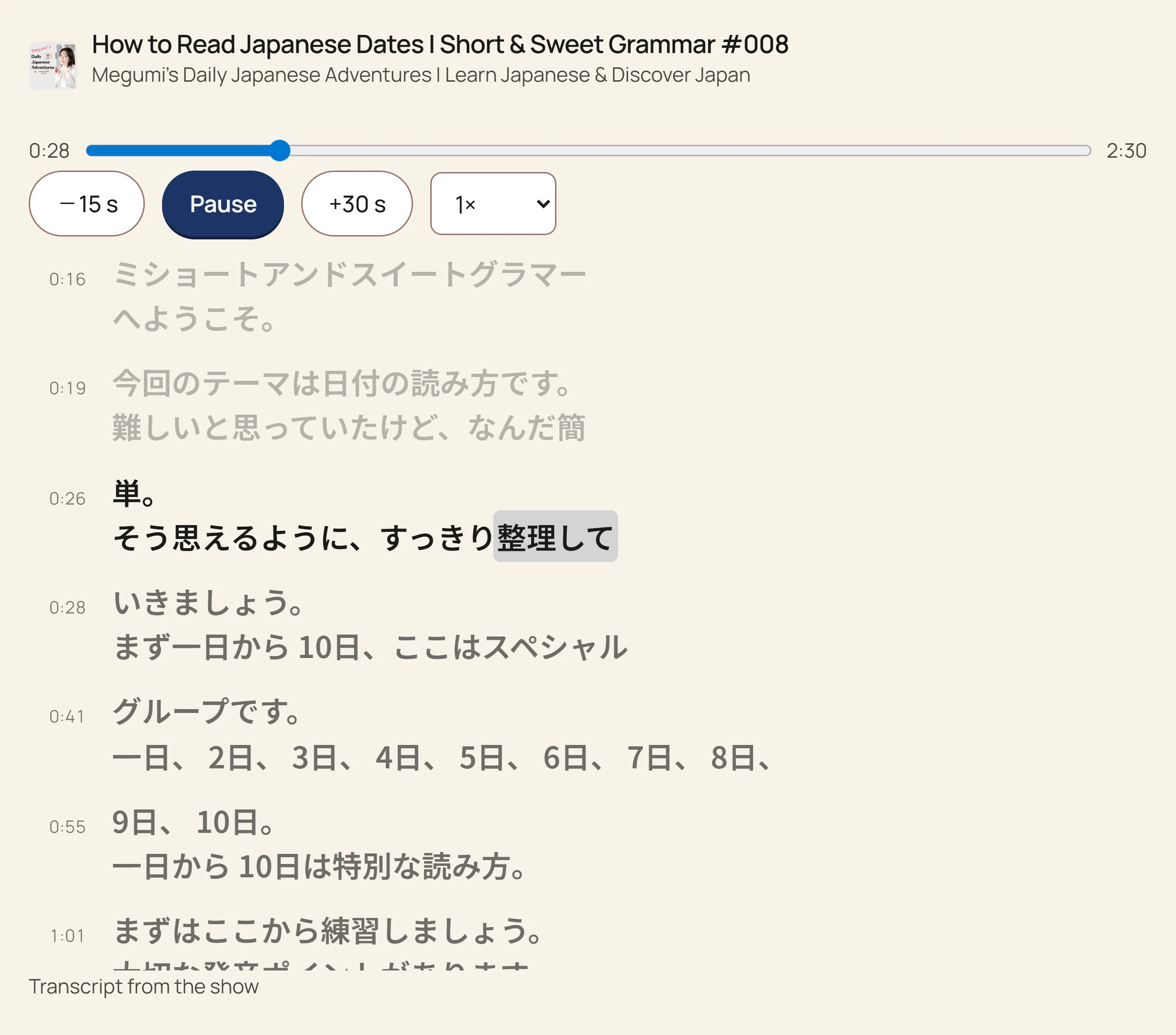
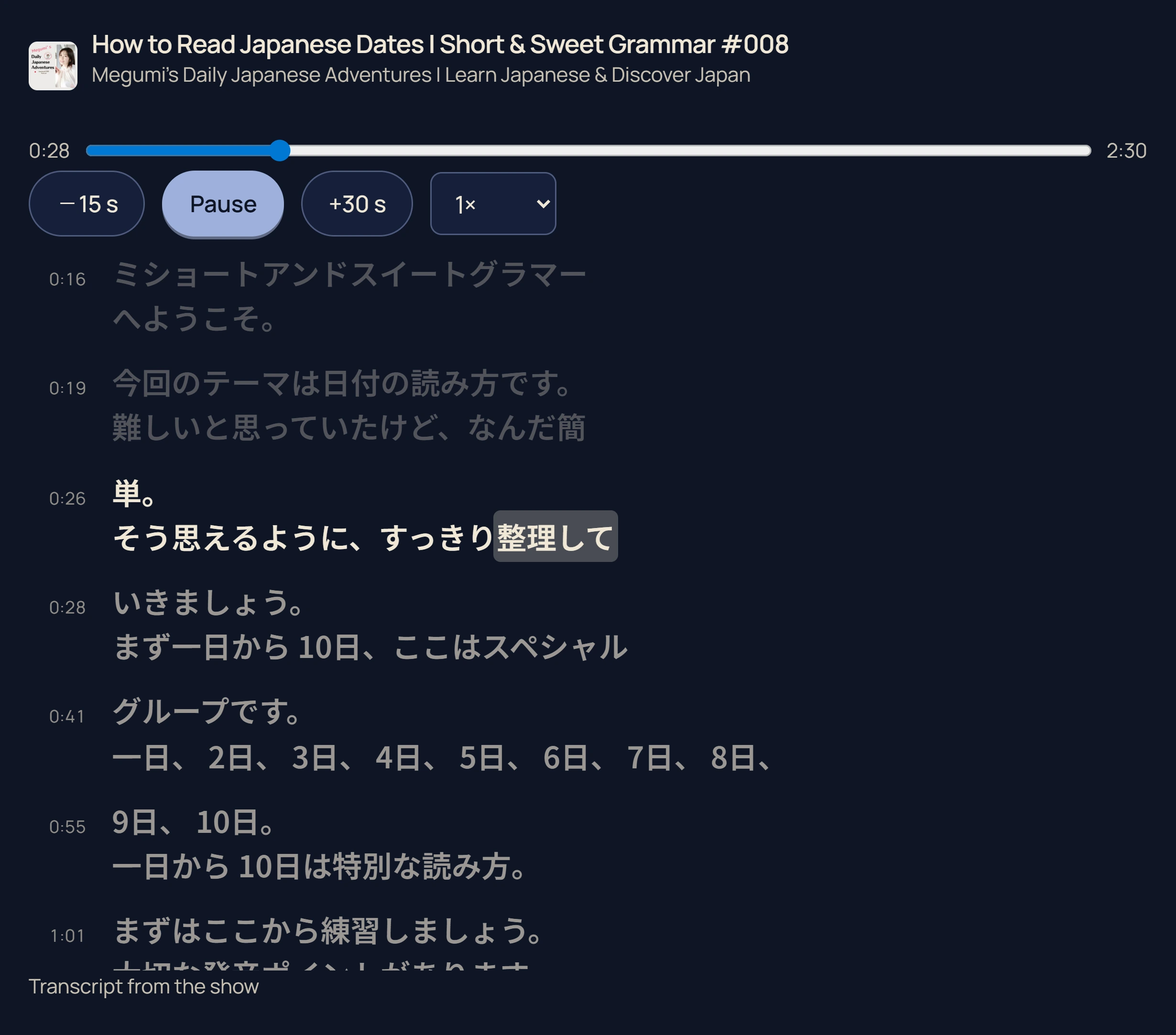
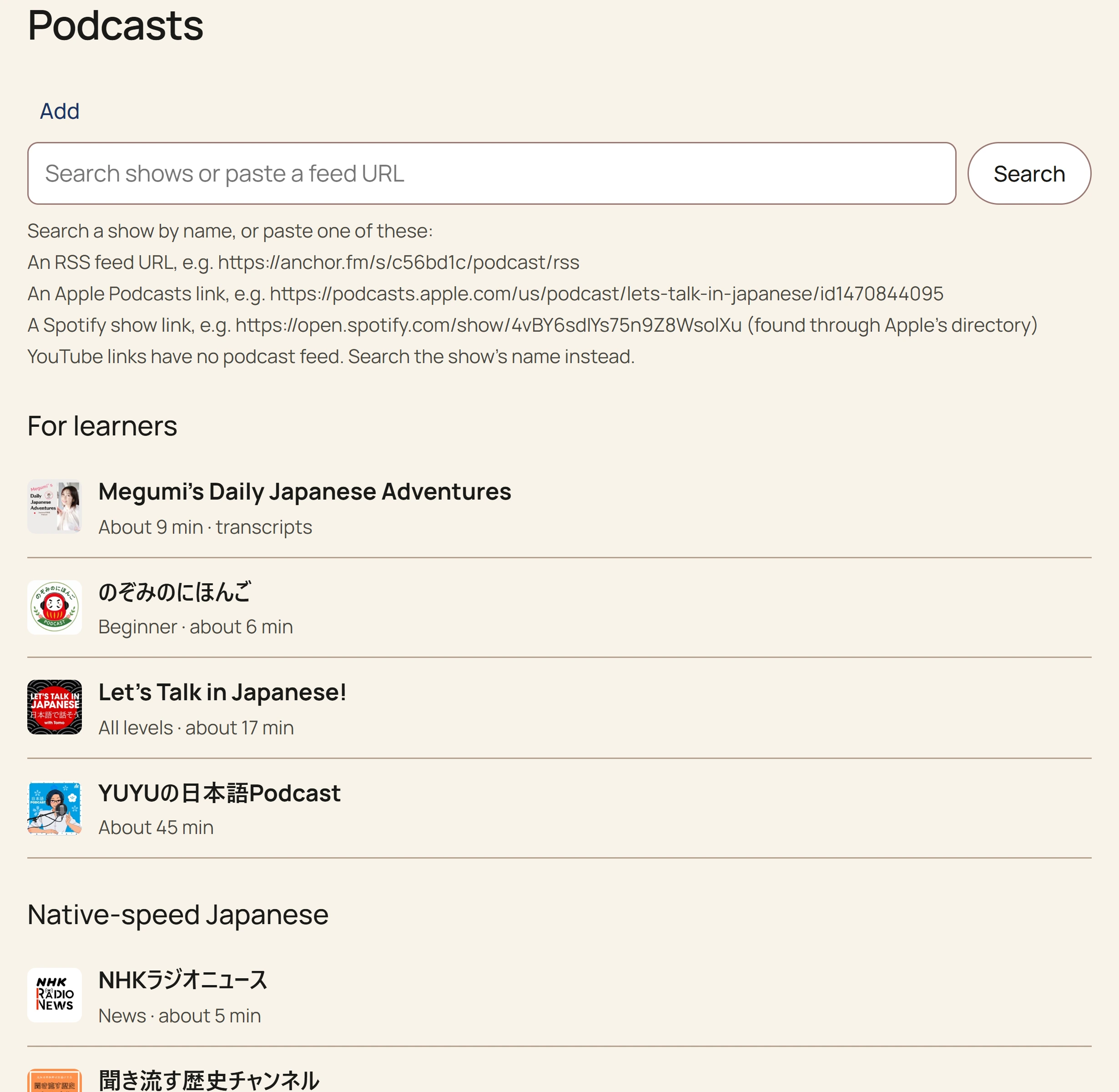
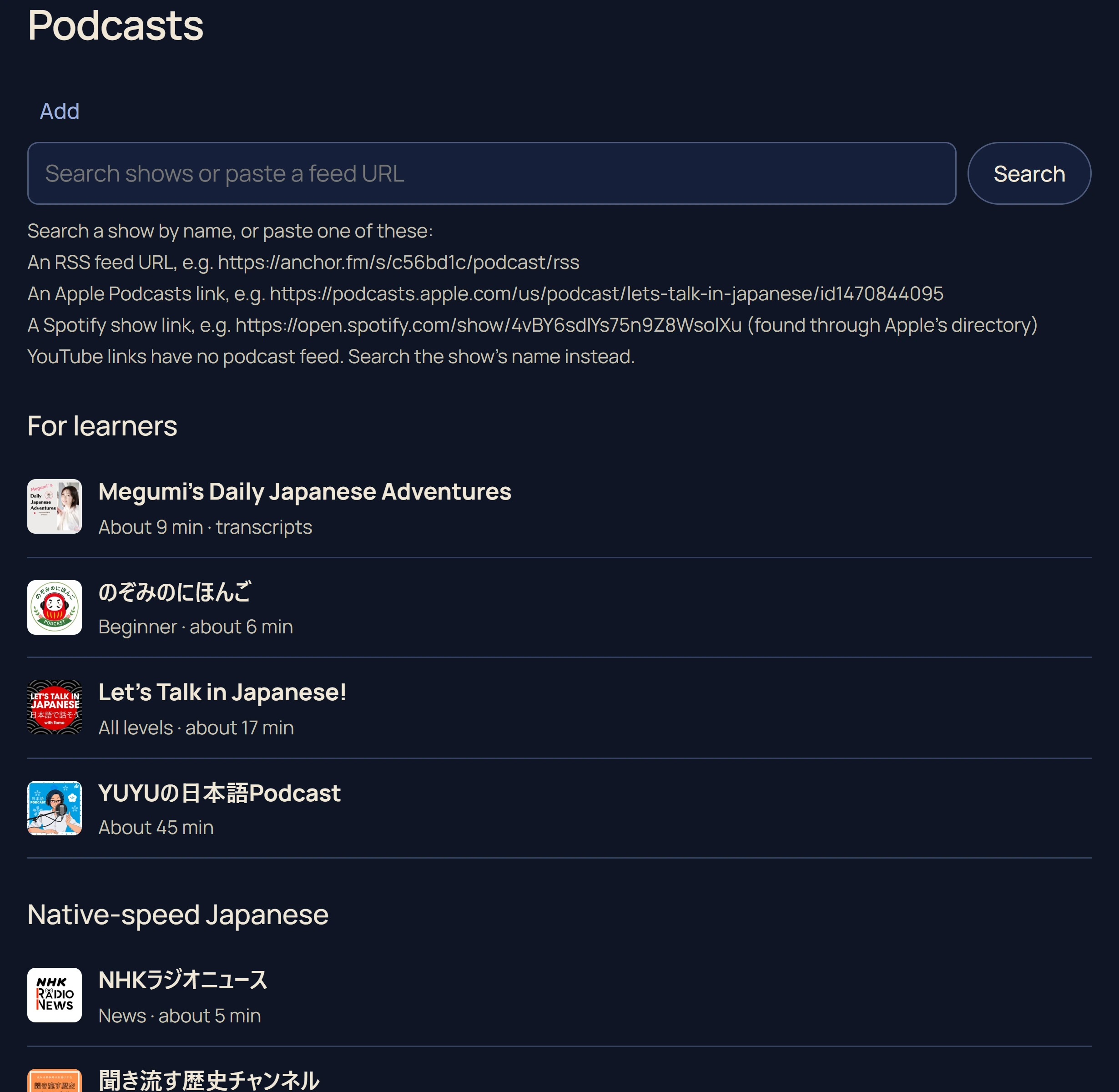
- Follow a show by its feed address, an Apple Podcasts or Spotify show link, or a search. Six starter shows, for learners and at native speed, sit under your own, and the show you played or added last comes first.
- Episodes download to your device. A transcript comes from the show where it publishes one; otherwise the app makes one on the device.
- Read along. The transcript is drawn a word at a time and follows the voice. Tap a word and the episode pauses until you close the look-up; send the word to Anki and, from a downloaded episode, the card carries the line’s audio. Skip back 15 seconds or on 30, and play from half to double speed.
- On every device. Signed in, the shows you follow, your place in each episode and the ones you have finished are the same on Android, iOS and the web.
- On the web, an episode plays straight from the show without a download. To make a transcript of one whose host does not let a website fetch it, save it by hand: Save, then Open file.
Starter shows Four for learners and two at native speed, under the shows you follow.
YouTube, as text
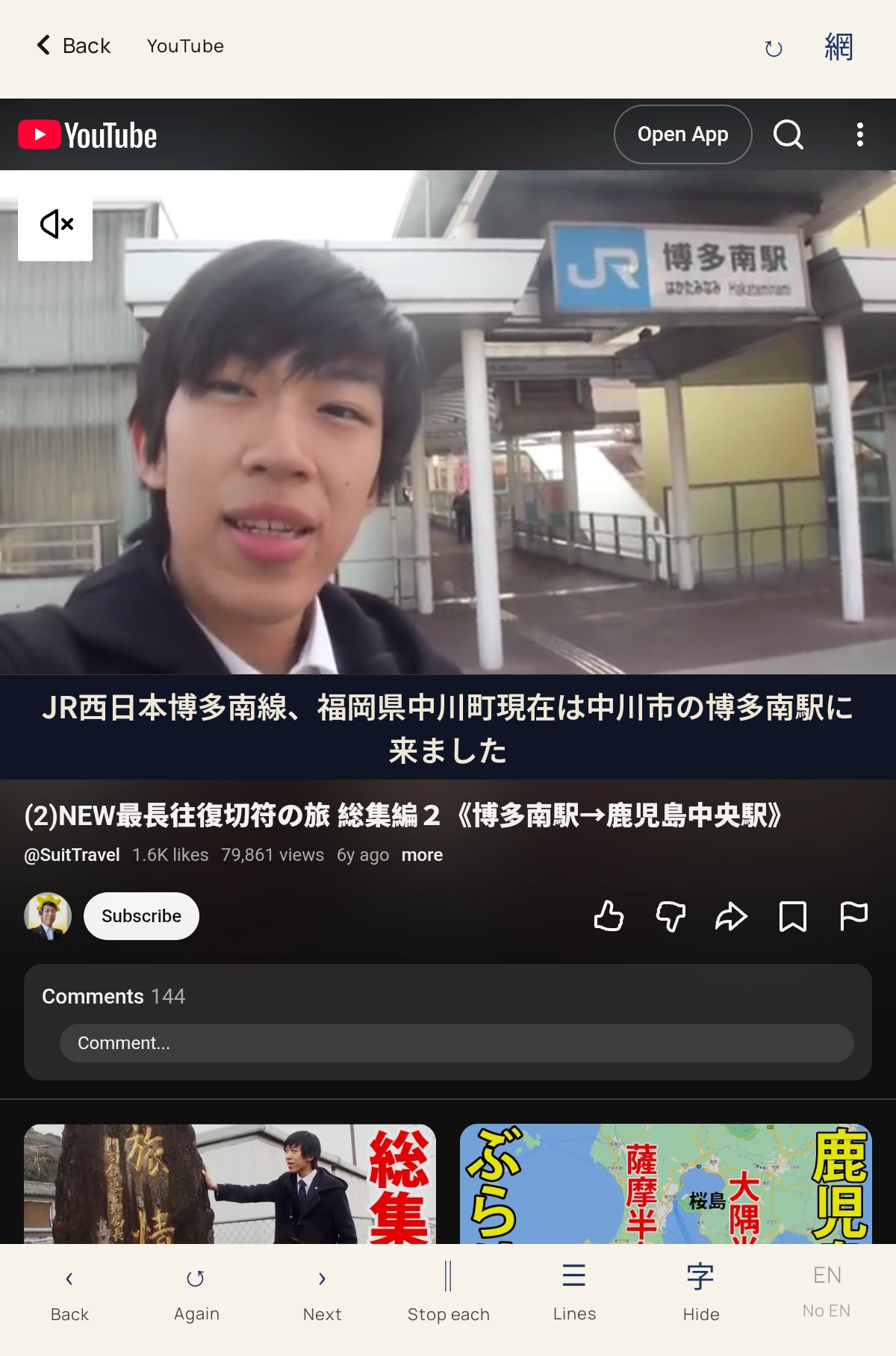
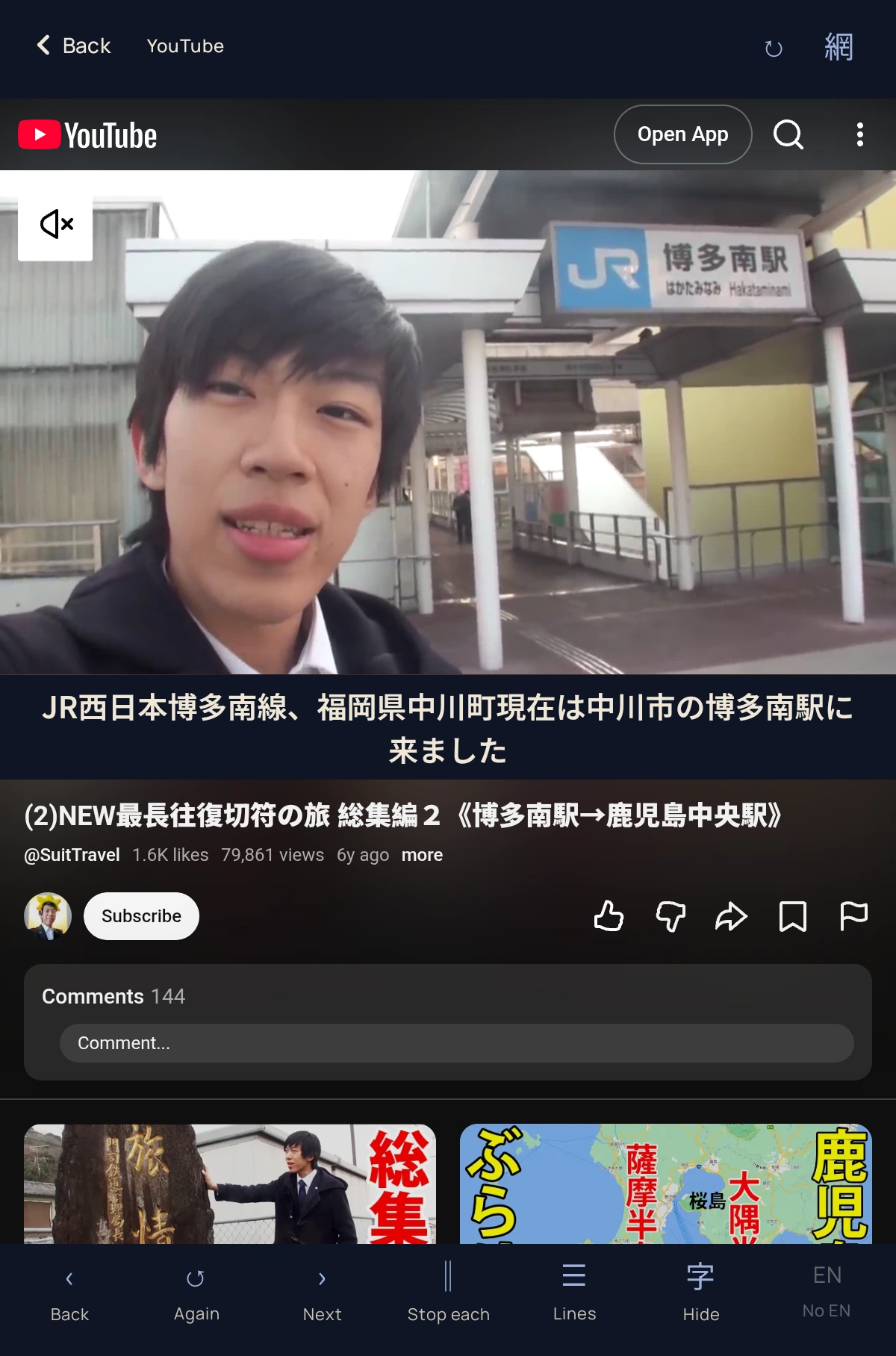
- A YouTube door in the Library on Android and iOS. Watch on YouTube's own page. When a video has Japanese captions, they are drawn as a line of text you can read.
- Tap a word in the line to pause and look it up, or send it to Anki.
- A row under the video: previous line, replay, next line, pause at each line, the transcript, hide the line, and the English line where the video has one.
- Human captions first. A video's own Japanese track is preferred over YouTube's automatic one, and machine translations are never used.
- On a computer, the browser extension does the same on youtube.com. The website has no YouTube door: YouTube's pages do not open inside another site.
Any website
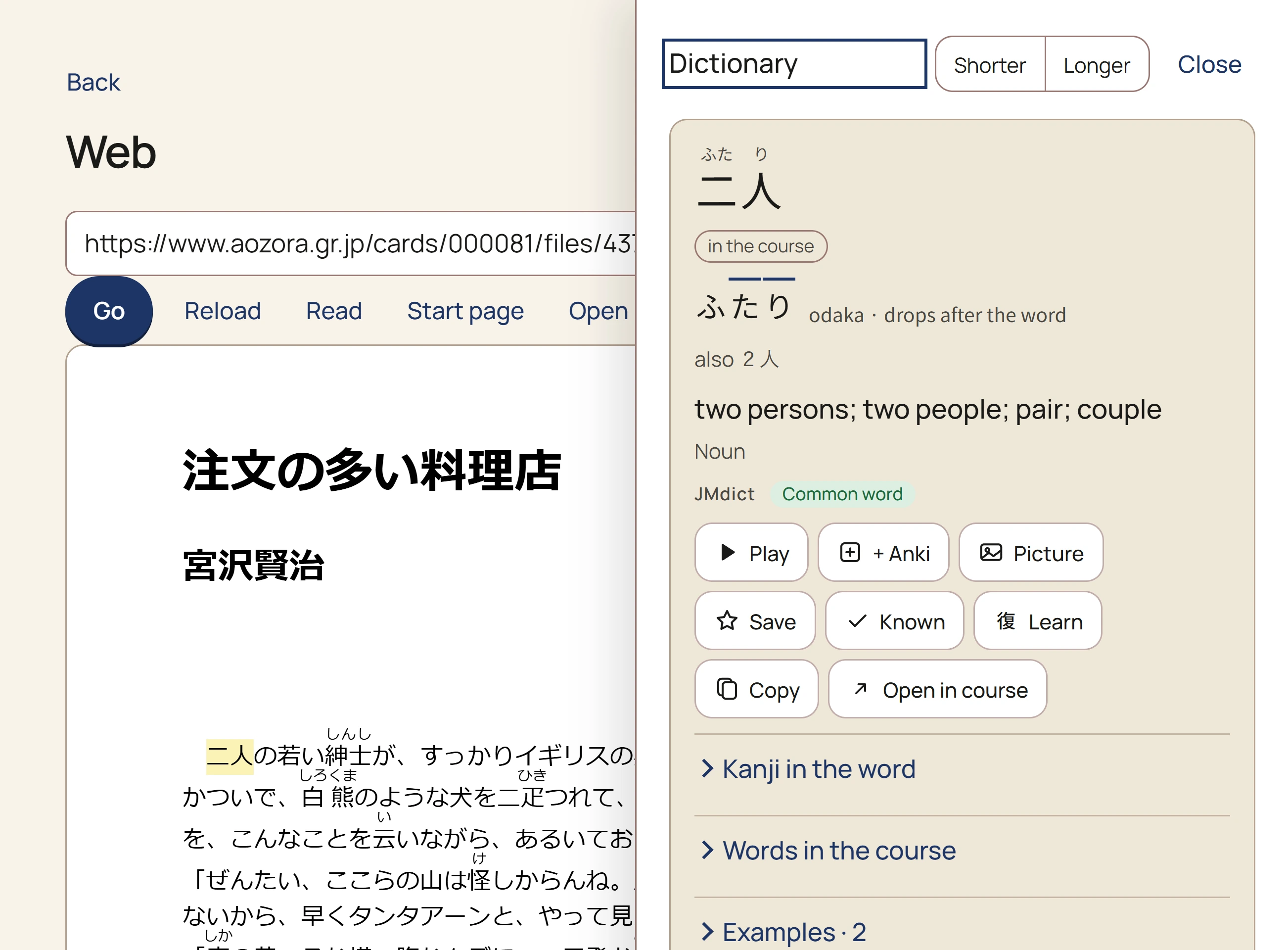
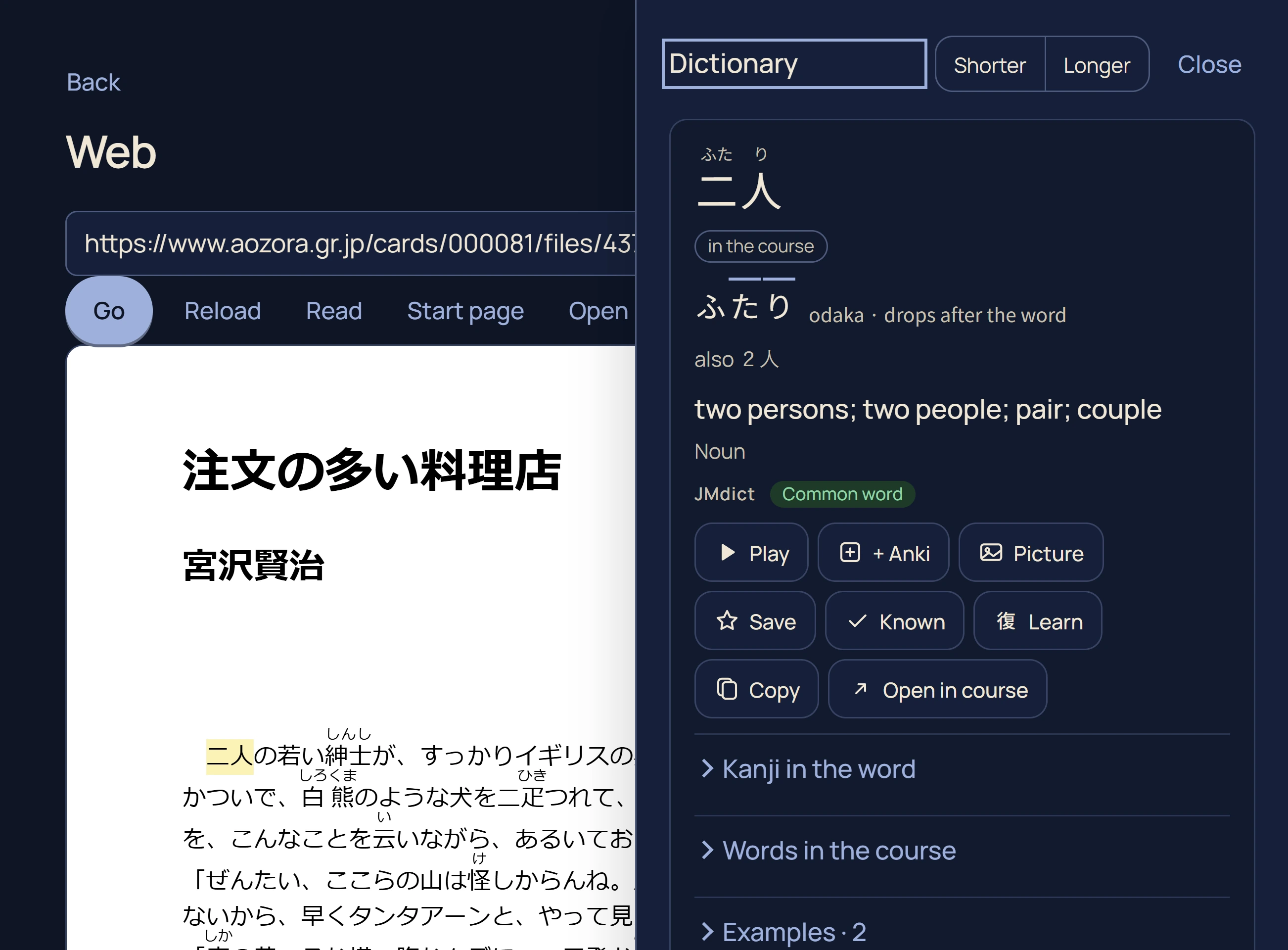
- A browser in the Library, with bookmarks and recent pages, starter sites by level, from NHK News Web Easy to Aozora Bunko, and sites of your own added beside them. On the phones the address field also searches, with DuckDuckGo, Google, Yahoo! JAPAN, Bing or Brave. A web address shared to the app opens here too, also when the browser sends the page’s title with it.
- Hold a word on any website (click it, on the web) to look it up or send it to Anki.
- Read opens the page's article in the book reader, with its settings and any furigana the page has.
- On the web, pages are fetched for you and shown without their scripts, so you can tap words in them. A page whose text is drawn by scripts is shown as the site serves it, and its words cannot be tapped.
Look up from other apps
- Select text in any app and choose "Look up in Mojiya": from the selection menu on Android, from Share on iOS. The dictionary opens over the app you were in.
- A longer selection is shown as a card you tap word by word, with every word of it listed underneath: its dictionary form, reading and meaning.
- Share text to Mojiya to look it up, on Android, on iOS and to the web app installed from Chrome on Android.
- On the web, the browser extension looks words up on any page.
Anki
- Any word, sentence or kanji can go to Anki: from the dictionary, a lesson, a book, a video, YouTube or a web page.
- A complete card. The reading, meanings, JMdict's example sentences and the sentence it was found in.
- From a video, a picture of the scene and the line's audio too (on iOS, in a deck file with Mojiya’s note type).
- From a downloaded podcast episode or a timed audiobook, the line’s audio.
- A word carries its recording, a course word its course clip and any other word the dictionary’s, from the app, the web and the extension alike; on Android and iOS a word with no recording gets the device’s voice.
- A card with no picture can get one you pick or, on the phones and in the extension, the top picture of an image search for the word, unless you switch that off.
- On Android, one tap sends a card straight to AnkiDroid, into the deck and note type you choose: Mojiya's or your own (Lapis and Kiku work).
- It marks words already in AnkiDroid and reads your known words from it.
- Without AnkiDroid they are saved as a deck.
- On iOS, one tap sends a card to AnkiMobile, into the deck and note type you choose. With your own note type it sends the text; with Mojiya’s, a card with audio or a picture goes into a deck file (.apkg) instead, and so does every card until AnkiMobile has that note type.
- On the web, one tap sends them into Anki on your computer through AnkiConnect (Check connection asks Anki for access, so no setting needs editing), with the same choice of deck and note type, marks words already in Anki and reads your known words from the collection; a deck file (.apkg) is there too.
- In the extension, on a computer, they go to Anki through AnkiConnect. In Safari on iPhone and iPad, + Anki saves the card to the app’s Anki export, and from there it goes to AnkiMobile.
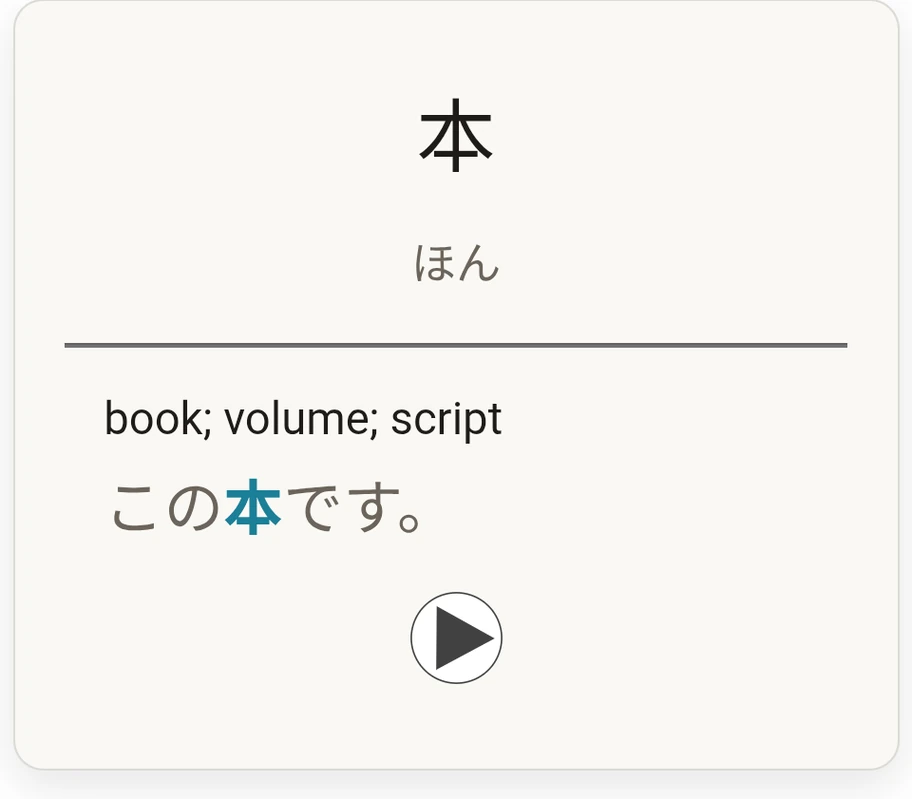
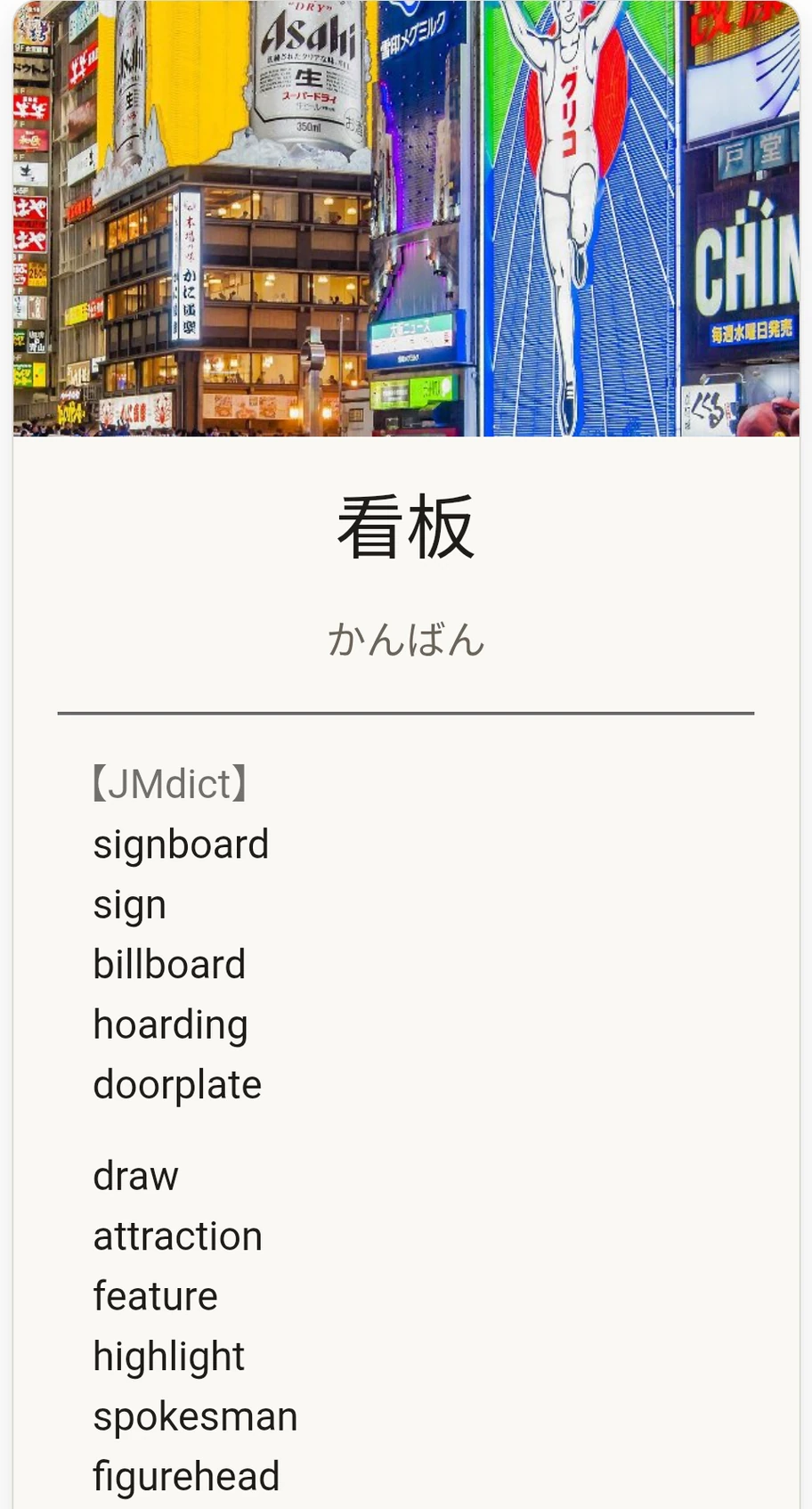
- Card style. Each side is one rounded panel in your own font. The back opens on the card’s picture, across the top, and gives the word’s reading once, under the word. It draws the word at 32px, the reading and the meanings at 18px, and the sentence it was found in at 24px, muted, left-aligned and indented, with no box around it. The meanings stand under their dictionary’s name, one a line, with a gap between senses.
- Settings › Anki shows each choice as a picture of the card it makes, in the order a card is met: Front (the word or the sentence), Readings on the front (off until you ask), Back (Rich or Simple) and Reading on the back (Whole word, Split, or Under each kanji).
- A changed style reaches the cards already in Anki with the next card you send; on iOS, with the next deck file.
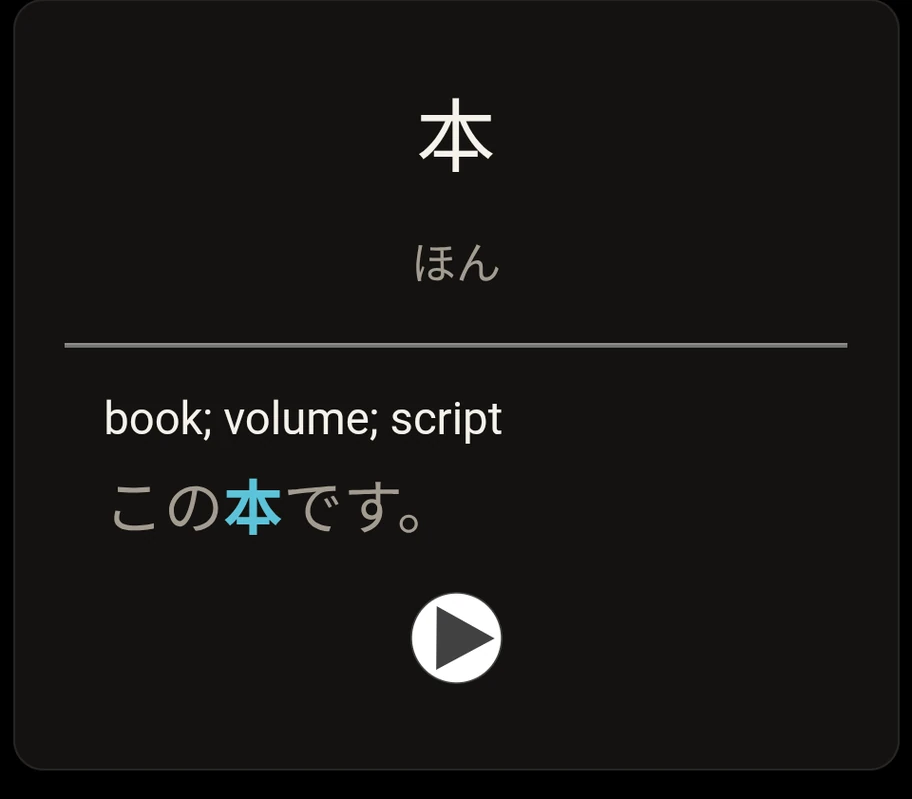
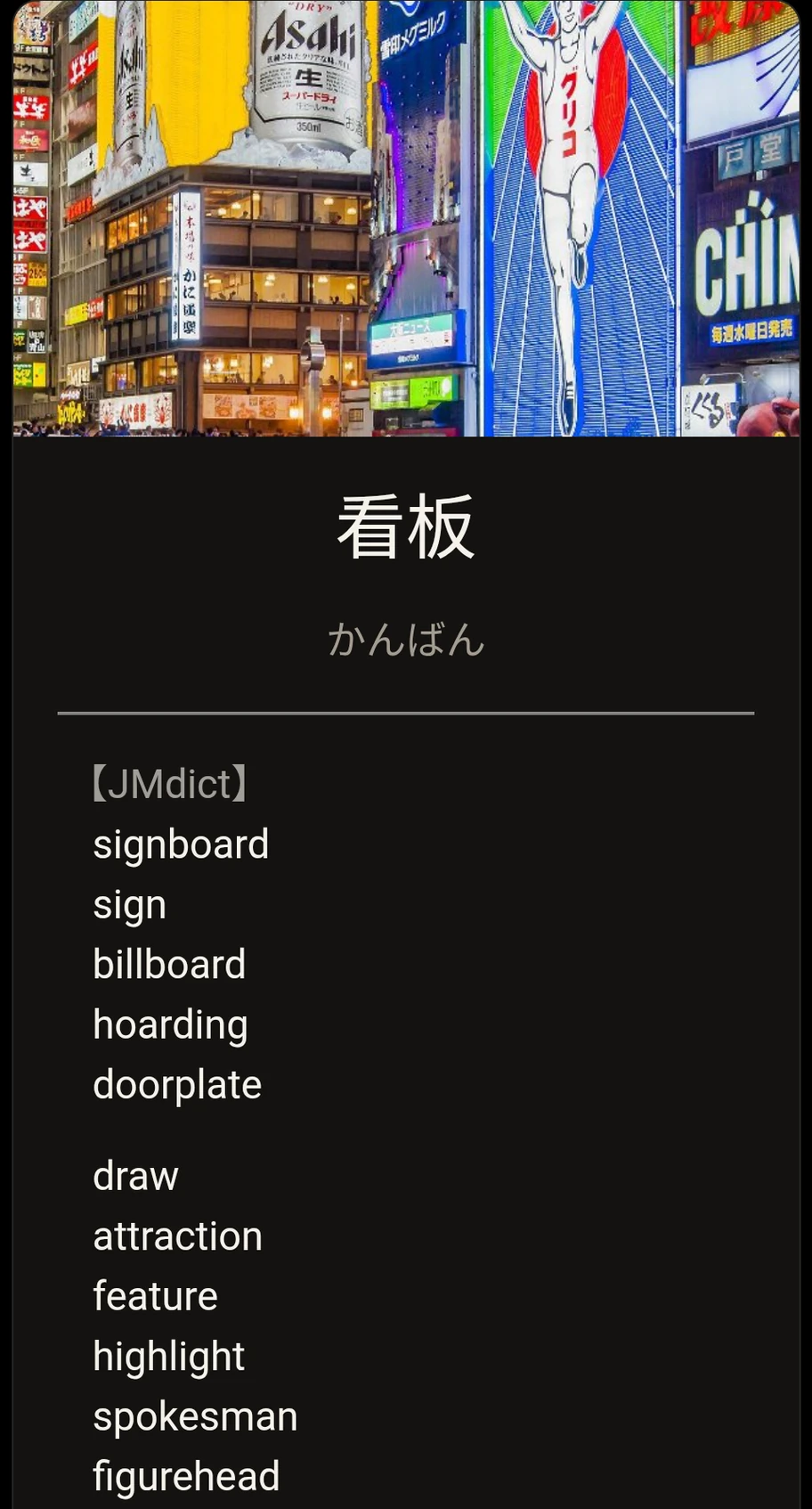
Card style Rich or Simple, a front with the word or the sentence, and readings above the kanji or hidden. Two backs in AnkiDroid, day and night: 本 as Simple, and 看板 as Rich, under its picture.
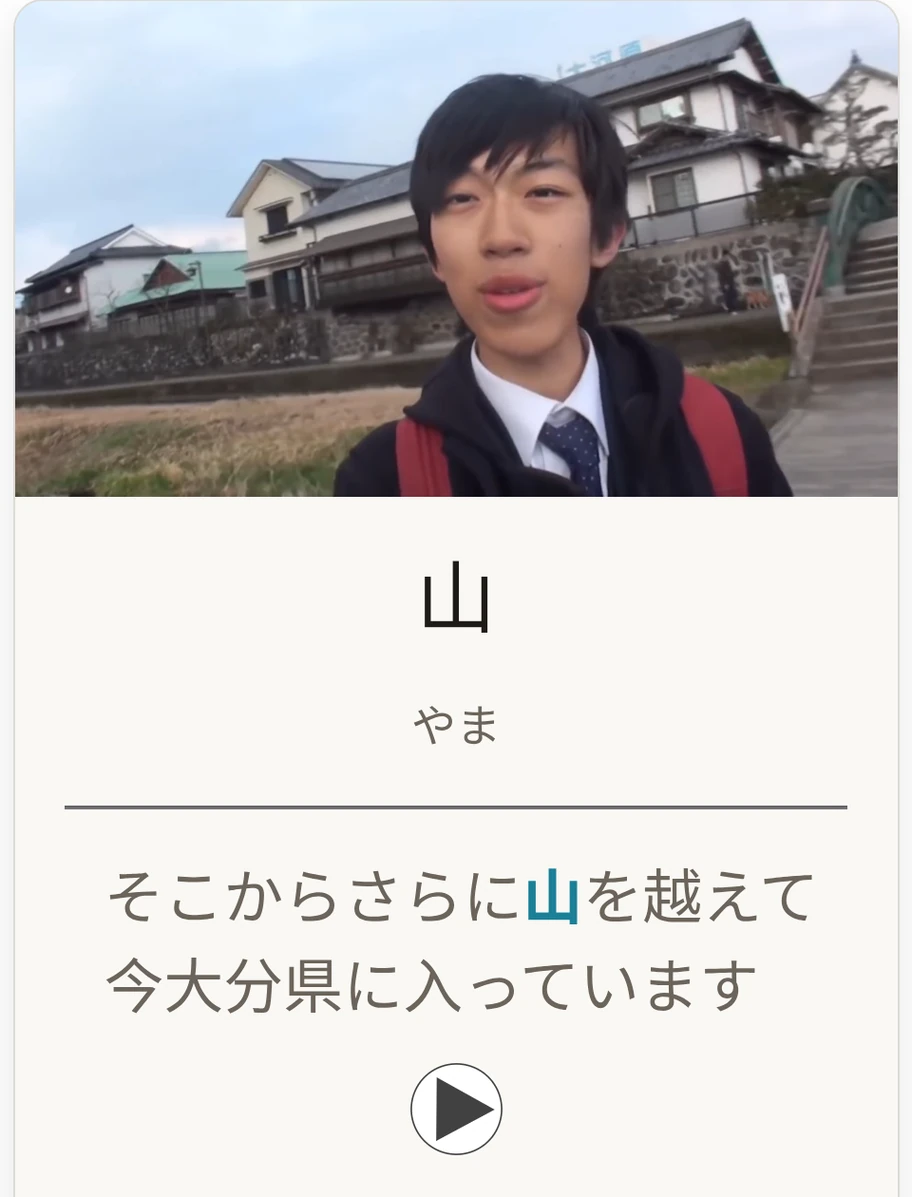
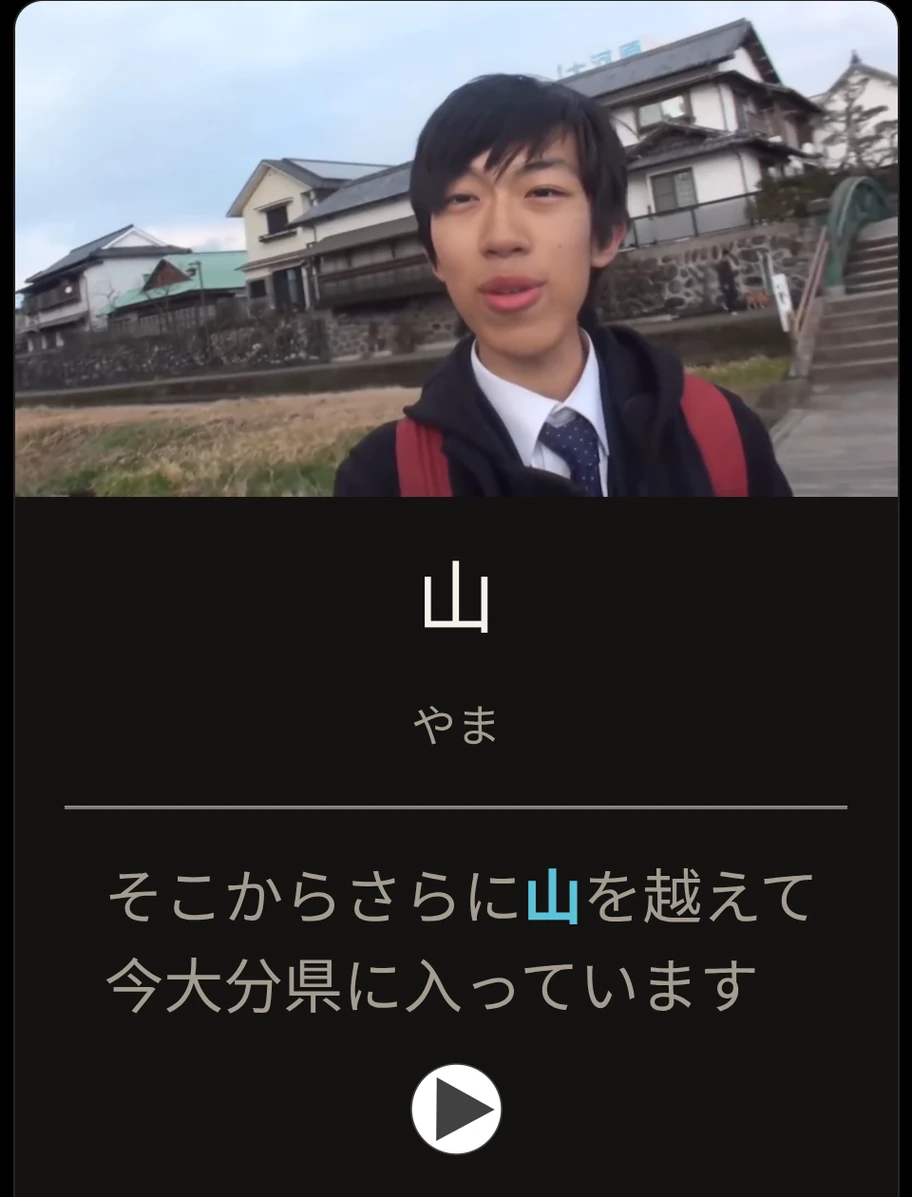
A card from a video A word sent from a film’s subtitle line takes the line itself, a picture of the scene and the line’s own audio.
Moving in
- From Anki: open a deck or collection exported with its scheduling (.apkg, .colpkg).
- Your answers are replayed into FSRS, so each card's schedule is this app's estimate from your real history.
- One file can hold several note types, each moved in as words, kanji or grammar; a grammar deck's notes are grouped by point, and a point counts as learned when at least half its notes are.
- From WaniKani: paste an API token. Items at Guru or above count as learned, and each keeps its next review date.
- From Renshuu: likewise, with its API key.
- If the other app taught only a kanji's reading, you choose whether its writing counts as known, is taught here, or is skipped, so its writing cards are answered from a grid and never drawn.
- An item another app counts as learned is learned here (WaniKani's Guru or above, or a three-week interval in Anki or Renshuu), and shows as studied in the levels, the kanji grid and the lessons. Overdue cards come back 25, 50 or 100 a day, weakest first, rather than all at once.
- Imported figures are labelled on the progress screen, and each import can be cleared by source.
Make it yours
- Light, dark or follow the system, with the accent in one of seven traditional Japanese dye colours.
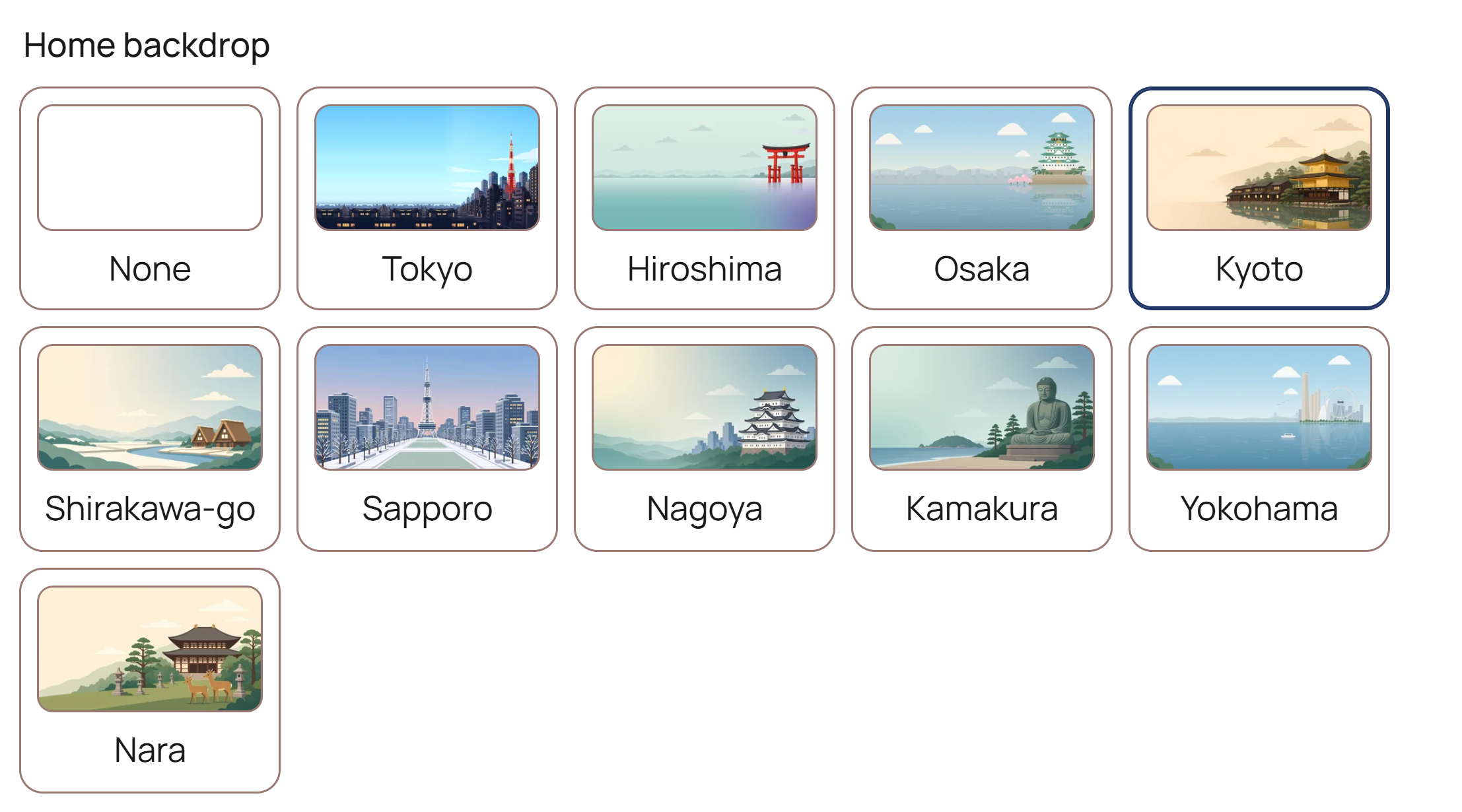
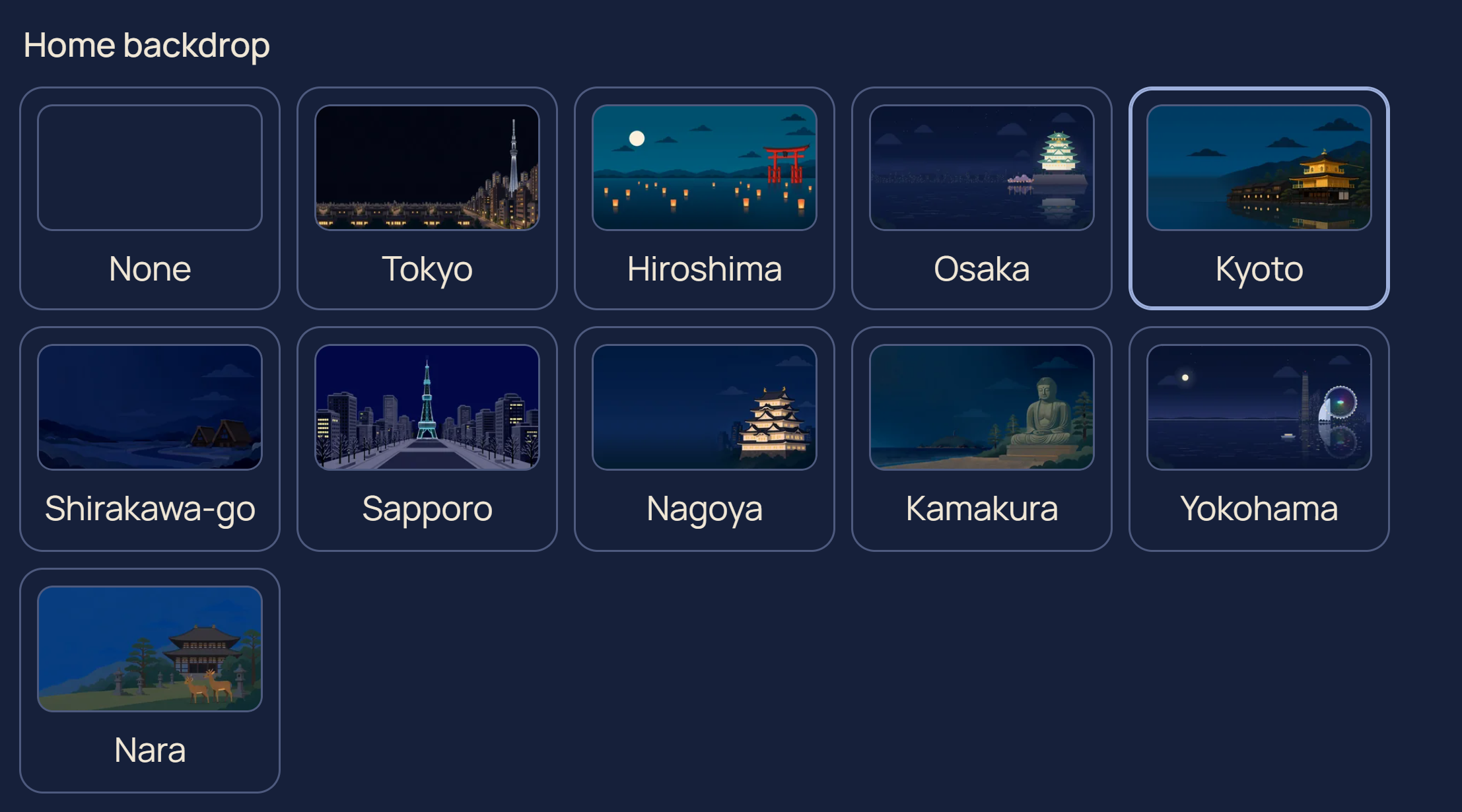
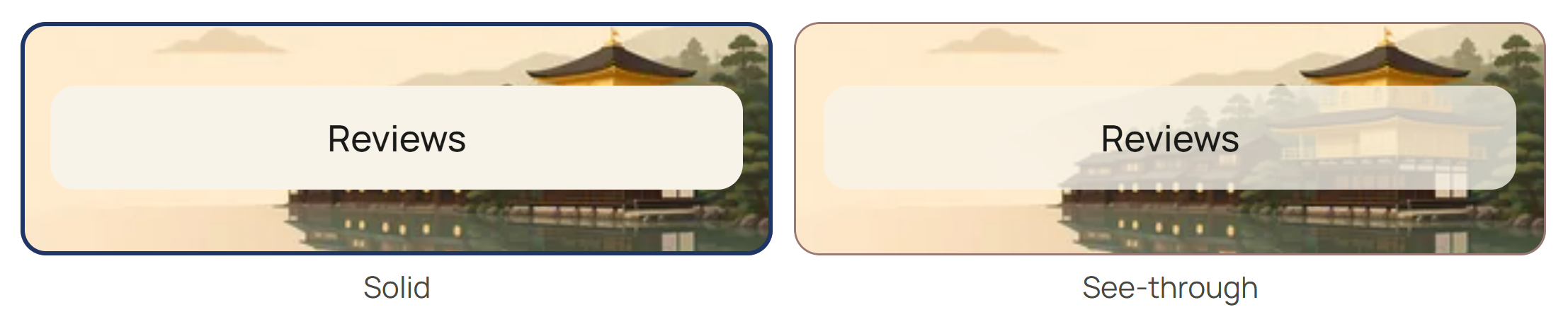
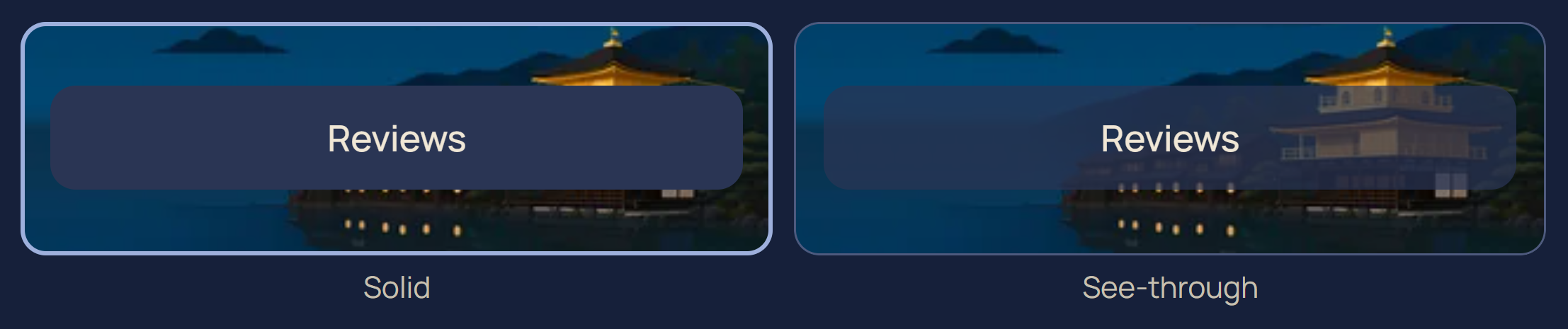
- Home backdrops of ten Japanese places, from Tokyo to Kyoto and Nara, behind solid or see-through tiles, and one of five interface fonts.
- Search settings. A search field in Settings finds any setting by its name and says where it lives.
- Reduce animations. A switch in Settings stills the app’s motion, on Android, iOS and the web.
- The look-up highlight in the accent colour or one of six highlighter pens.
- Accessibility. Colour-blind answer colours in blue and orange, larger furigana, plain words such as “Common word” in place of dictionary codes, and screen-reader labels throughout, which also say in words what a medal, a tile’s mastery tint and a practice-test answer show only in colour.
Colour Seven traditional dye colours, on the buttons and a finished lesson; light and dark each use their own shade.
Interface font Five faces for the pages’ Latin text; Japanese keeps its own.


Home backdrop Ten places, or none.
Home transparency Solid tiles, or the place showing through them.
How different the fonts get With the typeface randomiser on: textbook, print or brush.


Answer colours Mint and coral, or blue and orange for colour-blind eyes.




Furigana Half the word’s size, or larger.
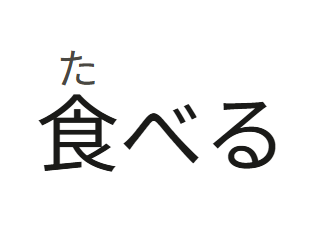
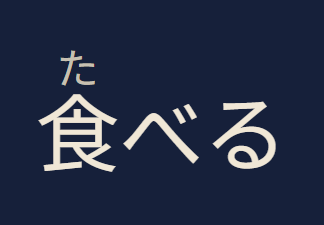
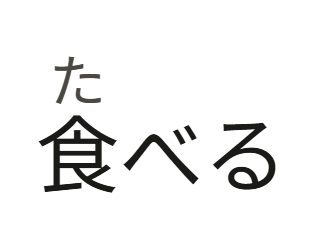
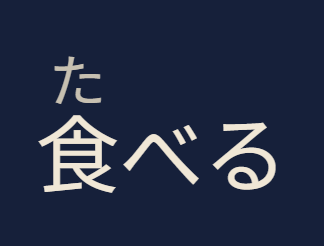
Lookup marker The accent colour, or one of six highlighter pens.














The browser extension
An extension for Chrome, Edge and Firefox (on Android too), with store listings on the way, and for Safari on iPhone, iPad and Mac: on iPhone and iPad it comes inside the iOS app, and on a Mac it is a small app of its own that holds only the extension. It runs the app's own dictionary engine in the browser, on any page and on YouTube, Netflix and any other video with a subtitle file; on iPhone and iPad it uses the app's own dictionary.
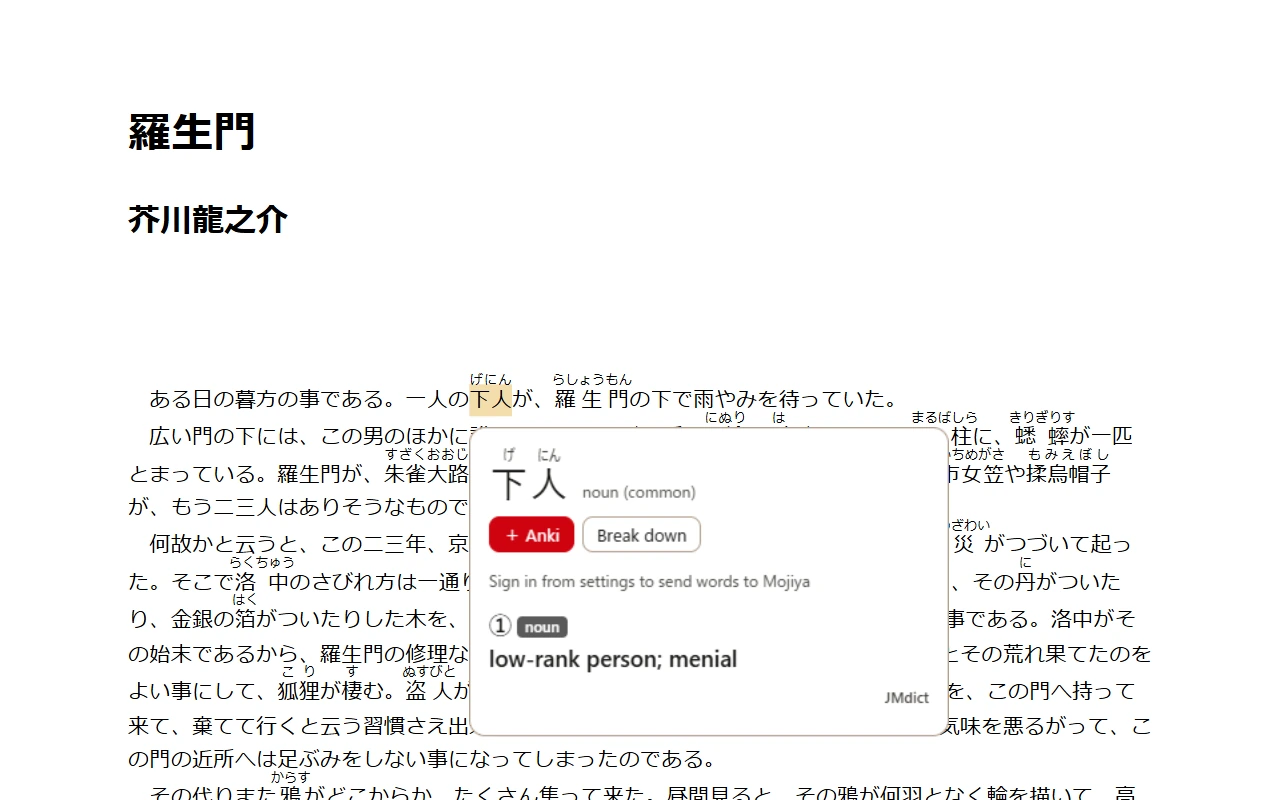
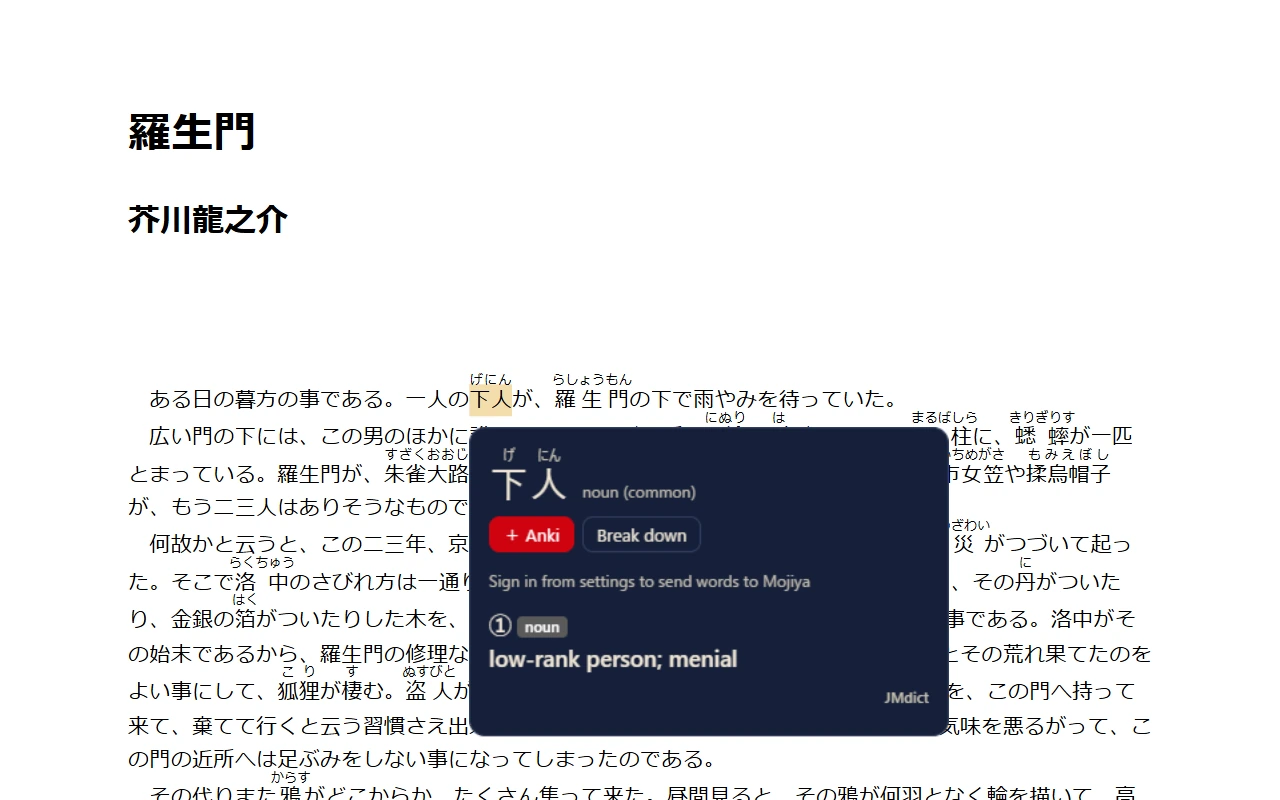
- Hold Shift over Japanese on any page to see the word, its reading, meanings and example sentences. Alt, Ctrl, no key at all, or a click can be used instead, and on a touch screen a tap.
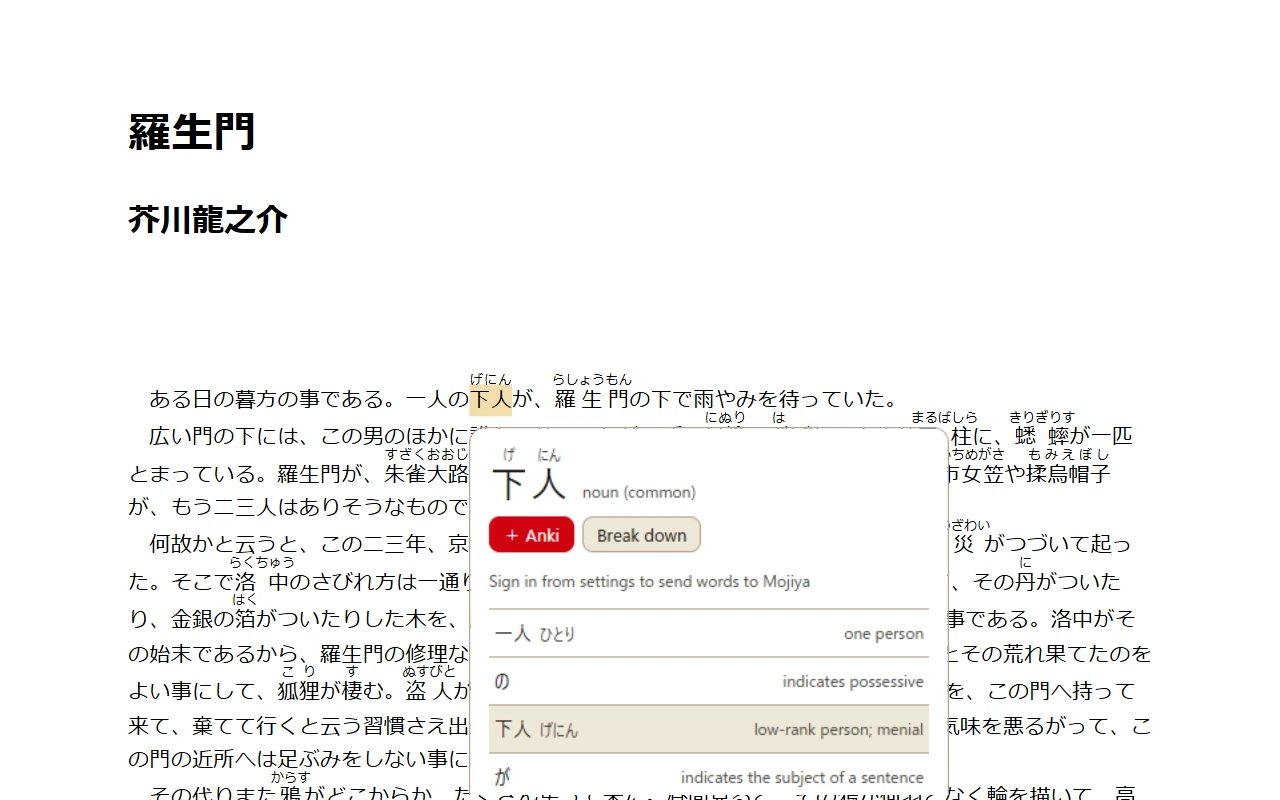
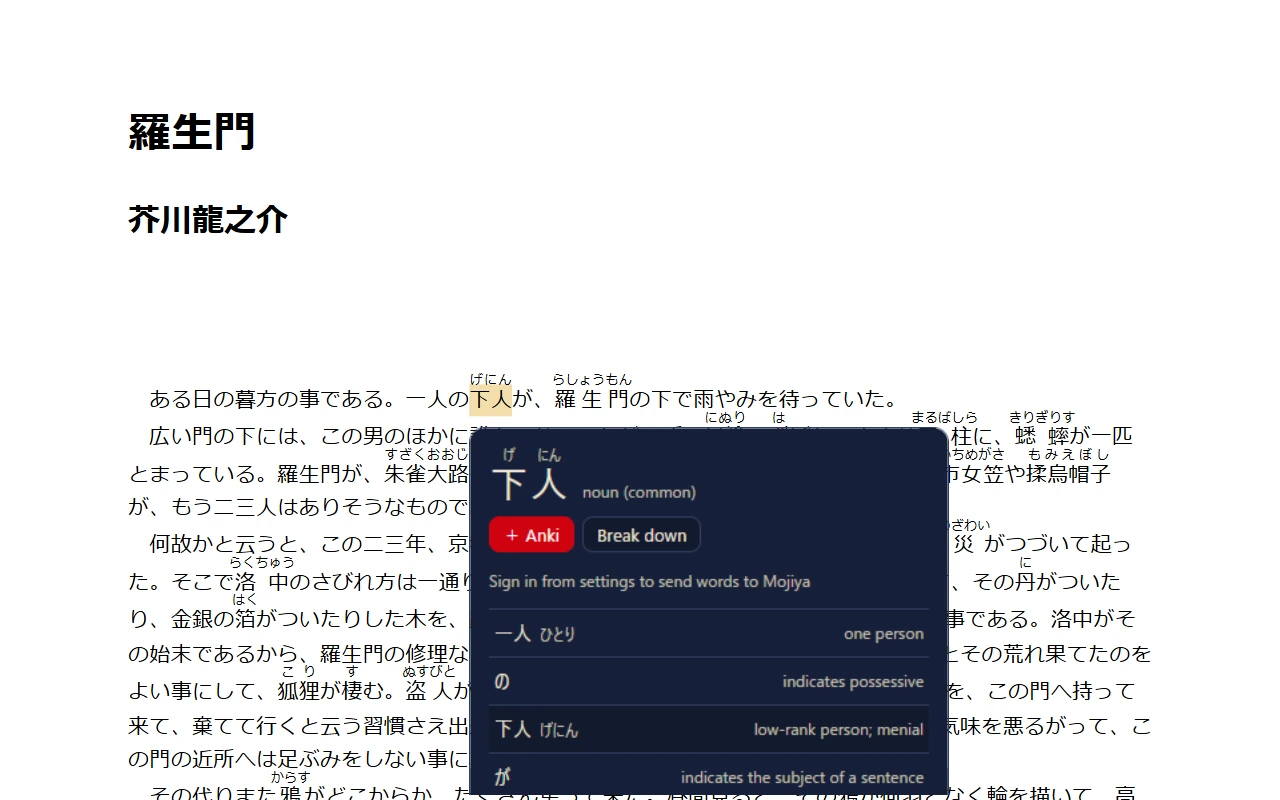
- Break down lists every word of a sentence at once.
- The dictionary downloads once (about 80 MB) and stays in the browser, so look-ups are instant and work offline.
- YouTube: a video's Japanese captions are drawn as a line you can look up. Netflix: the Japanese subtitles become the same line, with every key below, and Alt+J switches a show’s subtitles to Japanese. Any other video: drop a subtitle file (SRT, VTT, ASS or SSA) onto it.
- A preview before you click. Rest the pointer on the subtitle line and the word a click would look up is tinted, without pausing the video or opening the pop-up.
- Keys: Alt+← and Alt+→ move between lines, Alt+↓ replays one, Alt+P pauses at the end of each line, Alt+L opens the transcript, Alt+H hides the line, and Alt+E adds the English line.
- + Anki adds the word with the sentence, the word’s own recording in the voice you choose and a picture, and from a video a screenshot and the line’s audio. On sites that block recording, press Alt+Shift+M once on the tab, in Chrome or Edge. On a computer this needs Anki with the AnkiConnect add-on; in Safari on iPhone and iPad the card is saved to the app, which sends it to AnkiMobile.
- Learn in Mojiya. Signed in, one button puts the word on your study list in Mojiya, on the Learn tab of every device. Signed out, the pop-up says where to sign in.
- What you look up is read in your browser and never sent to us.
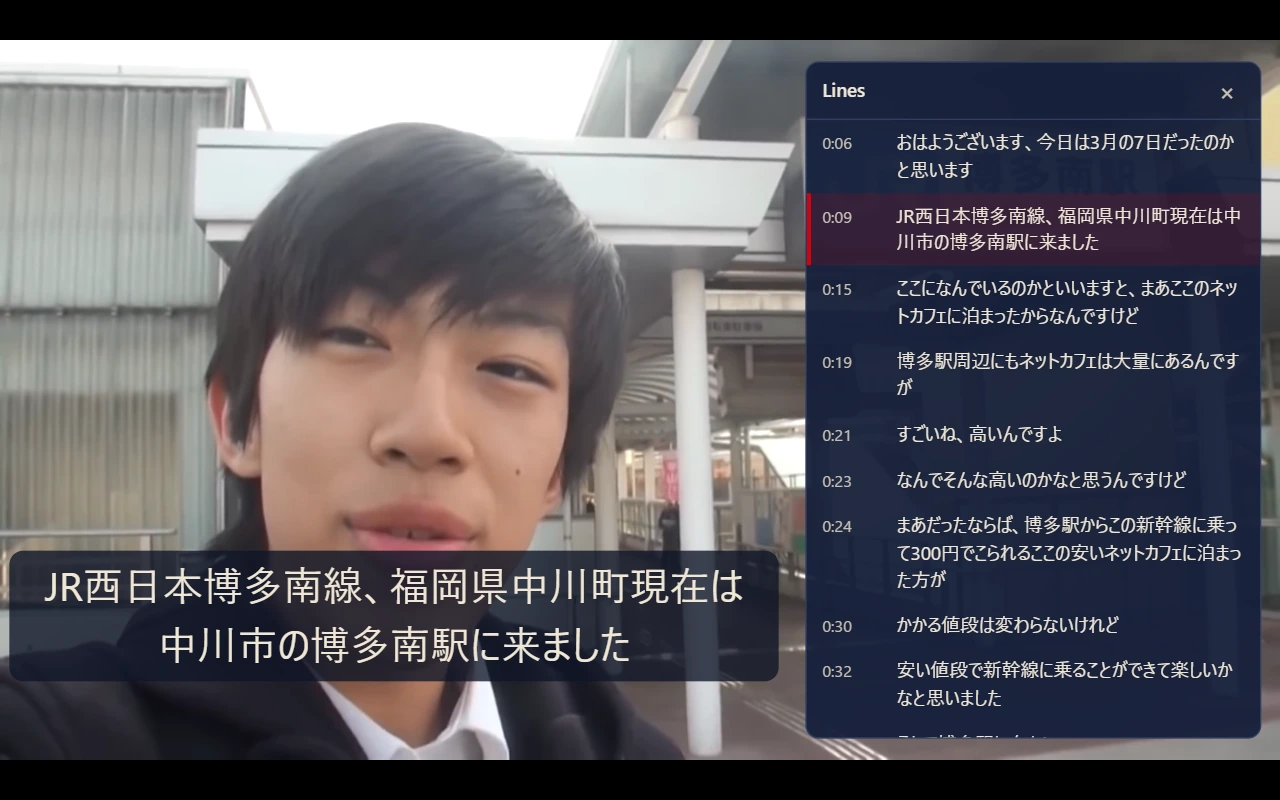
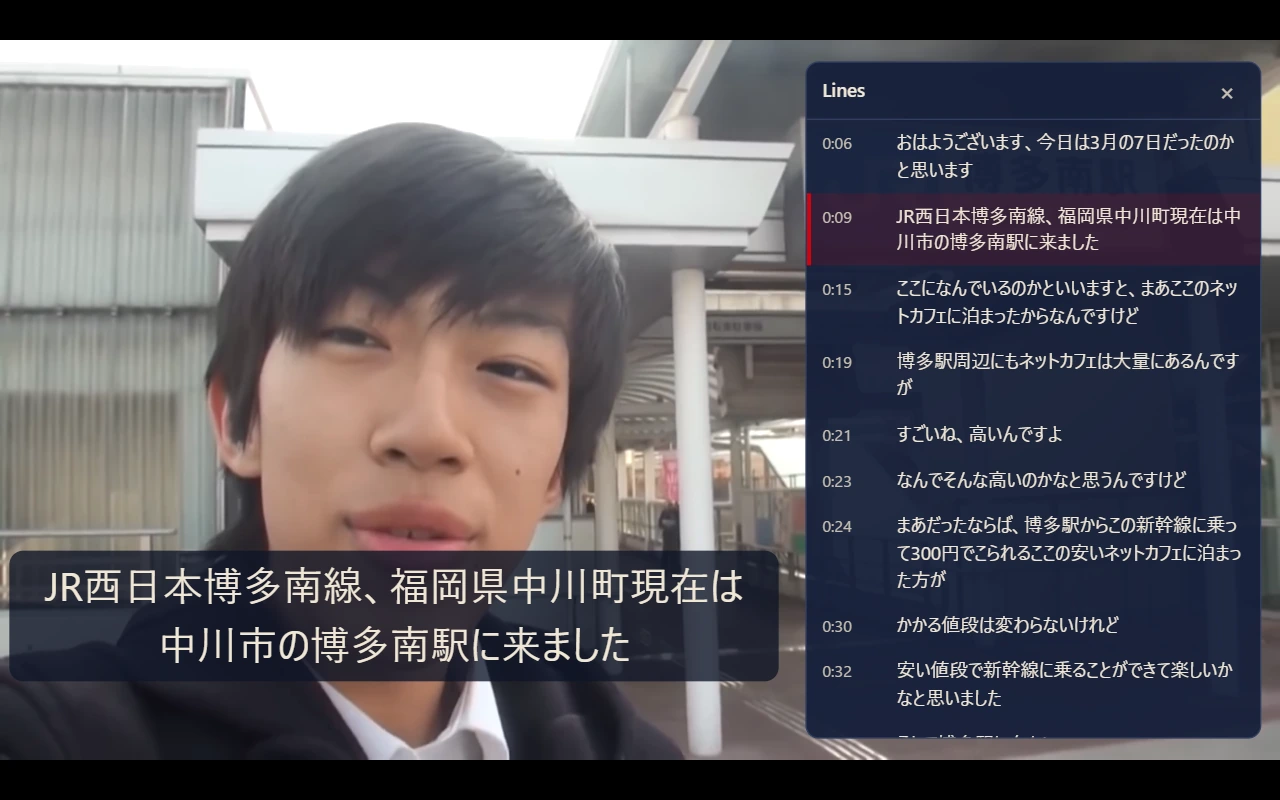
On pages and videos Break down, a subtitle file dropped on a video, the word under a resting pointer, and the film’s lines.
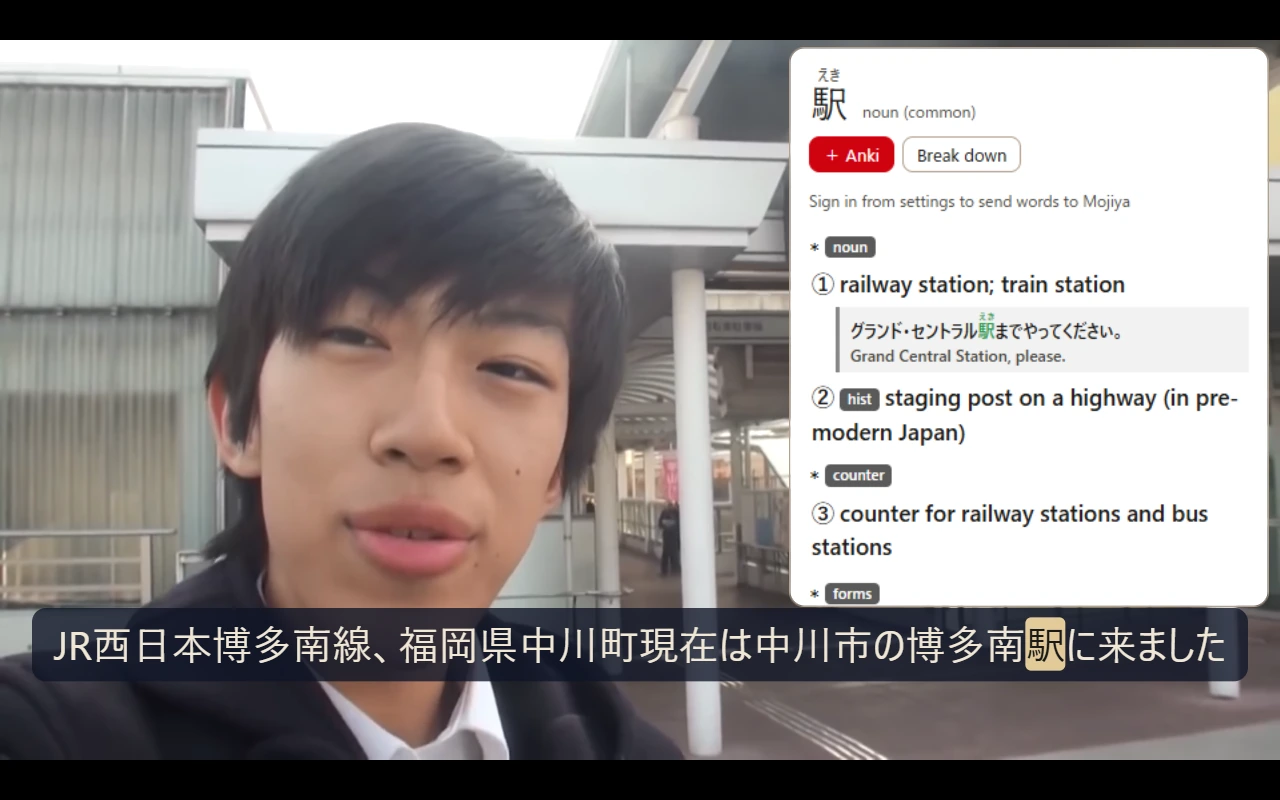
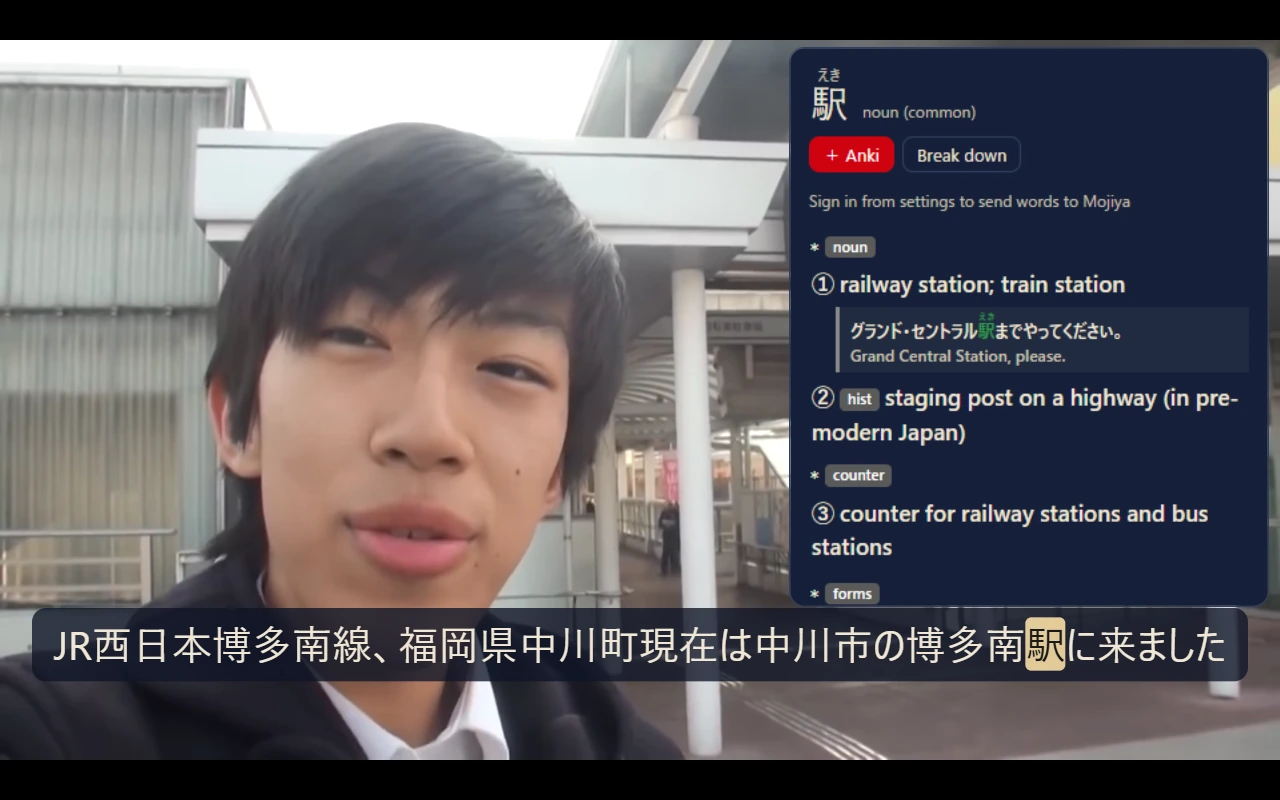
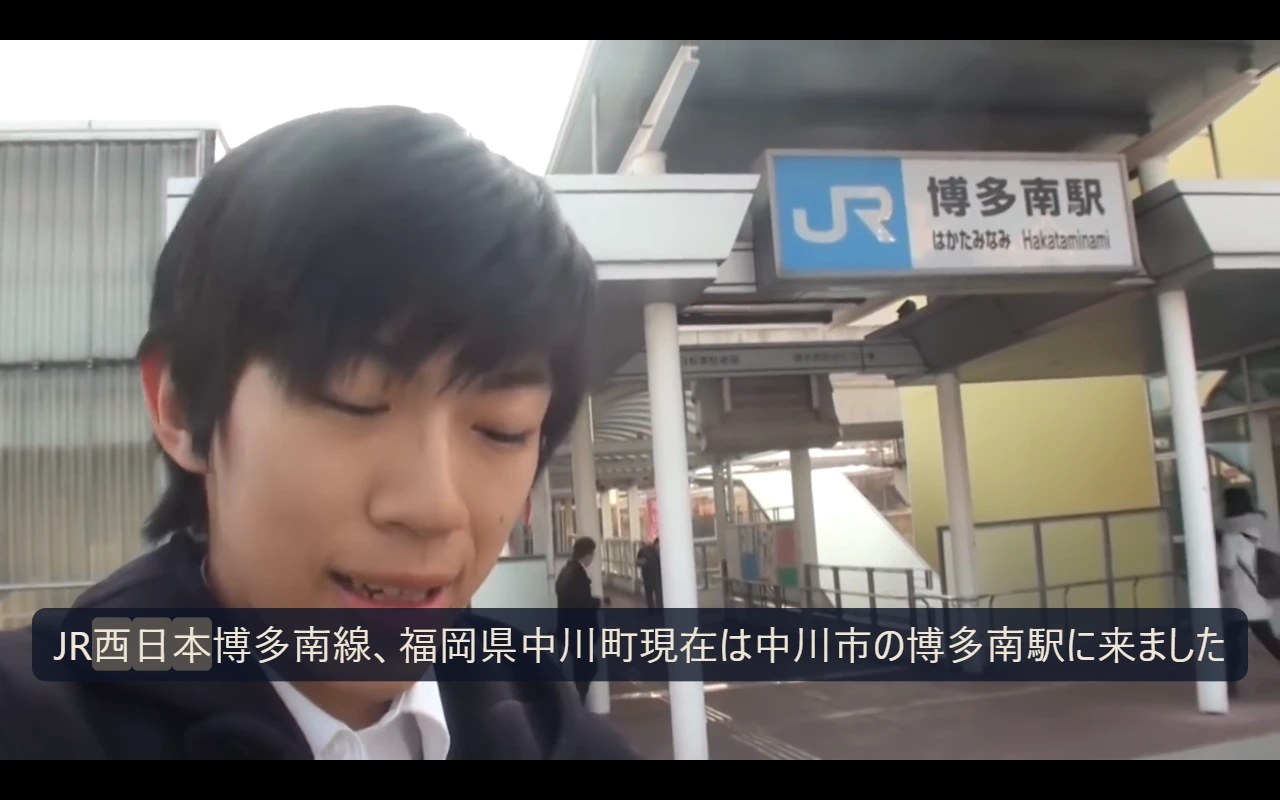
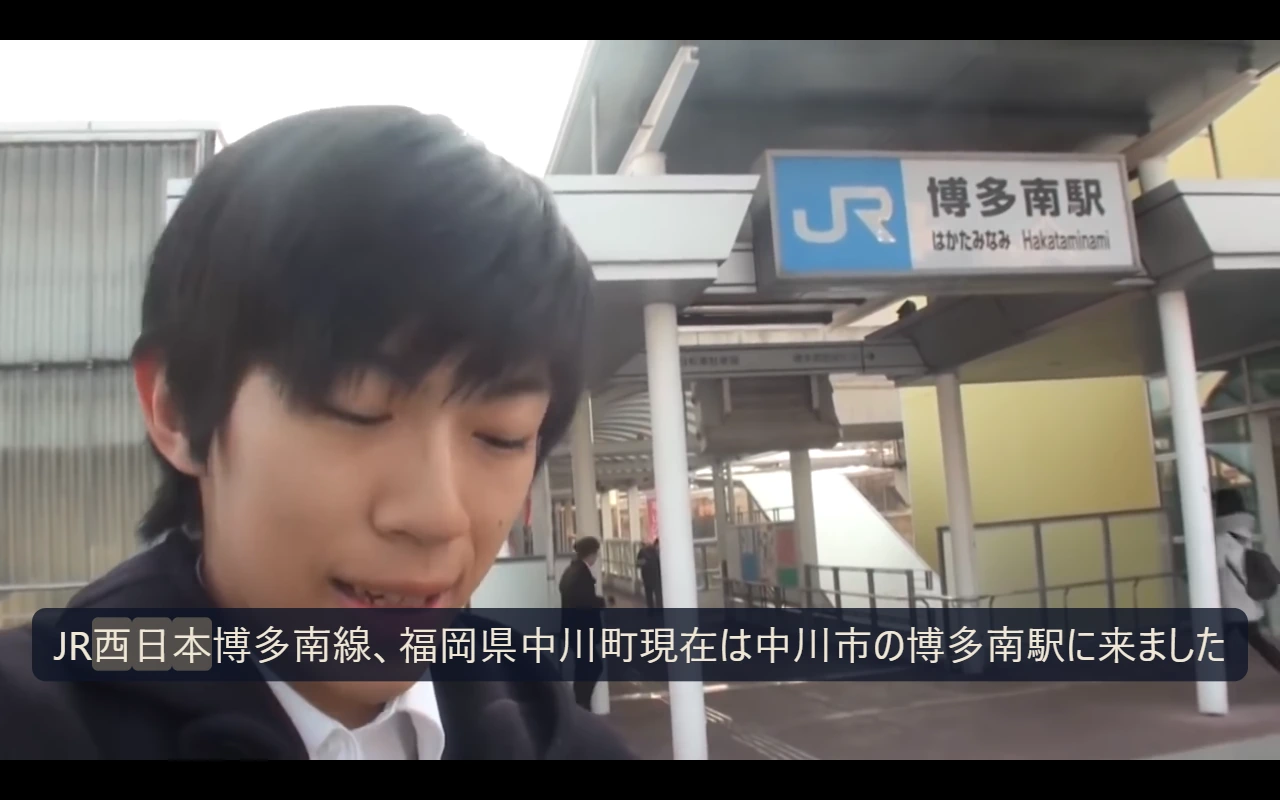
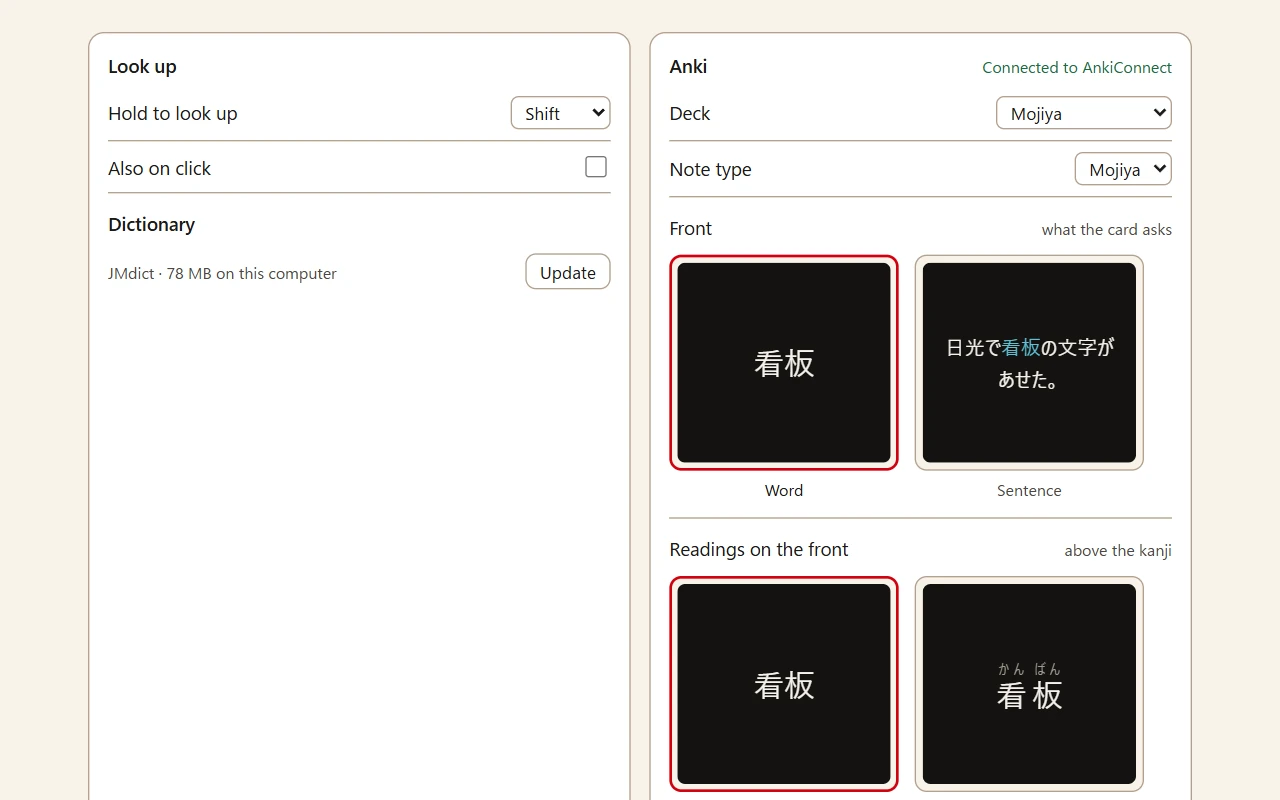
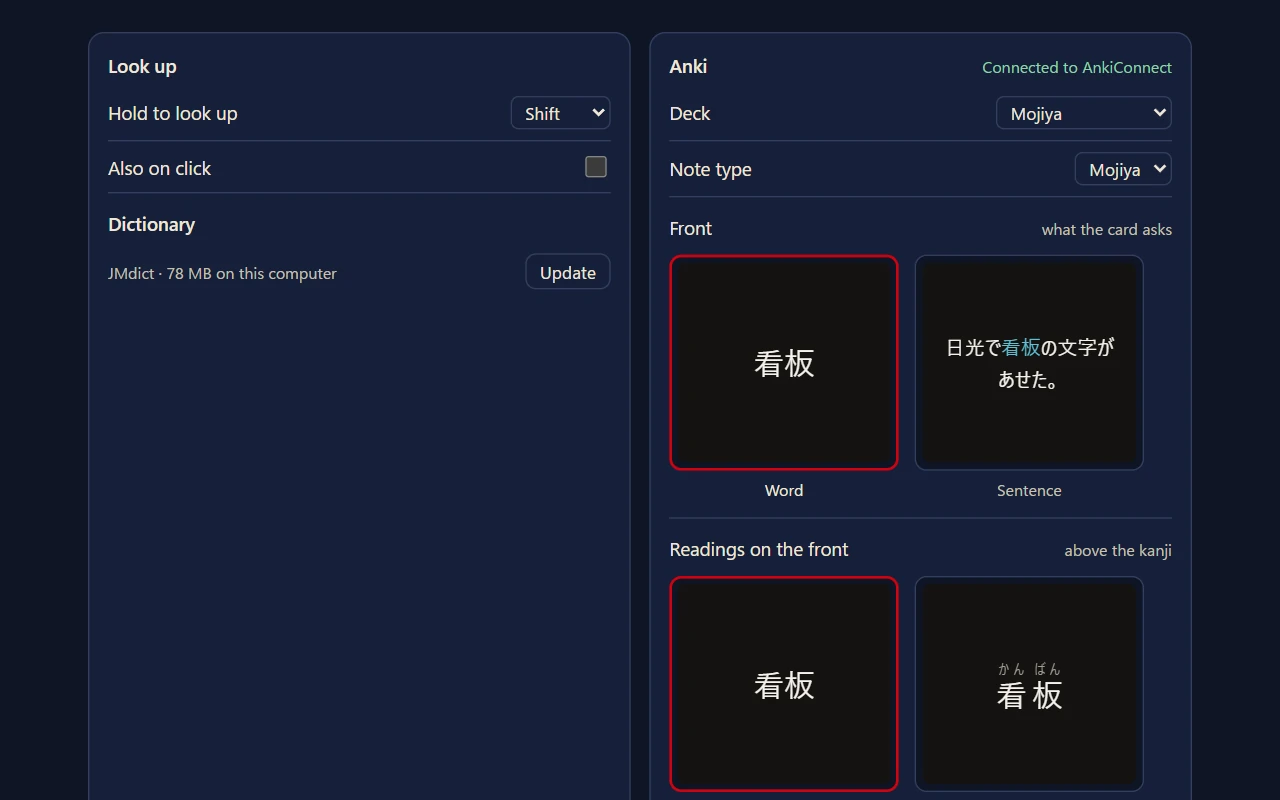
The extension’s settings The key that looks up, the dictionary on this computer, and the Anki deck and note type, with each card choice drawn as the card it makes.
+ Anki in Safari on iPhone One tap saves the word, with its reading, its meaning and the sentence it came from, to Mojiya’s Anki export, where the app adds its recording and a picture; it goes to AnkiMobile from Settings › Anki › Export deck.
Supported formats
| What | Formats | Notes |
|---|---|---|
| Books | EPUB, PDF; several at once, or a folder of them | Any size your device has room for; EPUB 3 media overlays play as a read-along; a PDF with text can be read as a book; text in UTF-8, UTF-16, Shift_JIS or EUC-JP |
| Manga and comics | ZIP, RAR, CBZ, CBR, a folder of JPG, PNG or WebP pages | Picture pages are read by on-device text recognition |
| Video | What the platform plays. On iOS also MKV, WebM, AVI, FLV, TS and OGG | Android uses Media3, iOS AVPlayer and VLCKit, and the web the browser's own player |
| Subtitles | SRT, VTT, ASS, SSA, and the text tracks inside an MKV, WebM or MP4 | Files in UTF-8, UTF-16, Shift_JIS or EUC-JP. Picture subtitles such as PGS are not read as text; on iOS the player draws them |
| Audiobooks | Audio files with an EPUB or a transcript | Aligned on the device, on all three platforms |
| Podcasts | RSS feeds, Apple Podcasts and Spotify show links | Transcripts from the show, or made on the device |
| Dictionaries | Yomitan (.zip) | Term and frequency dictionaries, format versions 1 to 3 |
| Imports | Anki (.apkg, .colpkg) word, kanji and grammar decks, WaniKani API, Renshuu API | Learned items keep their next review; overdue ones are spread over the following days |
| Exports | AnkiDroid, AnkiMobile, Anki deck (.apkg), AnkiConnect | A video's picture and audio go to AnkiDroid, AnkiConnect, and the deck file made on iOS or the web |
Platforms
One course and one set of tools, delivered the way each platform allows.
| Feature | Android | iPhone and iPad | Web | Extension |
|---|---|---|---|---|
| Get it | ||||
| Where to get it | Google Play, coming soon; Android 11 or later | App Store, coming soon; iOS 18.5 or later | mojiya.app | Chrome, Edge, Firefox, coming soon; Safari on iPhone, iPad and Mac (macOS 13 or later), with the apps |
| Sign in | Optional; Apple or Google, or both | Optional; Apple or Google, or both | Optional; Apple or Google, or both | Optional |
| Study | ||||
| Course and reviews | — | |||
| Works offline | The dictionary by itself; the rest with Settings › Keep for offline | Dictionary | ||
| Bring progress from Anki, WaniKani, Renshuu | — | |||
| Progress synced across devices | — | |||
| Save and restore progress to a file | — | |||
| Placement test | — | |||
| Practice tests and drills | — | |||
| Your library through your own Google Drive or iCloud | iCloud in Safari, or through mojiya.app’s page | — | ||
| Read and watch | ||||
| Books and manga | — | |||
| Your videos with subtitles | ||||
| YouTube captions as text | —Use the extension | |||
| Browse websites and look words up | ||||
| Podcasts with transcripts | A host that blocks websites: saved by hand | — | ||
| A PDF with text as a book | Android 15, or with the system’s PDF text reader | — | ||
| Read aloud | — | |||
| Read along with an audiobook | Aligned in the browser | — | ||
| Text recognition on picture pages | — | |||
| Live TV | — | |||
| Look up | ||||
| Dictionary | Pop-up | |||
| Look up from other apps | —Use the extension | Any page | ||
| Anki | ||||
| Send words to Anki | AnkiDroid, one tap | AnkiMobile, one tap, or a deck file | AnkiConnect, or a deck file | AnkiConnect on a computer; through the app on iPhone and iPad |
| Video picture and audio on Anki cards | Through AnkiDroid | In the deck file, with Mojiya’s note type | On a computer | |
included not available
Under the hood
- One codebase. Kotlin Multiplatform: Android and iOS share their screens in Compose Multiplatform, and the web app runs the same logic as WebAssembly behind its own HTML pages.
- Scheduling. A port of FSRS-6 reads an append-only log of every answer, so the schedule is derived from what happened, never from a counter beside it.
- Content. The course and dictionary ship as read-only SQLite databases, built by a reproducible pipeline: two builds of one revision produce the same bytes. The dictionary holds 253,451 senses and 32,114 example sentences.
- Text recognition. On Android, ML Kit together with PaddleOCR. On iOS, Apple's Vision. On the web, PaddleOCR running in the browser. The page image stays on the device.
- Speech recognition. Podcast transcripts and audiobook alignment are made on the device by sherpa-onnx, on Android, iOS and in the browser.
- Audio. Synthesised speech, in a female and a male voice, for the words, the example sentences, the grammar examples and every kana and kanji reading. Where Kanjium or UniDic records a word’s pitch accent, the voice is set to it.
- Your data. Save your progress to a file and restore it on any platform: Settings › Library backup on the phones, Account on the web. Signed in, you can also export your whole review log. On Android and iOS the phone’s own backup carries it too, and library files sync through your own Google Drive or iCloud, never through Mojiya’s servers. A progress file the app cannot open is kept under a dated name, never deleted, and the app opens on an empty one and says so. An account can be deleted in the app, at Settings › Account and sync, or on the web’s Account page; a subscription is cancelled in the store it was bought from, not by deleting the account. Read the privacy policy.
- Renewals offline. A subscription whose term ends while the device is offline stays open for thirty days, until the store can answer.
Sources and licences
Mojiya is built on openly licensed data. Full attribution and every licence are in the app, under About.
| Source | Used for | Licence |
|---|---|---|
| JMdict, KANJIDIC2, JMnedict | Words, kanji and names | CC BY-SA 4.0, the EDRDG |
| KanjiVG | Stroke order, and handwriting grading | CC BY-SA 3.0 |
| Tanaka Corpus, via Tatoeba | Example sentences | CC BY 2.0 FR |
| Kanjium | Pitch accent | CC BY-SA 4.0 |
| Jiten | Word frequency | CC BY-SA 4.0 |
| UniDic | Pitch accent of the rarer dictionary words’ recordings, set when they were made | BSD 3-Clause |
| KRADFILE and RADKFILE | Finding a kanji by its parts | CC BY-SA 4.0, the EDRDG |
| NINJAL 日本語文型データベース | The grammar inventory packed with the course | CC BY 4.0 |
| Yokubi | Grammar notes | CC BY 4.0 |
| Jitendex | Optional download: a fuller dictionary | Under its own licence |
| sherpa-onnx | Podcast transcripts and audiobook alignment, on the device | Apache 2.0 |
| ReazonSpeech | The Japanese speech model sherpa-onnx runs | Apache 2.0 |
| VLCKit | MKV, WebM and other playback on iOS | LGPL 2.1 or later |
| PaddleOCR PP-OCRv5, on ONNX Runtime | Text recognition on picture pages, on Android and the web | Apache 2.0; MIT |
Questions
Read the FAQ, or write to support@mojiya.app.